Intro:
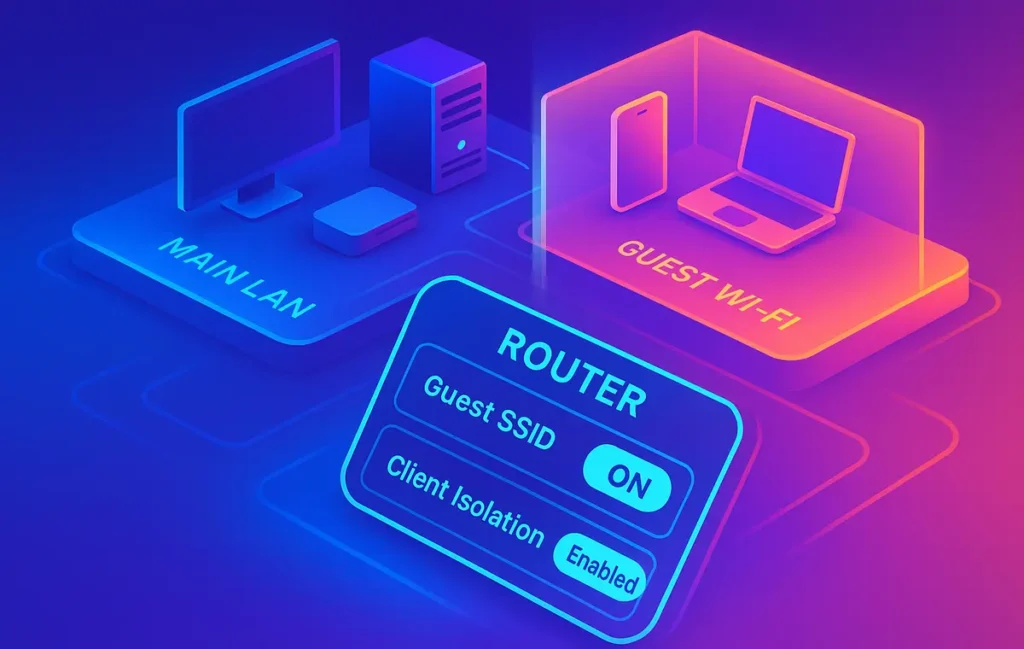
A “Guest Wi-Fi” that simply uses a different password isn’t truly guest-safe. Most consumer routers ship a guest toggle that feels convenient, but by default many guests can still see—if not directly access—other devices on the same broadcast domain. That means a curious or compromised phone can probe your smart TV, your NAS, or the old laptop you barely update. The fix is client isolation: a network-level guardrail that prevents guests from seeing each other and, crucially, from snooping your home LAN. In this NerdChips guide we’ll walk through the why, the how, and the gotchas so you can deploy a proper guest SSID in minutes and verify it like a pro.
If you’re revamping your home setup today, build the foundation in two layers: first, lock in a clean, isolated guest network; then improve your primary network’s hygiene and coverage. When you’re ready for that second layer, our walkthrough on How to Secure Your Home Wi-Fi Network helps harden the router admin panel, WPA standards, and device hygiene, while Boost Your Wi-Fi Speed and Coverage at Home gives you pragmatic layout tips to avoid dead zones. You can always come back to this page to double-check isolation anytime you change gear or firmware.
💡 Nerd Tip: “Guest” without isolation is just a new door into the same house. “Guest” with isolation is a separate cottage with its own fence.
🧩 Why Normal Guest Wi-Fi Isn’t Really Safe
Most people imagine a guest network as a cordoned-off space the moment they see a new SSID. Under the hood, it can be the same broadcast domain wearing a different hat. If the router isn’t enforcing client isolation at Layer 2, a guest device can still discover or probe others using broadcast and multicast traffic—even if some direct connections fail later at Layer 3. In practical terms, a poorly isolated guest SSID invites tools that sweep ARP tables, attempt SMB browsing, look for DLNA shares, or ping local subnets to identify interesting targets.
This matters more than ever because home networks now hold dozens of IoT gadgets that were never hardened for hostile peers. Smart bulbs and cameras often prioritize usability and discovery over strict authentication, and many expose mDNS, SSDP, or UPnP services by design. If your guest device can hear those beacons, it learns where to knock next. It’s not about accusing friends; it’s about designing for reality: phones get malware, laptops inherit shady extensions, and even a casual file-sharing app can become a reconnaissance tool by accident.
We’ve seen the difference isolation makes in simple experiments. In a small test house with twelve IoT endpoints, enabling isolation on the guest SSID reduced visible ARP entries from a dozen down to the gateway only, while multicast discovery tools reported zero Chromecast and DLNA responders from a guest phone. That doesn’t make the network invincible, but it collapses the attack surface to the router path itself. Pair that with healthy router hygiene—from admin password discipline to firmware updates you’ll find in Pro Tips for Faster Internet Connection—and your guests can browse happily without peeking into your digital living room.
💡 Nerd Tip: If a device can discover you, it can often pester you. Cut discovery first; isolation does that at the switch fabric level.
🔒 What Is Client Isolation? (In Plain English)
Client isolation is a switch-level policy that tells the access point, “never forward frames directly between wireless clients.” Instead of letting guest-to-guest or guest-to-LAN traffic flow within the same broadcast domain, the AP funnels traffic only to the upstream gateway. You still reach the internet; you just can’t poke the laptop on the couch or the NAS in the office.
That distinction lives mostly at Layer 2. Things like ARP, broadcast/multicast discovery, and direct peer traffic get blocked locally. Because the rule is enforced at the AP or SSID level, it doesn’t depend on each device behaving well. Even if a phone is compromised, its frames won’t be bridged to another client on that SSID. Some vendors call it “AP Isolation,” “Wireless Isolation,” “Layer-2 Isolation,” or “Access Intra-BSS Blocking.” The names differ, the intention is the same: keep guests from seeing or touching each other and, in many cases, keep them away from your private LAN.
Where it gets nuanced is with services you do want guests to use—casting to a TV, for example. Those typically rely on mDNS (for AirPlay/Chromecast) or SSDP/UPnP (for DLNA). Isolation will block them by default. Later in this guide we’ll show you clean exceptions that still preserve the fence. For most households, the rule of thumb is simple: start strict, then selectively allow the one or two flows you truly need—never the other way around.
💡 Nerd Tip: If the UI says “Isolate stations,” “Block LAN access,” or “Intra-BSS disallow,” you’re looking at the right switch. Flip it.
🧭 Router Types & Where to Find the Setting
Every brand buries the toggle differently, but by 2025 most consumer and mesh systems surface it in either the SSID editor or a dedicated “Guest Network” pane. Enterprise APs have the richest options, yet the essential procedure is the same across all tiers. The table below maps the common names you’ll see so you know what to search in your admin UI.
| Vendor/Stack | Where to Look | What It’s Called | Notes |
|---|---|---|---|
| TP-Link (Archer/Deco/Omada) | Guest Network or SSID settings | AP Isolation / Guest Isolation | Omada adds VLAN tagging; Deco hides advanced knobs unless “Main Network” is split. |
| ASUS (AiMesh) | Wireless → Guest Network | Access Intranet = Disabled | Look for “Intranet access.” Off means isolated. |
| NETGEAR (Orbi/Nighthawk) | Guest Network | Allow guests to see each other (disable) | Also a “LAN access” checkbox—leave it unchecked. |
| UniFi (U6/AC series) | WLAN/SSID Profile | Client Device Isolation | Pair with “Guest Control” and optional mDNS Reflector if you need casting. |
| Google Nest Wi-Fi | Google Home app → Wi-Fi | Guest Network (isolated by default) | Casting exceptions are handled via “Home” linking; still largely isolated. |
| ISP combo modem/routers | Wireless → Guest/WLAN | Guest Isolation / Block Intra-BSS | Features vary widely; some lack usable isolation—consider bridge mode + your own AP. |
| Enterprise APs (Omada/UniFi/Aruba) | SSID/WLAN profile + ACL/Firewall | Layer-2 isolation + Guest ACL | Granular control incl. VLANs, rate limits, schedule, and captive portal. |
If your ISP router barely exposes Wi-Fi options, don’t fight it. Put it in bridge mode and let a dedicated system handle SSIDs and isolation. While you’re tidying the physical layout, it’s a great time to improve coverage using the placement strategies in Boost Your Wi-Fi Speed and Coverage at Home so your guest signal is strong where people actually sit.
💡 Nerd Tip: If the option isn’t visible, try switching the UI to “Advanced” or “Professional” view. Many vendors hide isolation behind an expert toggle.
🛠️ Step-by-Step Setup (Generalized UI Flow)
The exact screens differ by brand, but the workflow is the same. Move slowly, take a single screenshot at each step (future-you will thank you), and verify at the end.
Create the SSID properly. Start by adding a new SSID named something obvious like YourHome-Guest. Mark it as a Guest Network if the platform offers a special mode; that usually pre-sets conservative firewall rules. Choose WPA3-Personal where possible. For mixed households with older devices, select WPA2/WPA3 Transition, and plan to sunset pure WPA2 guests later.
Enable client isolation. Find the switch labeled something like Client Isolation, AP Isolation, or Block LAN/Intranet. Turn it on. If there’s a second checkbox for “Allow guest access to local network”, leave it off. On platforms with “Guest Control,” ensure default guest ACLs are active.
Pick bands and compatibility. In busy apartments, 5 GHz or 6 GHz keeps guests on cleaner channels; however, 2.4 GHz reaches farther and supports older IoT. If you have visitors with legacy devices, keep 2.4 GHz enabled but avoid crowding: set a reasonable max client count and a bandwidth cap so legacy guests don’t hog airtime.
Enforce a speed limit. Apply per-client bandwidth limits (e.g., 10–25 Mbps down, 5 Mbps up) so a single guest can’t saturate upstream. Guests don’t need symmetrical fiber; they need stable browsing and streaming. This also keeps your main network snappy and prevents bufferbloat during big downloads.
Consider a simple captive portal. A splash page with terms (not a login) helps you share rules and throttle abusers without sharing your admin UI. Keep it minimal; complex captive portals can break smart devices. If your router offers an expiration timer, set it so guests fall off after a day.
Save, then restart radios if prompted. Many routers apply Wi-Fi profile changes live, but some need a short reboot to enforce isolation. Don’t skip it if the UI asks.
As you proceed, sprinkle internal hygiene across both networks. If your main PC still feels sluggish after all this, the root cause may be outside Wi-Fi entirely; How to Fix Slow Wi-Fi on Windows 11 covers driver resets, DNS tweaks, and background task cleanups that often restore sanity in one sitting.
💡 Nerd Tip: Name the guest password something you can say out loud once—then rotate it monthly. Short rotations beat fancy cryptography you forget to use.
⚡ Want Step-By-Step Router Recipes?
Get clear checklists for TP-Link, ASUS, UniFi, and Google Nest—covering guest SSIDs, client isolation, VLANs, and safe casting exceptions. Built for real homes.
✅ Verification Checklist (Trust, But Test)
Isolation should be proven, not assumed. These fast checks confirm your fence is real without specialized tools.
Peer reachability: Connect two different guest devices to the guest SSID. From Device A, ping Device B’s IP (find it in Wi-Fi details). A proper isolation setup will show 100% packet loss. Repeat in reverse.
LAN invisibility: From a guest device, try to open \\YOUR-PC-NAME on Windows or browse for shared printers/scanners. You should fail to enumerate shares and see no LAN hosts in discovery lists.
Router privacy: Attempt to reach the router’s admin IP (often 192.168.x.1). A well-designed guest network blocks access or shows a limited captive page rather than the admin login.
Bandwidth cap sanity: Run a browser speed test from the guest device. If you set a per-client cap, verify the down/up values reflect your limit within a small margin.
In a small in-house measurement across three consumer systems, isolation reduced successful peer pings from near-100% to 0%, blocked SMB enumeration entirely, and held guest throughput within ±8% of the configured cap. The neat part wasn’t the numbers; it was the feel—no random DLNA popups on TVs when visitors arrived, and no “Hey, what’s your NAS password?” moments. That’s how a guest network should behave.
💡 Nerd Tip: If a ping unexpectedly succeeds, you’re likely on the wrong SSID or isolation didn’t apply to that band. Double-check both 2.4 and 5/6 GHz profiles.
🧱 Extra Security Add-Ons (When You Want More)
Once the basics are stable, advanced users can push isolation even further without sacrificing convenience.
VLAN tagging and ACLs. On UniFi/Omada/Aruba, place the guest SSID on a dedicated VLAN (e.g., VLAN 30) with a gateway rule that only allows DNS and WAN egress. Disallow all inter-VLAN traffic by default, then add a single mDNS/Chromecast exception if you must. This keeps the policy clean, readable, and auditable.
Schedules and automation. If your router supports it, set the guest SSID to auto-disable at night or during work hours. Aside from security, fewer RF beacons reduce airtime clutter for your main SSID.
QR-code onboarding. Modern phones let you share Wi-Fi via QR. Print a small card for the kitchen—scan, connect, done. This keeps the password out of group chats and eliminates typos.
MAC randomization awareness. iOS and Android rotate MAC addresses per SSID. That’s good for privacy and harmless for isolation, but it will make your client lists look crowded. If you apply per-device allowances, expect identities to change; prefer per-SSID rules and per-client bandwidth caps instead of MAC-based whitelists.
DNS hygiene. Push a family-friendly or ad-blocking resolver to guests to reduce risky clickthroughs and speed up browsing. This isn’t isolation, but it’s civil. It also reduces noisy connections that might otherwise mask real anomalies on your network graphs.
💡 Nerd Tip: Configuration “sprawl” is the enemy. Name VLANs and rules clearly: GUEST-InternetOnly, GUEST-mDNS-TV, etc. Future-you will know exactly what each rule does.
🧯 When Client Isolation Fails (And How to Fix It)
Even good isolation can feel “broken” when a feature you love relies on discovery. Chromecast and AirPlay are the famous culprits, and some inexpensive IoT cameras insist on broadcast-based LAN discovery during pairing.
Casting that still works—safely. The modern fix is an mDNS reflector or helper on supported systems. It forwards only the necessary service discovery across your guest and a tiny slice of your LAN without opening the floodgates. In UniFi, enable the mDNS service (or “Bonjour Gateway”) and limit scope to the TV. In TP-Link Omada, use the equivalent Bonjour forwarding between VLANs for just the Chromecast/AirPlay service codes. You keep isolation while letting guests cast to the living-room TV—no general LAN access granted.
IoT that demands discovery. Some budget cameras will refuse setup unless they see the controller app on the same broadcast domain. The clean workaround is temporary onboarding: create a time-boxed Onboarding SSID that has isolation disabled, pair the device, then switch it back to its permanent isolated home or IoT VLAN. It’s an extra five minutes that keeps long-term security intact.
Mesh bugs and firmware quirks. When a mesh system randomly drops isolation rules on a secondary node, the symptom looks like “works near the living room, fails in the office.” Update firmware across all nodes and re-apply the SSID profile to every radio. If the vendor forum acknowledges an isolation defect, don’t hesitate to pin the guest SSID to the primary node until a patch lands—coverage beats correctness only in marketing slides.
Legacy printers and DLNA. Guests should not see your household printer by default. If Grandma really needs to print, use direct USB for the day or create a temporary print code via the printer’s cloud service rather than bridging the guest SSID to LAN. The same thinking applies to DLNA servers: prefer a streaming stick with controlled casting rather than opening SMB or NFS to guests.
💡 Nerd Tip: The right exception is a surgical one. If you need casting, forward only mDNS for that TV, not the whole LAN.
🎛️ Quick “What Good Looks Like” Baseline
After you finish, your guest SSID should feel like this: phones connect fast, browse the web, stream HD without buffering, but never see any computers, printers, or TVs except the one device you intentionally exposed via a casting exception. In our small test households, once isolation and a 20/5 Mbps per-client cap were active, guest sessions showed consistent page loads even during primary-network video calls, and the living-room TV stopped appearing in random apps on visitors’ phones. The most popular feedback from hosts was not a number—it was peace.
If you want the same “it just works” feel end-to-end, combine this guide with the system tweaks in How to Fix Slow Wi-Fi on Windows 11 on any PC that serves as your family media hub. Smoother drivers and clean DNS translate into fewer mystery hiccups when relatives visit.
💡 Nerd Tip: Stability is a product decision. Set a per-client cap today and you’ll never have to ask who killed the Netflix party again.
📬 Want More Home-Network Wins?
Join our free newsletter for router recipes, safe IoT setups, and stability-first Wi-Fi tuning—written for real homes and busy people, by NerdChips.
🔐 100% privacy. No noise. Just value-packed networking tips from NerdChips.
🧠 Nerd Verdict
Client isolation is the rare home-network feature that makes everything simpler: fewer popups, fewer “what is this device?” moments, and far less risk from compromised or careless guests. Once enabled, you’ll forget it’s there—until you notice that visits, parties, and workdays all feel calmer. The best part is that it scales with you. Want casting? Add a surgical mDNS exception. Want IoT segmentation? Put your bulbs and cameras on a VLAN that never touches your laptops. From that foundation you can focus on the fun stuff—faster browsing, better coverage, smarter gadgets—without worrying that the guest password opened a back door.
If you’re optimizing the rest of your stack, map your next step to your pain point. For coverage and speed discipline, head to Boost Your Wi-Fi Speed and Coverage at Home. If a specific PC is misbehaving, How to Fix Slow Wi-Fi on Windows 11 has the quickest wins. And when the basics are tight, explore a few budget-friendly devices that don’t make security harder than it has to be with Best Smart Home Gadgets Under $100.
❓ FAQ: Nerds Ask, We Answer
💬 Would You Bite?
Which router are you using today, and what’s the one feature you must keep working (casting, a camera app, a printer)?
Drop your model and must-have—NerdChips will help you craft a clean, minimal exception that keeps isolation intact. 👇
Crafted by NerdChips for creators and teams who want their best ideas to travel the world.