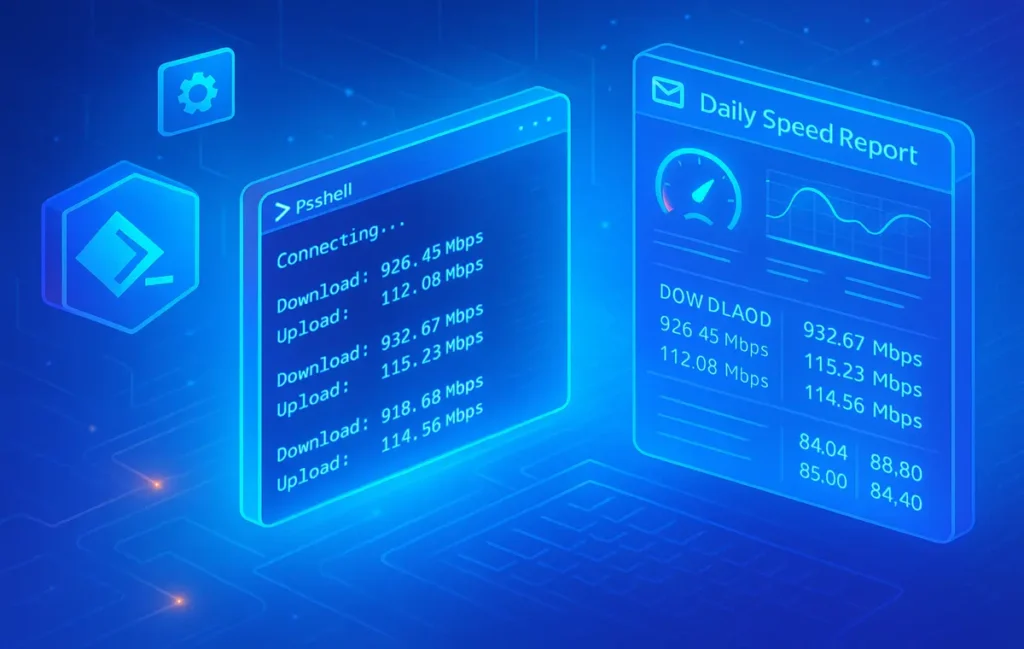
You can schedule internet speed tests on Windows by combining a CLI tool like Speedtest, a PowerShell script to log results, and Task Scheduler to run it automatically. A second script can summarize the log once per day and email you a clean report, so the next time your Wi-Fi feels slow, you’ll have hard data instead of arguments.
Intro
Most people only run a speed test when something already feels broken: Netflix drops to potato quality, a cloud gaming session starts teleporting, or your video call freezes exactly when you’re presenting. You open a browser, run a manual test, complain a bit, then close the tab and forget the numbers five minutes later.
The problem is that one manual test is just a snapshot. It doesn’t tell you whether your connection is consistently underperforming at 9 pm, whether your ISP quietly throttles during weekends, or whether your new router actually improved stability long term. It definitely doesn’t give you the kind of clean, chronological data that makes an ISP support agent take you seriously.
In this guide, we’ll build a small but powerful system on Windows: a scheduled speed test that runs automatically in the background, logs every result to a CSV file, and then sends you a daily or weekly email summary of your real-world speeds. The next time your internet feels slow, you’ll be able to open your inbox and see a clear pattern instead of trusting your memory.
If you’ve already gone through practical guides on how to speed up your internet connection in ways that actually work but still suspect something deeper, this “auto reporting” setup is the missing piece: it tells you when your tweaks helped and when the ISP is the real bottleneck.
💡 Nerd Tip: Don’t think of this as a “geek-only” project. Once set up, it’s more like a smoke alarm for your bandwidth — quiet in the background, loud the moment you need proof.
🧱 What You’ll Build (Architecture in Plain English)
Before touching PowerShell or Task Scheduler, it helps to see the whole picture in one frame. What we’re building is a tiny monitoring pipeline that lives entirely on your Windows machine. The moving parts are simple, but the way they work together is what turns random speed tests into a diagnostic system.
At the core, you have a Windows PC or laptop that is on regularly enough to collect useful data. This doesn’t have to be a dedicated server; it can be your main computer, a home office machine, or even a mini PC that sits next to your router. The more often it’s on during your “real” usage hours, the better your dataset will be.
On that machine, you’ll install a CLI speed test tool, usually the Speedtest CLI from Ookla or a similar open-source alternative. The key is that it runs in a terminal and outputs raw data: no clicks, no browser, just JSON or CSV you can script around.
The first script we’ll build is a logging script. It will run the CLI tool, grab the results, extract the essential metrics—time, ping, download, upload, and maybe server—and append a new line to a CSV file like C:\NetLogs\speedtests.csv. Every run equals one new row, with timestamps, speeds and latency in a format you can load into Excel, Power BI or anything else.
Then comes Task Scheduler, Windows’ built-in automation engine. You’ll create a job that runs that logging script on a fixed schedule: maybe every 30 minutes during work hours, or every hour around the clock. This is where the “set-and-forget” magic lives. Once configured, Task Scheduler becomes your invisible operator, launching the speed checks whether you remember or not.
The second script is a summary and email script. Instead of emailing you after every test, which would be spammy, it runs once per day or once per week. It reads yesterday’s rows from the CSV, calculates average download and upload, minimum and maximum values, and average ping. Then it assembles a simple text report and uses SMTP settings from your mail provider (Gmail, Outlook, etc.) to send that summary to your inbox.
Here’s a compact mental model:
| Component | Role | Example |
|---|---|---|
| CLI Speed Test | Measures ping, download, upload without a browser. | Speedtest CLI by Ookla |
| Logging Script | Turns each test into a row in CSV or JSON. | PowerShell script saving to C:\NetLogs\speedtests.csv |
| Task Scheduler (Job 1) | Runs the logging script every X minutes/hours. | Trigger: Every 60 minutes, Action: PowerShell.exe |
| Summary Script | Reads recent tests, computes stats, sends email. | PowerShell reading CSV, using SMTP to email report |
| Task Scheduler (Job 2) | Runs the summary script once per day or week. | Trigger: 22:00 every day, Action: run summary.ps1 |
Eric’s Note:
The goal of this whole setup isn’t “having a cool script”; it’s being able to say “here’s a month of measurements” instead of “I think it’s slower lately.” Data gives you leverage.
🔧 Step 1: Install a CLI Speedtest Tool on Windows
The most common choice here is Speedtest CLI by Ookla, the same company behind the familiar browser-based speedtest.net. The CLI version is designed for scripts and background usage; it runs in your terminal, prints clean output and can export in machine-friendly formats like JSON or CSV.
On Windows, you typically have two paths: download a standalone .exe from the official site, or install via a package manager like winget or Chocolatey. If you’re comfortable with package managers, winget can be as simple as running a one-line install from Windows Terminal. Otherwise, grab the installer for “Windows CLI” from the official Speedtest page and follow the usual “Next → Next → Finish” flow.
Once installed, you want to be sure the command is recognized globally. Open a new PowerShell window and type:
or, if your executable is named differently:
If everything is wired correctly, you’ll see the test run directly in the console, showing ping, download and upload at the end. If you get an error like “command not found,” you may need to add the directory containing speedtest.exe to your PATH environment variable or call it using the full path in your scripts (for example, "C:\Program Files\Speedtest\speedtest.exe").
For automation, it’s useful to know that Speedtest CLI can output JSON, which is easily parsed in PowerShell, or CSV, which is trivial to append to a log file. A JSON run might look like this:
This will print a JSON string with fields for latency, download, upload, ISP, server and more. You won’t memorize every key, but you will need a few essential ones when building your logging script.
If your main interest is cloud gaming or streaming, pay extra attention to ping and jitter, not just raw download. Even a 300 Mbps line can feel unusable if latency spikes, which is exactly the kind of behavior you investigate when you read deeper breakdowns of cloud gaming latency and real-world performance. Your automated tests will make those latency patterns visible over time.
💡 Nerd Tip: Run a few manual tests at different times of day now and note the numbers. Once your automation is live, you can compare the “before script” vibe to your logged stats and see how big the difference really is at peak hours.
📁 Step 2: Create a Log File for Your Speedtests
With the CLI ready, you need somewhere for your data to live. Think of this as building your own tiny time-series database using nothing more than a CSV file on disk.
Start by creating a dedicated folder, for example:
Inside that folder, you’ll keep speedtests.csv (and maybe a separate error log later). Using a single centralized file makes it easy to import into Excel, Google Sheets or a BI tool down the road. If you ever decide to build dashboards, that one CSV becomes the feed.
Now let’s sketch a simple PowerShell logging script. The idea is straightforward:
-
Capture the current timestamp.
-
Run the Speedtest CLI in JSON format.
-
Parse the JSON into a PowerShell object.
-
Extract the metrics you care about.
-
Write a new line to the CSV with all values.
A simplified script might look like this:
Save this as log-speedtest.ps1 in a safe location, for example C:\NetLogs\scripts\log-speedtest.ps1.
The first time you run it manually in PowerShell, it will create the CSV file with a header row, then append the current test as a new line. Subsequent runs will simply add more lines, building a chronological trail.
From this moment forward, every scheduled run will give you one row of truth: when the test ran, what your ping was, how fast your download and upload really were, and which server you hit.
If you’re the kind of person who likes data, you can already open speedtests.csv in Excel and build a quick chart—but the real magic comes once Task Scheduler starts doing this while you sleep.
⏰ Step 3: Schedule Automatic Speedtests with Task Scheduler
Now you’ll teach Windows to run that logging script automatically. This is where the workflow becomes truly “self-maintaining,” a pattern you may already be leaning into if you’ve explored how to build a self-maintaining PC that automates cleanup and backups.
Open Task Scheduler (you can find it by typing its name in the Start menu). On the right side, click Create Task… instead of “Create Basic Task” so you get full control.
Give the task a clear name like Net_Speed_Log_Every_Hour. Optionally, add a description so future you knows exactly what this thing does. Under the General tab, check “Run whether user is logged on or not” if you want it to keep working even when you’re logged out, and “Run with highest privileges” if needed.
Move to the Triggers tab and click New…. Here you decide how often your PC will measure your connection. For most people, every 60 minutes is a good starting point: it captures patterns throughout the day without hammering the speedtest servers or your line. If you’re debugging a specific issue that occurs every evening, you might temporarily switch to every 15 or 30 minutes.
In the trigger’s advanced settings, you can limit the task to certain hours—for example, 08:00 to 23:00—to avoid skewing your averages with overnight idle tests.
Next, hop to the Actions tab and click New…. The Action should be “Start a program.” For Program/script, point to PowerShell:
In Add arguments (optional), pass a command that runs your script, like:
Save the task, enter your Windows password if prompted, and then right-click the new entry and choose Run to test it. If you refresh your speedtests.csv afterward, you should see a fresh row added.
A few practical notes: don’t set the interval too aggressively. Running a full Speedtest every five minutes all day can both annoy your ISP and distort your own usage, especially on slower lines. Also, keep in mind that running heavy tests constantly can slightly affect your real-time bandwidth for other tasks.
💡 Nerd Tip: If you’re worried about the monitoring itself adding noise, schedule the tests just before or after the hours you care most about (for example, one test at 19:50 and 20:10 instead of 20:00 on the dot when you start streaming).
📬 Step 4: Build an Email Summary Script (Daily or Weekly Reports)
At this point you could manually open the CSV whenever something feels off, but getting an automatic email report is what makes this system feel like a real tool instead of a half-finished hack.
The summary script will run once per day (or per week), look at all the tests from that period, compute some basic statistics and send you a nicely formatted email. Here’s what we typically want to see:
-
Number of tests run
-
Minimum, maximum and average download speed
-
Minimum, maximum and average upload speed
-
Average ping
-
Optional notes if values fall below an expected threshold
Let’s sketch a simple PowerShell script called send-speedreport.ps1:
You’ll adjust these pieces:
-
Time window (daily vs weekly)
-
SMTP server, port and credentials (Gmail, Outlook, etc.)
-
Email subject line style
If you’re using Gmail with two-factor authentication, you’ll need an app password specifically for SMTP, not your main login password. Outlook and other providers have similar flows. It’s worth doing this step slowly and carefully: once configured, the whole system can run for months without touching it.
This is where our speed monitor becomes part of a bigger automation mindset. Alongside automated cleanup and backup routines from your self-maintaining PC workflows, this turns Windows into a quiet assistant that collects evidence while you just get on with your day.
💡 Nerd Tip: Start with daily reports and then decide if you really need weekly summaries as well. For most people, seeing trends over a few weeks of daily data is enough to spot issues and prove them to support.
📅 Step 5: Schedule the Email Report (Task Scheduler, Round 2)
With the summary script ready, you’ll loop back to Task Scheduler and create a second task dedicated to reporting. This one doesn’t need to run often—once per day is usually enough.
Open Task Scheduler again and click Create Task…. Name it something like Net_Speed_Email_Daily. Under Triggers, set a Daily trigger at a time that makes sense, like 22:00 when your typical usage window is ending. If you want weekly reports instead, you can make it a Weekly trigger on a specific day.
On the Actions tab, use the same pattern as before: PowerShell as the program, and a command that executes your summary script:
As with the logging task, choose “Run whether user is logged on or not” if you want fully hands-off operation and provide your password when prompted. After saving, right-click the new task and run it once as a test. Check your inbox; if everything is configured correctly, you’ll see a fresh report.
At this point, you have a complete pipeline:
-
Script 1 + Task 1: collects raw data every X minutes/hours.
-
Script 2 + Task 2: condenses that data into a human-readable email once per day.
From here on, your internet performance is not a feeling—it’s a daily email you can filter, label and archive. You can even create a Gmail filter that labels messages with [Net Report] and skips the primary inbox, keeping everything clean while still giving you instant access when something goes wrong.
📊 Step 6: Optional — Visualize Your Speed History
Numbers are good; charts are better. Once you have a few days or weeks of data in speedtests.csv, you can import it into Excel, Google Sheets, or a BI tool like Power BI or Looker Studio and turn your connection into a set of simple, visual stories.
In Excel or Sheets, import the CSV, make sure the timestamp column is recognized as a date/time, then build line charts of download over time, upload over time and ping over time. You’ll start to see repeating patterns: evenings where speeds sag, weekend spikes, or days where ping suddenly jumps during work hours.
This historical view is especially powerful if you’re working hard to improve your network. Let’s say you follow a practical guide to boost Wi-Fi speed and coverage at home by repositioning your router, changing channels or adding a mesh node. With your automated logs, you get a before-and-after story that’s not just “it feels better”—you see the lines shift upward and the spikes shrink.
If you want to go deeper, you can build monthly rollups, calculate how often your connection falls below a promised threshold, or overlay test results with important events—big downloads, game releases, remote work peaks. For heavy cloud gaming or remote work setups, that kind of clarity removes a lot of anxiety.
💡 Nerd Tip: Create one simple baseline chart first: daily average download for the last 30 days. If that looks stable and close to your plan’s advertised speed, you can skip building more complex dashboards until you actually hit problems.
⚡ Take Your Monitoring Beyond Speedtests
Once your internet reports itself, the next step is automating the rest of your digital life—backups, cleanup, alerts and dashboards. Explore network monitoring and PC automation tools that plug into the same “set-and-forget” mindset.
🛠️ Troubleshooting & Common Pitfalls
Every clean automation has a messy first week. Expect a few bumps and be ready to adjust rather than abandoning the whole idea.
One common issue is the CLI command not being found when Task Scheduler runs it. If everything works in a manual PowerShell window but fails as a scheduled task, it usually means the PATH environment variable is different for that context. The fix is simple: use the full path to speedtest.exe in your script or explicitly set the working directory in your task’s Start in field.
Another frequent gotcha is Task Scheduler only running when the machine is unlocked. If you don’t select “Run whether user is logged on or not,” or if the machine is sleeping deeply, tasks may silently skip. You can adjust your power settings so that your PC stays awake during scheduled windows or move the workload to a machine that’s designed to stay on, like a little home server.
Email sending issues often come down to SMTP authentication and ports. Modern mail providers are increasingly strict about “less secure apps,” so you must use proper SSL/TLS ports and app passwords. Double-check the SMTP server name, port number and security settings recommended by your provider and align them with Send-MailMessage or whichever library you use.
Over time, your CSV will grow. That’s good—it means you’re collecting history—but it also means you should think about archiving. A simple strategy is to rotate monthly: at the start of each month, move last month’s file to something like speedtests-2025-01.csv and start a new speedtests.csv. Your summary script can even be extended to handle multiple files if you want.
If your logs show dramatic drops during specific moments, try pairing them with targeted troubleshooting like the step-by-step workflow to fix slow Wi-Fi on Windows 11. Sometimes the bottleneck is your adapter, drivers or local interference; other times it really is the ISP. Having the data in hand makes both paths much more efficient.
Finally, remember that speed tests themselves consume bandwidth. On a very slow connection or tight data cap, running aggressive tests around the clock can be counterproductive. Adjust your schedule to your realities: you want a useful sampling, not a second job for your line.
💡 Nerd Tip: Whenever something feels off, don’t immediately change your whole system. Mark the day and time, then check your logs and email reports first. Let the data tell the story, then respond with targeted tweaks instead of guesswork.
📬 Want More Automation Guides Like This?
Subscribe to the free NerdChips newsletter and get weekly deep dives on Windows automation, network hygiene, and “set-and-forget” workflows that quietly save you hours.
🔐 100% privacy. No noise. Just practical, battle-tested nerd tips for your setup.
🧠 Nerd Verdict
If you care enough about your connection to argue with support or tweak routers at midnight, you owe yourself a better tool than “I ran a speedtest once and it was bad.” The workflow you’ve just built turns your Windows machine into a quiet, relentless witness of what your ISP is actually delivering, in the exact time windows that matter to you.
From a NerdChips point of view, this kind of data-first automation is where everyday users start to think like operators. You’re not just reacting to problems; you’re logging, aggregating, and giving yourself the leverage to make better decisions—whether that’s upgrading hardware, moving to a different plan, or even switching providers altogether.
The best part is that this system doesn’t demand attention. Once configured, it lives alongside your other automations—whether that’s cleanup, backups or other workflows you’re stacking—and only surfaces when you open your reports or when the graphs show it’s time to act.
If you ever feel lost in the noise of quick tips and conflicting advice about internet speed, remember: the simplest way to cut through the noise is to measure, log and review. Scripts and schedules are just the tools that make that habit effortless.
❓ FAQ: Nerds Ask, We Answer
💬 Would You Bite?
If you set this up today, which part would you customize first—how often tests run, or how detailed the email report should be?
And once your data starts coming in, what’s the first decision you’d revisit: keeping your current ISP, upgrading your router, or rethinking how your home network is laid out? 👇
Crafted by NerdChips for creators and teams who want their network to whisper the truth long before anything breaks.