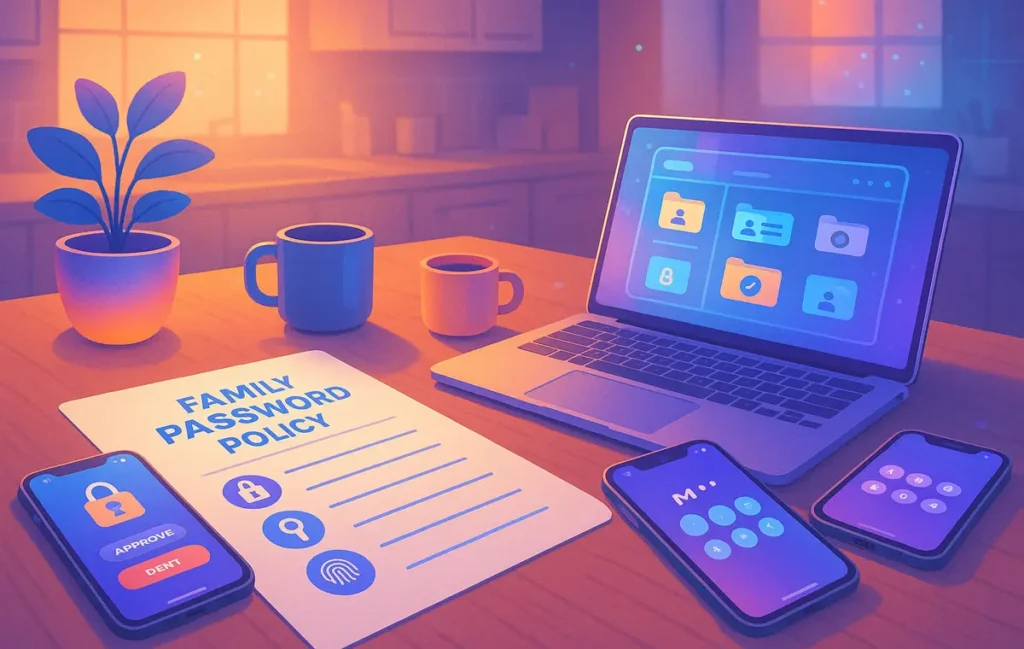
🔐 Why Every Family Needs a Password Policy
Households aren’t single users anymore; they’re small networks. Parents log in to banking and mortgage portals, kids use school platforms and gaming accounts, and everyone shares streaming services, smart TVs, and home-automation dashboards. A single reused password—often the one a teen recycles across Spotify, Discord, and a cloud drive—can become the weak seam that unravels everything. When one account is compromised, attackers try the same credentials everywhere. That’s credential stuffing, and it’s painfully effective.
A written family password policy solves three problems at once: clarity, safety, and accountability. Clarity, because there is one agreed place—your policy—where the rules for creating, storing, sharing, and updating passwords live. Safety, because you standardize strong, unique credentials and pair them with multi-factor authentication (MFA). Accountability, because each shared account has an owner and a documented recovery plan. Think of it as “cyber hygiene for the home”—easy to maintain once set up, and dramatically cheaper than the stress and consequences of recovering from a breach.
If you’re new to this, start simple, then evolve. The goal isn’t a perfect security manual on day one; it’s a living document your family can actually follow. When you need deeper tooling, you can graduate to shared vaults and MFA workflows—the same mindset we recommend when comparing tools in Password Managers Compared: Which One Is Actually Safe?. The point is progress, not paralysis.
“Switched the family to a shared vault. Overnight, zero ‘what’s the Netflix password?’ pings.” — a parent on X
💡 Nerd Tip: You don’t have to change all passwords today. Set a 30-minute weekly family slot and improve 8–10 logins at a time.
🧩 What a Family Password Policy Actually Covers
A good family password policy is short enough to read, but precise enough to remove ambiguity. Start with five pillars:
1) Creation rules. Define the minimum standard for any new password. This includes length, complexity, and the ban on obvious patterns (names, birthdays, pets). Explain why each rule exists so kids buy in. Security works best when it’s understood, not just enforced.
2) Storage method. Decide how your family stores and shares secrets. For most households, a family plan in a password manager with shared vaults is the sweet spot. It keeps credentials unique per site, auto-fills on devices, and enables controlled sharing. If you must keep a physical backup, treat it like a spare key: locked away, sealed, and audited twice a year.
3) Ownership and roles. Every shared account needs a manager. That person approves changes, handles MFA devices, and updates the policy if the service changes its rules. Entertainment might be owned by a teen, while financial accounts remain with parents. Ownership creates accountability without micromanagement.
4) Recovery and emergency access. Document, in plain language, how to regain access if a phone is lost or a device is wiped. Specify who holds recovery codes, where backup keys live, and how to handle “break-glass” situations (e.g., parent access to a teen’s school portal in an emergency).
5) Update schedule. Security decays without maintenance. A quarterly refresh—combined with a tracker—is a healthy default. Pair the schedule with a reminder in your calendar and a checklist in your vault or task app. If you want to automate the nudge, your calendar can do the heavy lifting (more on that later).
Along the way, insert practical, family-first advice. When someone shops online, remind them to verify site security and payment sanity checks—exactly the kind of discipline we coach in Pro Tips for Secure Online Shopping. Keep your guidance human and repeatable.
💡 Nerd Tip: Establish “no-blame fixes.” If someone slips and reuses a password, you rotate it together and move on. Culture beats fear.
🟩 Eric’s Note
No miracle here—just fewer clicks between you and done. A family policy works when it’s written in your language and lives where you’ll actually use it.
🏗️ Step-by-Step: Build Your Family Password Policy
Start with a quick inventory. Open your phones, laptops, and TV apps and write down every shared account—streaming, cloud storage, smart-home hubs, school portals, email aliases, game libraries, online shopping, banking, insurance, health portals. Don’t chase perfection; list what you see and add missing items as they surface. Your first pass is 80/20: capture the accounts your family touches weekly.
Store the list in a place the family can access. If you plan to adopt a password manager, make the list there from day one. Otherwise, start in a secure Google Sheet with protected ranges and a clear owner. If you’re tracking security metadata (MFA enabled, last rotation, owner), add those columns now—you’ll thank yourself later. As you explore password tools, circle back to our deep dive Password Managers Compared: Which One Is Actually Safe? to sanity-check your pick.
💡 Nerd Tip: Inventories are never “finished.” Put a date in the sheet header (e.g., “Inventory updated: Mar 10, 2026”) so everyone knows how fresh it is.
Step 2 — Define Ownership
Assign a manager for each account or category. The manager isn’t a gatekeeper; they’re the steward who keeps details tidy. Teens can own entertainment and gaming, while parents keep financial, healthcare, and school fee portals. Ownership clarifies who updates passwords, who holds recovery codes, and whose device carries the MFA token. It also prevents the classic “I thought you had it” failure when a service locks you out.
Keep ownership flexible. If a child leaves for college, transfer or revoke access as part of your off-boarding routine. This is one of the most common gaps in families—everything works until the household changes, and then old access lingers indefinitely. If you’ve ever wondered which messaging app gives you the strongest privacy options while you coordinate this, revisit Secure Messaging Apps: Which One Protects You Best and standardize the channel you use for sensitive updates.
💡 Nerd Tip: Use emojis in your tracker (“🎮 Netflix — Owner: Sam”) so kids quickly identify their domain.
Step 3 — Establish Rules for Creation
Set a family-wide baseline that’s feasible for everyone:
-
14+ characters
-
At least one uppercase, one number, one symbol
-
No personal names, birthdays, school names, or pet names
-
Never reuse a password across sites—unique per account
Explain the “why”: longer and unique passwords massively reduce the chance that a single breach elsewhere will unlock your life. Pair this with MFA by default—especially for email, banking, and primary shopping sites. If anyone still finds generation hard, lean on your manager’s password generator with memorable passphrases (“correct-battery-cider-violin”) that meet length requirements while staying typeable.
When kids create accounts independently (e.g., a new game), teach them to put it in the tracker and assign ownership. If shopping is part of their world, align with our guidance in Pro Tips to Protect Against Cyber Threats—passwords are one layer in a multi-layered defense mindset.
💡 Nerd Tip: Treat email like the house master key. Protect it with your strongest password + MFA. Everything else flows from there.
Step 4 — Choose a Secure Storage Method
Best Option: A family password manager with shared vaults and fine-grained permissions (Bitwarden Families, 1Password Families, Proton Pass). Create separate personal vaults for individuals and shared vaults for household accounts. Use item-level sharing where appropriate (e.g., a single school login that two siblings need). Most modern managers sync across devices, store MFA notes, and keep a password history so you can roll back if needed.
Offline Backup: Keep a printed master sealed in an envelope or save an encrypted file on a USB stored in a fireproof box. The backup exists for “phone lost and we’re locked out” scenarios—not everyday use. Document where the backup lives and who has the key or passphrase. Do a quick semi-annual audit to ensure the backup is still accurate.
Don’t share one vault login. Everyone gets their own account with appropriate permissions. A shared master defeats auditability and increases the risk of total lockout. When you’re choosing a manager, sanity-check the family features after reading Password Managers Compared: Which One Is Actually Safe?—you’ll avoid surprises around device limits or sharing friction.
💡 Nerd Tip: Add a “Notes” field to each password item for renewal dates and MFA recovery hints (not the codes themselves).
Step 5 — Create a Rotation Schedule
Set a quarterly cadence for the shared accounts and a semi-annual cadence for low-risk logins. Don’t rotate everything blindly—prioritize high-impact accounts (email, banking, cloud storage, school portals). A predictable schedule keeps entropy at bay without becoming a chore. Put the rotation window in a family calendar and send reminders to the owners. When an account gets rotated, the manager logs the new date in the tracker.
For calendar hygiene, add an all-day recurring event called “Family Password Refresh Window,” and list the categories you’ll update that quarter. Tie it to a short checklist you can tick off as you go. If you need ideas for strong two-factor protection on social platforms along the way, our step-by-step in How to Set Up Two-Factor Authentication on Instagram mirrors the same logic you’ll apply on other services.
💡 Nerd Tip: Rotation is a window, not a day. Spread tasks over a week to avoid burnout and sloppy updates.
Step 6 — Add an Emergency Recovery Plan
Decide who holds the “break-glass” recovery. Parents should have access to recovery emails, backup codes, and hardware keys for critical services. Document the location of the emergency kit (physical or digital). If a device is lost or stolen, your plan should specify:
-
Whom to notify.
-
Which passwords to rotate first (email → banking → cloud → shopping).
-
How to revoke sessions and de-authorize devices.
-
Where to find backup codes or hardware keys.
Include a short script for kids: “If I lose my phone, I tell Mom/Dad immediately, we lock the device using ‘Find My,’ then we change passwords for X, Y, Z.” The best recovery plans are predictable, practiced, and boring—in the best way.
“Printed the recovery card, sealed it, told the kids where it lives. Weirdly calming.” — a teacher on X
💡 Nerd Tip: Do a 10-minute drill once a year. Pretend a phone was lost and walk through the steps together.
⚡ Ready to Lock Down Your Family Logins?
Set up a family password manager with shared vaults, enable MFA on primaries, and run your first 7-day refresh sprint.
📄 Free Templates You Can Copy
Use these as your starting kit. Keep them in one folder and date them whenever you update.
| Template | Format | Use Case |
|---|---|---|
| Family Password Policy Template | Google Docs | One-page rules with signature lines for buy-in and clarity. |
| Account Ownership Tracker | Google Sheet | Tracks account list, owner, MFA status, last rotation, and notes. |
| Password Update Checklist | Notion Template | Quarterly routine with categories, sub-tasks, and reminders. |
| Emergency Access Card | “Break-glass” instructions: who to contact, where backups live, what to rotate first. |
📎 Grab the Family Policy Starter Pack
Copy the Doc, the Sheet, the Notion routine, and the Emergency Card. Customize in 15 minutes and run your first refresh this week.
💡 Nerd Tip: Print the one-page policy and let everyone sign it—it turns “rules” into a shared commitment.
🧠 Tools to Help Enforce the Policy
Bitwarden Family Plan brings shared vaults, role-based permissions, and cross-platform support. It’s excellent if you value open-source transparency and predictable pricing. Families often appreciate item-level sharing and clean browser integrations. If you’re balancing budgets and devices, its simplicity scales well.
Google Password Manager + Family Group is built into Chrome and Android with surprisingly capable suggestion and breach alerts. While not as feature-rich for shared vaults, it’s convenient for households already deep in the Google ecosystem. Pair it with clear rules about who can share what, and remember to treat it as a step on the path to a full manager if you outgrow it.
Authy / 2FAS centralizes your MFA codes while allowing multi-device setups (use carefully). Keep primary MFA on a parent device and provide read-access where appropriate. For very sensitive accounts (email, banking), consider a hardware security key for parents and app-based MFA for kids. If you’re undecided on the manager layer, circle back to Password Managers Compared: Which One Is Actually Safe? to align features with your policy.
“The win wasn’t features—it was fewer support calls from my own family.” — a CTO on X
💡 Nerd Tip: Add a “MFA Needed” tag in your vault. Filter it quarterly and close any gaps.
⚙️ Automation Bonus: Keep It Updated Automatically
Automation is how you make security stick. Create a recurring calendar event every 90 days called “Family Password Refresh.” Include a checklist in the event description: Email → Banking → Cloud → Shopping → Smart Home → Streaming. Invite all managers. On completion, the owner of each category logs the date in the tracker.
If you use Notion or Todoist, create a “Security Maintenance” project with sub-tasks tied to your categories. With a light automation (Zapier or Make), you can stamp a line in your Google Sheet every time a task moves to “Done,” creating an audit trail without manual data entry. If you’re already building automations for life admin, the same mindset appears across our other guides; we approach security nudges just like we approach routine optimizations elsewhere on NerdChips.
💡 Nerd Tip: Bundle security habits. Pair quarterly rotation with battery replacements in smoke detectors or a seasonal deep clean. The mind loves anchors.
⚠️ Common Mistakes to Avoid
Sharing one master login to the manager. It feels simpler—until you can’t tell who changed what and you lock out the whole family. Give each member their own login, then share items or vaults as needed.
Letting old access linger. When a child moves out or a caregiver’s role ends, revoke and rotate the relevant credentials that week. Put “off-boarding” as a one-page section in your policy so nobody forgets.
Skipping MFA recovery training. If someone hasn’t practiced using a backup code or hardware key, they don’t truly have access. Run a quick dry-run once a year with the accounts that matter most.
Confusing messaging channels. Sensitive updates should live on a private, secure channel. If you’re unsure what to standardize on, our breakdown in Secure Messaging Apps: Which One Protects You Best will help you pick one and stick to it.
Being vague about shopping risks. During sales season, phishing and fake checkout flows spike. Encourage verification habits and revisit our guidance in Pro Tips for Secure Online Shopping to keep the whole household savvy.
“We turned ‘don’t reuse passwords’ into a game. Winner picks the Friday movie.” — a dad on X
✅ Family Readiness Mini-Checklist
-
Everyone has a personal login to the password manager.
-
Shared accounts sit in a shared vault with an owner assigned.
-
Email, banking, cloud backups: MFA on, recovery codes stored safely.
-
Quarterly refresh event exists on the family calendar.
-
One-page policy is printed, signed, and easy to find.
💡 Nerd Tip: Tape a small QR code on the fridge that links to your read-only policy doc. Visibility builds habit.
📬 Want More Family Cyber Hygiene Playbooks?
Join the NerdChips newsletter for practical security routines, tool picks, and seasonal checklists you can actually finish in under an hour.
🔐 100% privacy. No noise. Just value-packed security habits from NerdChips.
🧠 Nerd Verdict
A family password policy is a tiny investment that compounds into calm. When roles are clear and recovery is rehearsed, the house runs like a team: less guesswork, fewer lockouts, and a higher baseline of trust. The real benefit isn’t just fewer hacks—it’s fewer “What was the password again?” interruptions. Write it once, keep it living, and let the system do the heavy lifting.
Before you close this tab, open your calendar, create the quarterly event, and paste a three-line checklist. That’s your first win. If you want to pressure-test your manager choice next, our breakdown in Password Managers Compared: Which One Is Actually Safe? is your next stop.
❓ FAQ: Nerds Ask, We Answer
💬 Would You Bite?
What’s the one rule your family will adopt this week—MFA on email, or a shared vault for streaming?
Tell me what feels hardest, and we’ll remove friction together. 👇
Crafted by NerdChips for creators and families who want calm, secure digital routines.