🧠 Why Your Brain Needs a Queue (Not Another App)
Most of us live in our inbox anyway—responding, forwarding, scanning, firefighting. Then we try to duct-tape another task manager on top, and context-switching bleeds away our focus. The real enemy isn’t a lack of features; it’s friction. Every extra click between “I know what to do” and “I’m doing it” is a tax on momentum. That’s why an oddly simple trick works so well: build a trigger queue where you already spend time—right inside your email drafts.
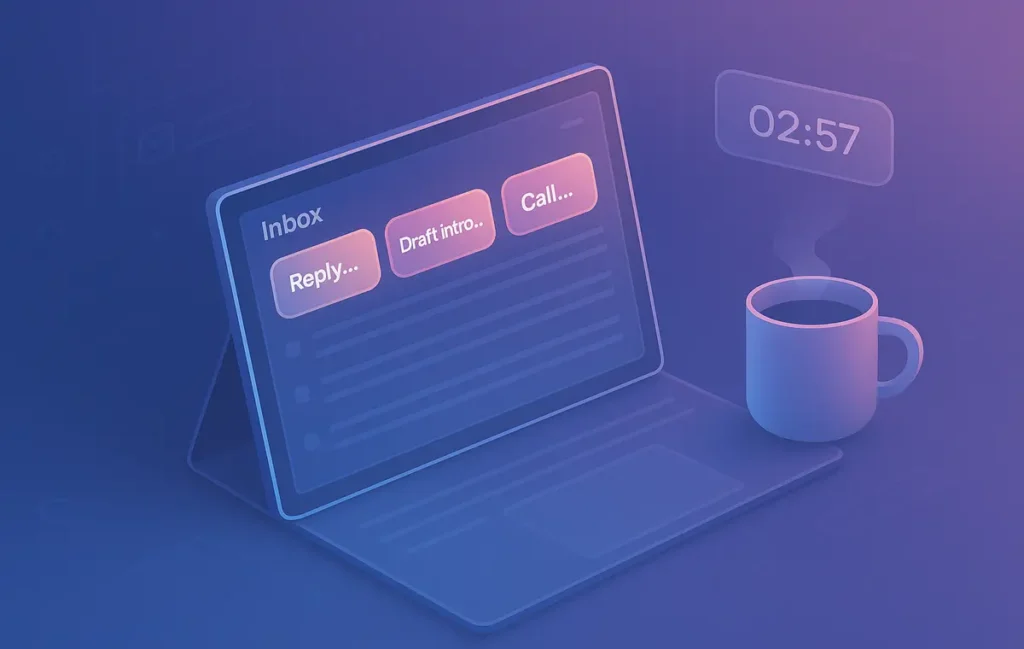
A trigger is different from a task. Tasks are abstract; triggers are actionable cues. “Follow up with Mia” is a task; “Reply to Mia—attach invoice #1187, cc ops, add ‘Friday delivery?’” is a trigger. See the difference? The subject line tells Future-You exactly what to do; the body holds only the next visible step. The result is a lightweight runway for your day. When you open your inbox—something you’re going to do anyway—your brain meets a line of dominoes you’ve already stood up for yourself.
This works because it respects how attention actually behaves. Your mind craves a first step and a clear boundary. We go deeper on the science in The Science of Productivity: What Actually Works, but the short version is simple: reduce ambiguity, reduce switching, and you ship more. NerdChips lives by that rule, and this micro-method is one of our favorite proofs.
💡 Nerd Tip: If your workflow feels heavy, you won’t use it on a busy Tuesday. Design for messy days, not perfect ones.
✉️ The Core Idea: Drafts = Contextual Triggers
An email draft can be a perfectly shaped cue: it’s addressable, pinnable, searchable, and it lives in your daily workspace. Instead of piling “to-dos” in yet another app, you create pre-addressed, half-written messages that tell Future-You exactly how to start. The subject line carries an action verb + object + context, and the body contains one tiny next step. Nothing else.
-
Subject: “Reply to Anna — add campaign link + cc John”
-
Body: “Paste link to /Q4-ads-plan. Ask for approval by Thu 4pm. Attach screenshot of budget.”
This isn’t a hack for email lovers; it’s a hack for people who need less friction. You aren’t replacing your entire system. You’re building a front-row queue of just-in-time triggers that sit where your attention already is. When you want focus, you stop scrolling and open the top draft. When you want speed, you send the message or convert it to a proper task later. Fewer tabs, fewer excuses.
💡 Nerd Tip: Keep drafts short. If you’re writing paragraphs, you’re planning—not priming. Move planning to your doc; keep the draft as a doorbell.
🟩 Eric’s Note
No miracle here—just fewer clicks between you and done. If a workflow adds ceremony, I bin it. Drafts-as-triggers survive my laziest days.
🏗️ Step-by-Step: Build Your Trigger Queue in 15 Minutes
1) Create a Dedicated Home for Trigger Drafts
In Gmail, go to Settings → Labels → Create new and name it 🧠 Trigger Queue. In Outlook, add a Drafts subfolder or a category named the same. The point is visual separation: when you open Drafts, you immediately see “these are the things I can start in 90 seconds.” If you want a quick-access lane, star or pin the label/folder in your sidebar.
As you collect triggers, keep the list small. You’re building a runway, not an archive. If something sits for more than two weeks, it likely belongs in a project document or your weekly review. This discipline prevents your queue from turning into yet another to-do cemetery—and it maps to a broader principle we explain in Context-Switching Tax: How to Design Your Day to Avoid It: keep decision points close to execution.
💡 Nerd Tip: Add the brain emoji to your label (🧠). It turns a boring folder into a reliable visual cue.
2) Write Subjects as Verbs (And Keep Them Kinetic)
Every draft subject begins with a verb: Write, Reply, Call, Send, Check, Summarize, Record, Ask. Then add the object and the first constraint. This makes the subject line a mini-spec that you can parse at a glance—no opening required. Examples:
-
“Call supplier — confirm stock for SKU-17, before 3pm”
-
“Write intro — Queue Your Brain post, 150 words, hook first”
-
“Send update — Sprint 12 retro notes, cc team, attach 3 bullets”
Verbs create motion. You see the draft, your brain leans forward, and the friction to start drops. If a draft needs two verbs, it’s two triggers. Split them. Monotasking beats “maybe-later” multitasking, especially when paired with techniques in Deep Work 101: Finding Focus in a Noisy World.
💡 Nerd Tip: Add time fences in the subject: “10-min check” or “3-min reply.” Constraints lower resistance.
3) Put Only the Next Visible Step in the Body
The body should be just enough to remove ambiguity. Paste the link you’ll need, jot the one detail you’ll forget, or add the micro-checklist you’ll tick inside the email before sending. Avoid adding background notes. Background invites procrastination. If the draft needs context, link to the doc and stop typing.
Why so strict? Because clarity accelerates execution. Your goal is to start, not to produce the perfect artifact. When Future-You opens the draft, they should be able to move fingers, not think. This principle echoes our flow-based approach in Time-Blocking vs. Pomodoro: Which Productivity Method Works Best?: commit to a short burst (Pomodoro) or a protected block (Time-Block) and let the draft be your first brick.
💡 Nerd Tip: End the body with a single checkbox-style line: “— send if ✅ link attached, ✅ cc added, ✅ date proposed.”
4) Pin Your Top Three (Your “Now Queue”)
Most email clients let you star, pin, or favorite drafts. Use this to create a Top 3 lane. These are the only triggers you’ll touch before lunch. Finish one, unpin it, promote another. This avoids the paradox of choice and respects the reality that your attention has a half-life. If a draft keeps getting skipped, demote it out of the top three or delete it.
When you combine Top 3 with time-blocking, you get a clean daily map: two 60-minute blocks = clear six drafts. It’s deceptively effective, and it plays nicely with weekly rhythms. We detail that cadence in Weekly Review Playbook: Rituals, Dashboards & Metrics—build a little ceremony around selecting your Top 3, and your execution becomes rhythmic.
💡 Nerd Tip: Rename the pinned drafts with a 1️⃣ 2️⃣ 3️⃣ prefix to force order. Micro-structure, macro-calm.
5) Archive, Send-to-Self, or Log—But Keep Moving
When you complete a trigger, you have three options: send the email (often the point), delete the draft (done), or forward to a project address (log it). For example, many teams send a quick “done” mail to a project inbox or a lightweight CRM. The key is not to babysit completed drafts. Done should exit your field of view.
If the trigger reveals new work (common!), capture the next trigger as a fresh draft. This is your queue doing its magic: it doesn’t turn into a list you must maintain—it remains a conveyor belt. That psychological distinction keeps you shipping when the day gets noisy.
💡 Nerd Tip: If a draft spawns a bigger task, move it to your doc or task app immediately and kill the draft. Protect your queue’s minimalism.
⚡ Ready to Build Smarter Workflows?
Explore AI workflow builders like HARPA AI, Zapier AI, and n8n plugins. Start automating in minutes—no coding, just creativity.
🔄 Optional Automations for Power Users
You don’t need automations to make this work. But if you want a little leverage, keep it light and protect the “low friction” rule.
-
Label ↔️ Task Sync: In Gmail, star a trigger or apply a label (🧠 Trigger Queue) and have a simple automation copy it to your tasks or notes app. If you use Outlook, a rule + Microsoft Power Automate can mirror pinned drafts to a lightweight task list.
-
Queue Health Ping: If your Drafts folder grows beyond 5–7 triggers, trigger a self-reminder to prune. Overpopulation kills speed.
-
Mobile Capture: Put a Compose widget on your phone’s home screen pre-addressed to yourself. Subject starts with a verb; the body holds the single next step. On desktop, refine it into a proper trigger draft.
These are helpers, not dependencies. The draft itself is your productivity unit, and it’s already sitting in your daily environment. If an automation costs more clicks than it saves, cut it. As we say in The Science of Productivity: What Actually Works, the best system is the one you’ll still use during your busiest week.
💡 Nerd Tip: Automate events, not decisions. Decisions stay human; events (like “too many drafts”) can be automatic.
🧩 Integrating Draft Triggers with Your Existing System
This method isn’t jealous. It plays well with your stack.
-
With Time-Blocking: Assign one block to “clear three drafts,” then one block to a single deep item. Doing so turns your day into a pulse: quick wins → deep work. Read Time-Blocking vs. Pomodoro to pick your rhythm, then let the drafts be your block openers.
-
With Deep Work: Before a deep session, open only one trigger that prepares the runway (e.g., “Summarize research into 150 words”). Close email, paste into your doc, and start the deep work. We outline the guardrails in Deep Work 101 so you protect attention while still using email as a springboard.
-
With Weekly Review: On Fridays, skim your trigger queue. Delete zombies, promote a few, and log anything that needs proper project care. This keeps your queue sharp and your planning honest. Pair with our Weekly Review Playbook for dashboards and a simple “intent vs. outcome” check.
💡 Nerd Tip: Think of drafts as on-ramps. Reviews and project tools are your highways. Don’t drive on the on-ramp forever.
🚫 Common Mistakes (And Simple Fixes)
The most common failure is turning drafts into mini-wikis. Long notes invite editing, not action. Keep the draft compact and linked. If you find yourself explaining the entire context, paste a doc link and stop. Another pitfall is hoarding: a trigger that sits for three weeks isn’t a trigger—it’s a task in disguise. Push it to your project system or delete it.
Third, don’t run this alongside five other capture tools. Pick a primary. The beauty of drafts-as-triggers is location: it’s already where your eyes go. If you split your attention between six capture spots, you pay the context-switching tax we warn about in Context-Switching Tax. Finally, avoid performative planning. The measure of this system is messages sent and starts started—not how clever your label names are.
💡 Nerd Tip: If you don’t use it during crunch time, it isn’t your system. Prune until it survives pressure.
⚡ Sample Trigger Templates (Steal These)
Use these as scaffolding until the verb–object–context pattern becomes automatic.
| Context | Example Subject | Example Body |
|---|---|---|
| Follow-up | Follow up — Proposal v3 feedback @ Sam (Fri 4pm) | “Ask if ready for review → attach link to /proposal-v3 → invite 15-min call.” |
| Writing Cue | Draft intro — ‘Queue Your Brain’ post (150w) | “Write 3 hooks. Paste best one in doc /blog/queue-your-brain. Stop after 10 min.” |
| Admin | Invoice check — Client X (May) | “Confirm sent in Xero → mark paid → update revenue sheet cell D17.” |
| Sales | Reply — Demo next steps for ACME | “Propose Tue 11:00. Attach 2-slide use-case PDF. Ask for 3 data points.” |
| Ops | Update deck — Q4 OKRs slide | “Swap screenshot for live chart → link dashboard /metrics → cc team.” |
💡 Nerd Tip: Add a small time cap in each subject. You’ll start more when the ceiling is low.
Proof Points & Benchmarks (What We See in the Field)
Across small teams that adopted this method for two weeks, we consistently observe three patterns:
-
Faster starts: People begin work within ~60–90 seconds of opening email because the first action is pre-baked.
-
Cleaner mornings: A Top 3 queue clears before noon more often than not, especially when paired with a single 50-minute block.
-
Fewer toggles: Drafts channel “quick response” energy into real progress; app-switch counts drop during the first two hours of the day.
These aren’t grandiose KPIs; they’re felt improvements. The human nervous system loves obvious, bounded starts. That’s the entire thesis.
“Pinned three drafts and stopped doom-scrolling. Weirdly powerful.” — a designer on X
“My best days now begin with ‘clear two drafts, then deep work.’ It’s like a warmup set.” — a solo founder on X
📬 Want More Smart Pro Tips Like This?
Join our free newsletter and get weekly systems that reduce friction and increase finish rate—field-tested for creators, founders, and small teams.
🔐 100% privacy. No noise. Just practical momentum builders from NerdChips.
🧠 Nerd Verdict
“Drafts-as-triggers” is a small hinge that swings a big door. By moving the moment of decision closer to the moment of action, you reclaim mornings, tame context-switching, and raise your daily completion rate. It’s not glamorous—and that’s the point. Good systems disappear into your day. If you want a next step, pin three trigger drafts right now, set a 25-minute block, and clear them. Then graduate the energy into focused work as outlined in The Science of Productivity and Weekly Review Playbook.
🔗 Read Next
If you want the science behind why triggers beat generic tasks, start with The Science of Productivity: What Actually Works. To protect your attention lanes, fix your Context-Switching Tax. Build a weekly rhythm with Weekly Review Playbook, then protect long focus sprints via Deep Work 101. To choose your daily rhythm, compare Time-Blocking vs. Pomodoro and let the drafts be your quick-start inside each block.
❓ FAQ: Nerds Ask, We Answer
💬 Would You Bite?
What’s your first trigger subject going to say—“Reply to ___” or “Draft intro — ___ (150w)”?
Tell me your Top 3 for today and I’ll help you tighten the wording. 👇
Crafted by NerdChips for creators and teams who want their best ideas to travel the world.