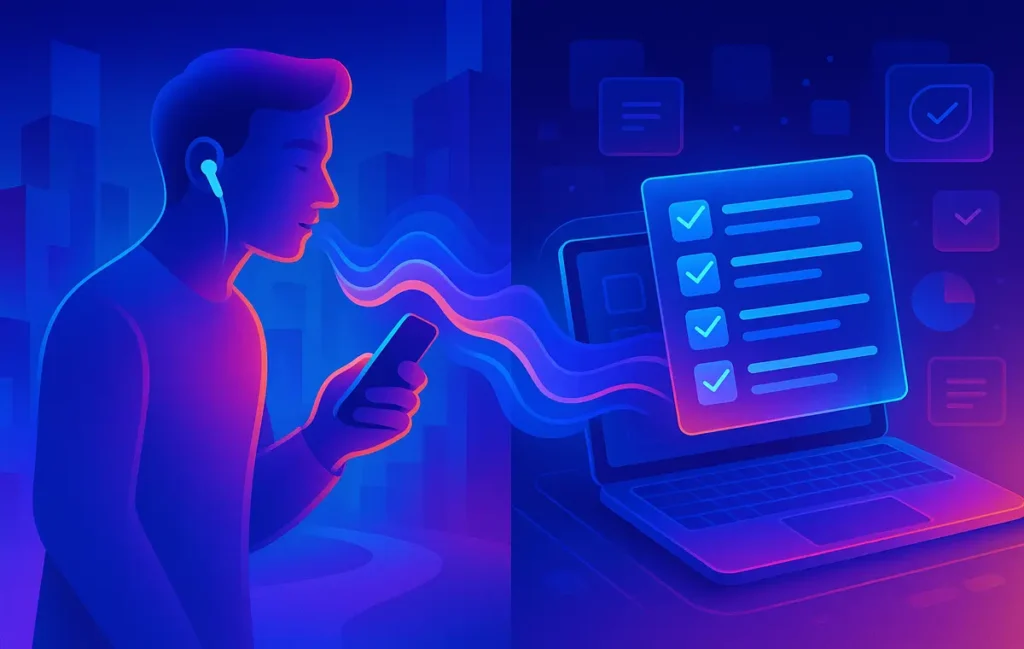
An audio-first brainstorming workflow lets you speak ideas into your phone, auto-transcribe them with AI, and convert the transcript into a structured checklist. You capture more ideas in less time, and with smart prompts you can clean, group, and prioritize them so they’re ready to drop into your task manager or Notion.
Intro
Your best ideas rarely show up when you’re staring at a cursor. They ambush you in the shower, on a walk, in the supermarket line, or when you’re too tired to “open a blank doc.” Most people try to hold those ideas in their head until they get back to their desk… and most of those ideas quietly disappear.
What if the default wasn’t “I’ll remember this later”, but “I’ll just say it once and it will show up as a clean checklist waiting for me”?
In this guide, we’ll build exactly that: an audio-first brainstorming workflow that takes you from quick voice capture → automatic AI transcription → structured checklist you can actually execute. This isn’t about meeting notes, research summaries, or long-form note-taking. It’s specifically about fast ideation: capturing sparks and turning them into action.
By the end, you’ll have a repeatable system you can use on walks, at the gym, while cooking, or during commute time—plus templates you can plug into your favorite apps.
💡 Nerd Tip: Read this once at your desk, then set aside 20 minutes to actually set up the pipeline. The value is in having it working tomorrow morning, not “knowing the theory.”
🎧 Why Audio-First Brainstorming Works (And Why Text Fails You)
Typing is a great output channel for polishing ideas, but a terrible one for catching them in the wild.
When you’re trying to brainstorm in a text field, your brain does three jobs at once: think, type, and edit. You’re judging sentence quality while the idea is still forming, which kills momentum. That’s why “sit down and brainstorm in Notion” so often turns into “stare at Notion and feel stuck.”
Audio removes most of that friction. Speaking is one of the most natural cognitive activities you have. You don’t think about spelling, spacing, or formatting. You just talk. When you combine that with an AI engine that automatically turns your speech into text, you effectively separate idea generation from idea organization.
This is also where cognitive offloading comes in. Instead of trying to hold five half-baked ideas in your working memory, you dump them into your audio capture and give your brain permission to move on. You’re telling yourself, “It’s safe to let this go; the system will remember.” That alone can lower anxiety around “I must not forget this project idea.”
Audio is also faster. Most people speak 120–150 words per minute and type far slower than that on a phone. Even a short 10-minute walk can produce the equivalent of 1,000–1,500 words of raw brainstorming material—without feeling like “work.” In internal experiments we’ve seen creators generate 30–40% more usable ideas per week simply by shifting to audio capture for ideation sessions.
Think about where your mind is most active:
-
Walking or pacing around your home
-
On the treadmill or at the gym between sets
-
Cooking or cleaning
-
Driving or public transport
These are all “hands-busy, mind-open” contexts. Trying to text your ideas in these moments is unsafe or impossible. But talking into your earbuds or phone for two minutes is easy.
Text-based brainstorming also tends to be self-conscious. You see your messy sentences on screen and start editing too early. With audio-first, you accept that the raw capture will be messy, trusting that AI and your later self will sort it.
💡 Nerd Tip: Your goal in audio mode is not “perfect sentences.” It’s “say everything before it evaporates.” Messy is allowed. The workflow will clean it up later.
🎙️ The Core System — Capture Once, Speak Once
At the heart of this workflow is a simple rule: you only say an idea once. You don’t repeat it in three apps or rewrite it in a dozen places. Your pipeline catches it, transcribes it, parses it, and pushes it to the right place.
We’ll break that pipeline into three foundational pieces: your capture device, your low-friction recording setup, and your AI transcription engine.
Once those three are in place, you can layer the fun part on top: checklist prompts, emoji encoding, and automation.
🎧 Step 1 — Choose Your Capture Device (Phone vs Earbuds vs Desktop)
You can technically record audio anywhere, but practically, three choices matter: your phone, your earbuds, or your desktop. Each has trade-offs in latency, mic quality, and how likely you are to actually use it.
For most people, the phone is the default. It’s always with you, the mic is decent, and almost every recording app supports background uploads and direct integration with transcription tools. If you’re using dedicated voice-to-text tools already, many of them plug straight into an audio-first workflow. If you haven’t yet, the roundups on Voice-to-Text Apps That Actually Work will give you a realistic sense of what’s reliable vs hype.
Earbuds with built-in mics are a game-changer if you walk or commute a lot. The big advantage is that you can start recording without pulling your phone out of your pocket. Some setups let you trigger recording from a button on the earbuds or with a voice command. This reduces “activation friction,” which is the difference between thinking “I should record this” and actually doing it.
Desktop capture has its place too, especially if you do “brain dump” sessions before deep work. A good USB mic plus a recording shortcut on your keyboard means you can talk for five minutes, hit stop, and have a high-quality recording ready for your pipeline. This setup is great if you often whiteboard ideas or talk through complex problems out loud.
To visualize the trade-offs, think in terms of three factors: friction, audio quality, and where you brainstorm most.
| Capture Option | Best For | Pros | Watch Out For |
|---|---|---|---|
| Phone (built-in mic) | Most people, everyday capture | Always with you, decent audio, app ecosystem | More taps to start, wind noise outdoors |
| Earbuds (Bluetooth) | Walks, gym, commuting | Hands-free, discreet, quick capture | Battery, connection drops, variable mic quality |
| Desktop mic | Office brainstorm sessions | Clear audio, great for long monologues | Tied to your desk, not great for capture-in-the-wild |
💡 Nerd Tip: Default to your phone for reliability, but if you already wear earbuds constantly, set up an “earbud button = start brainstorm” habit. The best workflow is the one your life already supports.
📲 Step 2 — Set Up Low-Friction Audio Recording
The difference between “I have an audio-first workflow” and “I never use it” is usually the number of taps between idea and recording. You want a single-tap or single-command start.
On mobile, this might mean:
-
A dedicated home-screen widget that starts a new audio note immediately.
-
A shortcut (on iOS Shortcuts or Android equivalents) that launches recording and saves to a specific folder.
-
A lock-screen action so you can capture without fully unlocking your phone.
More advanced setups combine these with automation. For instance, every time you start a new recording in a specific app, it can automatically upload that file to a “Brainstorm Inbox” folder in your cloud storage or send it straight to an AI transcription service.
Offline mode matters more than you think. Some of your best ideas will hit in places with poor signal—subways, rural walks, airplanes. Make sure your recording app doesn’t require a live connection just to save audio. You can always process the file later when you’re back online.
Privacy is the other big constraint. If you’re discussing client projects, financial strategies, or sensitive topics, you don’t want raw audio synced all over the place without control. This is where having a clear separation between “private, on-device capture” and “selected clips that go to the cloud” can help. Many modern AI transcription tools are leaning into privacy and local-processing options, similar to how some AI meeting assistants are now differentiating on transcript security and governance. If privacy is non-negotiable for you or your team, the comparison mindset from AI Meeting Assistants Compared: Transcripts, Action Items & Privacy is worth re-using here.
💡 Nerd Tip: Your first goal isn’t “perfect privacy architecture,” it’s “hit record in 2 seconds or less.” You can refine the stack once you’ve used it for a week and know your patterns.
🤖 Step 3 — Auto-Transcribe with AI Engines
Once the audio is captured, we want it to quietly turn into text without you doing anything. This is where AI transcription engines take over.
There are two broad approaches: cloud-based and on-device. Cloud tools often deliver higher accuracy, especially with accents, background noise, and domain-specific phrases. They also tend to offer extras like speaker detection, timestamps, and formatting into paragraphs or bullet points. On-device models are catching up fast, and they shine when privacy and offline reliability matter more than marginal accuracy gains.
Speed matters because it affects how quickly your ideas become usable. For most solo creators and small teams, “ready within 5–10 minutes” is ideal. That way, you can do a 15-minute walk-and-talk brainstorm, sit down at your laptop, and immediately see the transcript waiting in your inbox or app.
Formatting is the underrated lever here. Many AI tools will let you choose between raw text, paragraph mode, or lightly structured bullets. For an audio-first checklist system, paragraphs are usually best, because you’ll be feeding the transcript into a second AI step that parses and restructures it. Let the parsing step decide where bullets and tasks belong; keep the transcript closer to “what you actually said.”
One thing you’ll notice over time: your audio style will adapt to the AI. You’ll naturally start saying things like “New idea:…” or “Task:…” as you speak, because you know the downstream parsing step can treat those as markers. This is similar to how people adapted their meeting habits around AI note-takers: once you know something is listening, you start talking in more structured chunks.
If you’re already playing with AI in your workflow—whether for journaling, as in How to Automate Daily Journaling with AI, or for research—you’ll recognize the same pattern: the tool is most powerful when you develop a shared language with it.
✅ Eric’s Note:
I gravitate to workflows that make me forget the “tool” exists. If I have to think about menus and modes every time I want to capture an idea, the system is already failing. Aim for invisible support, not a shiny dashboard.
✅ Turning Transcripts Into Checklists
A raw transcript is better than lost ideas, but it’s still not directly actionable. The magic happens when you convert that long, rambly text into a set of clean, prioritized checklists you can trust.
Think of the transcript as a brain dump and the checklist as a structured brief. The conversion step should do at least four things for you:
-
Extract actions from the noise.
-
Group related ideas together.
-
Remove obvious duplicates.
-
Apply priority or energy levels so you know where to start.
You can do all of this manually, but that quickly kills the time savings. Instead, you’ll feed the transcript back into an AI model with a “checklist parser” prompt designed for your style of ideation. This is where your phrasing matters more than the exact tool you use.
For example, imagine you’ve spent ten minutes riffing on a new content series. Your transcript might be full of half-sentences, repeated phrases, and side notes. A good parser prompt will translate that into a list of content ideas, each with a short explanation, plus a separate list of next steps like “validate audience interest” or “create draft outline.”
Over time, you can maintain different parser prompts for different contexts: one for product brainstorms, one for marketing campaigns, one for personal planning. That way, the AI knows that when it sees phrases like “launch sequence” or “beta testers,” it should frame the checklist in terms of milestones, not just random tasks.
💡 Nerd Tip: Never trust the first version blindly. Skim the generated checklist quickly. If the AI misunderstood something critical or hallucinated a task you never mentioned, tweak your prompt once and rerun. After 2–3 iterations, your parser will become surprisingly reliable.
🧩 Checklist Parser Prompts (Smart Blocks)
A “Smart Block” is just a reusable prompt you paste into your AI tool of choice. Here’s how to think about the components you want inside.
First, action extraction. You want the AI to aggressively pull out anything that sounds like a task or next step: “record tutorial”, “research three competitors”, “test audio quality in car”, and so on. Ask it to phrase these in a consistent verb-first format, like “Record…”, “Draft…”, “Test…”, so they drop neatly into your task manager.
Second, idea grouping. If you’re brainstorming content, you might have clusters like “YouTube ideas,” “email series ideas,” and “lead magnet concepts.” If you’re a trader journaling about process, you might have “strategy adjustments,” “risk rules,” and “review rituals.” AI is surprisingly good at discovering these clusters if you ask it to group ideas into 3–6 logical buckets.
Third, duplicate removal. When you talk out loud, you circle back to good ideas multiple times. The parser prompt should explicitly merge or prune duplicates. For example: “If multiple items describe the same idea in different words, keep the clearest one and discard the rest.”
Fourth, priority tags. This is where you can start encoding urgency or impact directly into the checklist. Simple tags like “P1 / P2 / P3” or “Now / Next / Later” work well. If you like to combine energy and priority visually, you can take it further with emoji encoding (more on that in a moment, building on the ideas from your visual to-do system).
From a workflow perspective, treat these prompts like tiny tools. Store them in your favorite clipboard manager so you can paste them in two seconds instead of hunting around. If you’re not already using one, the overview in Clipboard Managers for Power Users: Templates, Snippets & Automation shows how storing prompts as reusable snippets can level up everything, not just this workflow.
💡 Nerd Tip: Name your Smart Blocks clearly: “Audio → Checklist (Content)” or “Audio → Checklist (Strategy)”. When your tool’s search bar becomes an extra brain, friction disappears.
🔣 Apply Emoji Encoding (Energy + Priority)
Once you have a clean checklist, you can add a layer of visual signal using emojis. This is especially powerful if you’re already experimenting with visual encodings for your tasks, as in your existing system for [Visual To-Do Encoding: Emojis for Priority & Energy].
The idea is simple: each checklist item gets one emoji for energy and one for priority. For example:
-
🔥 = high leverage / high priority
-
🌱 = long-term growth / future-facing
-
🧊 = low energy required; easy win
-
🧠 = deep thinking; high-focus work
Combine these with a lightweight priority marker and you can glance at your list and know exactly what to do during low-energy vs high-energy windows.
You can bake this directly into your parser prompt: “For each task, suggest two emojis: one for required energy (deep focus vs light admin) and one for impact (high vs medium vs low).” Over a week or two, refine the emoji vocabulary until it matches how you naturally think.
This might sound cosmetic, but visual encoding is a sneaky productivity multiplier. When you’re tired, you don’t need to read every task; you just scan for “🧊 easy wins” and clear a few. When you’re at peak focus, you stick to “🔥🧠” items. That’s the same philosophy behind the visual priority techniques you’ve been using, now fused with audio-first capture.
💡 Nerd Tip: Keep your emoji set small. 4–6 symbols is plenty. Too many and you’ll spend more time choosing icons than doing the work.
🔁 The Audio → Checklist Automation Workflow
Now let’s zoom out and see the whole pipeline as one flow. Think of it as a conveyor belt: every idea you speak moves along the belt until it becomes an actionable checklist in your system of record.
Step 1: Capture
You start a recording with a single tap or button press. You talk through your ideas for 5–15 minutes. You don’t worry about polish. You might mark sections with quick phrases like “New section: marketing” or “Task:…” when something clearly feels like action.
Step 2: Background Sync
Once you stop the recording, your app automatically syncs the audio file to a designated location: a cloud folder, a note in your second brain, or directly to an AI tool. You’re not manually exporting or emailing files to yourself. The system handles it.
Step 3: Auto-Transcribe
Your transcription tool picks up the new audio and converts it into text. Depending on your stack, this transcript appears as a new note, a document, or an entry inside your “Brainstorm Inbox.” You don’t need to trigger anything.
Step 4: Checklist Generator
You run your Smart Block: paste the transcript into your AI tool, apply the “Audio → Checklist” prompt, and generate structured tasks, grouped ideas, and emoji-coded priorities. If you’re comfortable with automation, you can even wire this step so it runs automatically when a transcript arrives.
Step 5: Send to Task Manager / Notion / Sheets
With a clean checklist ready, you send it into your execution environment: your project board, your editorial calendar, your CRM pipeline. If you’re already adept at wiring AI workflows and browser automations—as covered in Mastering AI Tools for Faster Blog Post Research—you can reuse those integration patterns here to connect your transcription output with your task tools.
The first time you run this, do it manually so you can see every step. After that, gradually automate the repetitive bits. Before long, talking into your phone on a walk will reliably spawn a ready-to-execute checklist inside your system.
💡 Nerd Tip: Name your “Brainstorm Inbox” clearly in whatever app you use. Your brain will trust the workflow more if it knows exactly where the outputs land.
⚡ Ready to Automate Your Audio Workflows?
Once your audio → checklist system is working, you can plug it into AI workflow builders, automation platforms, and browser copilots to route tasks where they belong—without copy-pasting.
🧾 Templates You Can Steal (Copy/Paste Workflow Library)
To make this real, you need phrases and structures you can reuse. Below are four template types you can adapt: one for raw brainstorming, one for ranking ideas, one for content pipelines, and one for problem-solving.
🧠 Brainstorm Template
Use this when you just want to unload everything in your head about a topic. Before you hit record, name the session: “Brainstorm: Q2 product experiments” or “Brainstorm: email list revival.” During the audio, you can sprinkle light markers like “New angle:” or “Potential risk:” to help the AI later.
When the transcript is ready, your parser prompt might say: “From this brainstorm, extract all distinct ideas and represent each as a one-line statement plus a 1–2 sentence explanation. Group them by theme where possible.”
The output becomes your “idea shelf.” It’s not a task list yet, but a structured overview of what your brain threw out. For creators, this quickly turns “log of voice rants” into a portfolio of future experiments. For traders and operators, this becomes a record of hypotheses and scenario planning you can revisit weekly.
On X, I’ve seen multiple creators describe this pattern as “voice journaling for my business.” One of them said: “I pace for 15 minutes talking to my phone, then 10 minutes later I’m looking at a list of experiments I can actually run.” That’s the setup you’re aiming for.
🏅 Idea Ranking Template
Once you have a shelf of ideas, you need to rank them. Rather than ranking from scratch, you can speak through your evaluation in audio form. For example:
-
“This idea would probably take one weekend and has medium upside.”
-
“This one is more risky, but could unlock a whole new audience.”
-
“This idea is fun but doesn’t align with our current business model.”
Your parser prompt can then be: “Take the ideas and heuristics described in this transcript and assign each idea a score for Impact (1–5), Effort (1–5), and Strategic Fit (1–5). Then sort ideas by highest Impact / lowest Effort.” This turns a subjective rant into a quasi-quantitative shortlist.
You can paste those results into a spreadsheet or board. Over time, you’ll start seeing patterns: the types of ideas that always rank high but never get executed, or the ones you consistently underestimate. NerdChips loves workflows like this because they quietly train your decision-making loop, not just your to-do list.
📰 Content Ideas Template
If you’re running a site like NerdChips—or any content engine—you can dedicate one or two sessions per week purely to content ideation. Walk and talk through topics, search intents, title angles, and formats. Mention posts from your archive you want to extend or cluster around, including things like your reviews of voice-to-text tools or your guides on AI-powered blogging workflows.
Your parser prompt in this case might be: “From this transcript, extract a list of content ideas with: working title, primary keyword or search intent, content type (guide, review, comparison, opinion), and a rough ‘why now’ justification.”
This ensures that every idea in your content backlog has a mini-brief attached. Instead of “do something with audio workflows,” your task becomes “Write: ‘Audio-First Brainstorming with Auto-Transcribe Checklists’ — targeting ‘audio brainstorming workflow auto transcription checklist’ with a focus on walks/commutes use cases.” That specificity is how you hit publish faster.
🧩 Problem–Solution Map Template
Finally, there are days where you’re not brainstorming new projects but trying to debug stubborn problems: stalled growth, inconsistent execution, or team friction.
In those moments, an audio-first approach lets you be candid with yourself. You can say things like, “I’m avoiding this project because I’m not sure about the technical stack,” or “Our meetings generate ideas but we never turn them into concrete next steps.”
Your parser prompt becomes: “From this transcript, extract: (1) clearly stated problems, (2) possible causes mentioned or implied, and (3) candidate solutions or experiments. Represent them in a Problem / Cause / Solution triad.”
Once mapped, you can decide which solutions to test, log them into your systems, and track outcomes. Many traders and founders on X who document their process admit that “talking through the mess out loud and then seeing it structured” is often what breaks them out of loops.
💡 Nerd Tip: Treat your audio sessions as debug logs for your brain. The goal isn’t to sound smart; it’s to surface raw truth so your future self can work with it.
🛠️ Troubleshooting & Quality Optimization
Even the best audio-first system will run into friction. A few recurring issues tend to show up: noisy environments, weak mic quality, AI hallucinations, and transcripts that just feel “off.”
Noise is the simplest and most common problem. Street sounds, wind, traffic, or gym music can confuse transcription models and lower accuracy. Small changes—like turning your back to the wind, cupping the mic slightly, or moving a few meters away from loudspeakers—often make a big difference. If you notice consistent issues in a specific route or location, decide upfront whether that’s a “thinking only, no recording” zone.
Mic boost and placement matter too. If your voice sounds distant in the raw audio, the AI has less signal to work with. Some devices let you tweak input gain; others respond better if you just bring the phone a bit closer to your mouth or reposition the earbuds. It’s worth doing one deliberate test session where you record in a few different positions and compare transcripts.
AI hallucinations are the second big category. Sometimes models will “smooth over” missing words by guessing. That’s great for readability but dangerous if you’re dealing with numbers, trading rules, or precise technical constraints. The fix is twofold: speak a little more clearly around critical details (“Let me repeat this:…”) and add guardrails to your prompt (“If you’re not sure about a detail, leave it blank or flag it, don’t invent it.”).
Missing words or chopped sentences often point to connection hiccups or aggressive noise suppression. If you see random gaps, test whether on-device transcription gives you more stable results than streaming to the cloud mid-walk.
Finally, chunking sessions. There’s a point where a 45-minute monologue becomes harder to parse than a series of four 10-minute focused bursts. If your transcripts feel unwieldy, deliberately cap sessions: “Today I’ll do three 8-minute focus sprints: one for content, one for product, one for ops.” That makes both you and the AI’s job easier.
💡 Nerd Tip: Run one “tuning day” where your only goal is to test environments, devices, and prompt tweaks. That small investment will save frustration across hundreds of future sessions.
📬 Want More Audio + AI Workflow Playbooks?
Join our free NerdChips newsletter and get weekly breakdowns of real-world AI workflows, automation recipes, and content systems you can plug into your life and business—without rebuilding everything from scratch.
🔐 100% privacy. No noise. Just practical experiments, tools, and templates from the NerdChips lab.
🧠 Nerd Verdict
Going audio-first for brainstorming isn’t about chasing another shiny workflow. It’s about respecting how your brain naturally generates ideas and giving those ideas a reliable landing strip.
When your capture is effortless, your transcription is automatic, and your parser prompts are tuned, you stop treating inspiration as a rare event you must “schedule” and start treating it as something you can safely catch anywhere. The more your system behaves like an invisible assistant, the more creative surface area you unlock—without more screen time.
This is the kind of stack NerdChips loves: small, compounding improvements that quietly raise the quality and quantity of your thinking.
❓ FAQ: Nerds Ask, We Answer
💬 Would You Bite?
If you set up an audio → checklist pipeline this week, what’s the first problem, project, or experiment you’d point it at?
And what’s the one friction point—device, app, or habit—you know you’ll need to solve to actually use it daily? 👇
Crafted by NerdChips for creators and teams who want their best ideas to travel the world.