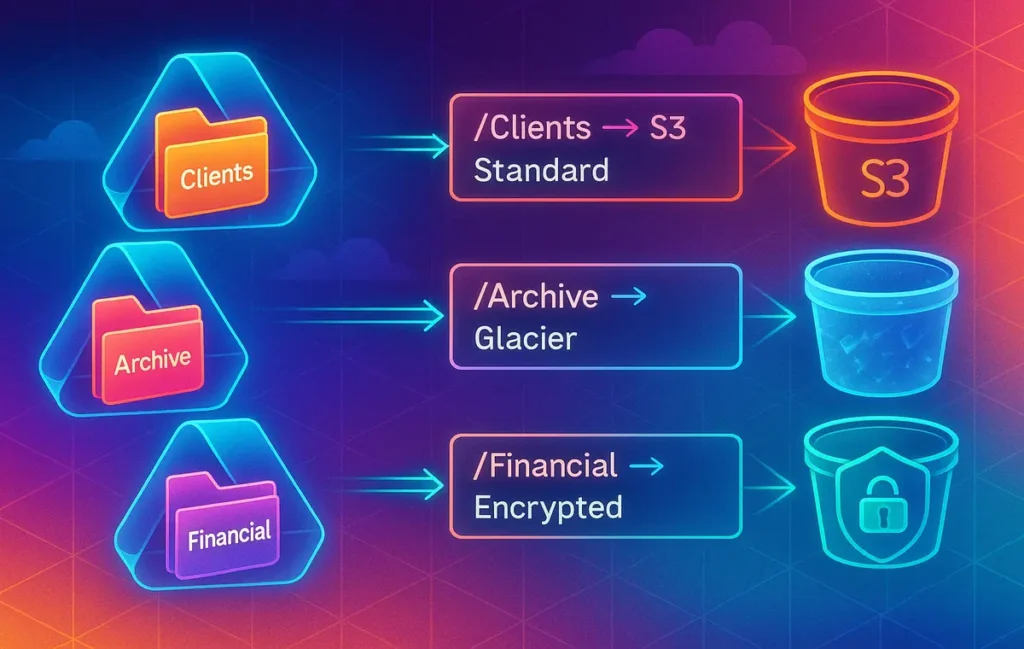
The smartest way to automate Google Drive to S3 backup is to treat it as a folder-rule engine, not a blind “full sync”. You map each Drive folder to an S3 bucket or prefix, attach lifecycle and encryption policies, and let automation tools move files based on rules for path, type, and age—so every file lands in the right storage class automatically.
🚀 Why Rule-Based Cloud-to-S3 Backups Matter in 2025
Most teams start their “backup to S3” journey with a simple idea: copy everything from Google Drive (or Dropbox, OneDrive) into a single S3 bucket. It feels safe—like sweeping the floor into one big box. The problem shows up six months later when that “safe” bucket is a swamp of active files, archives, and sensitive documents all mixed together, and your S3 bill has quietly grown by 30–40% because nothing is tiered, expired, or encrypted properly.
In 2025, that approach is no longer good enough. You probably have folders that should live in S3 Standard for fast recovery, long-term archive folders that should go straight into Glacier or Deep Archive, financial folders that must be encrypted with strict IAM policies, and media-heavy folders where multipart uploads and infrequent-access classes matter. Blind sync cannot express those differences. A folder-rule engine can.
This guide shows you how to turn “automate Google Drive to S3 backup folder rules” from a vague wish into a concrete integration. Instead of treating Drive as the star of the show, we treat it as just the source. The real design work happens in how you map folders to S3 buckets and prefixes, attach lifecycle rules, and wire automation tools like Make.com, rclone, or AWS Lambda so that every file lands exactly where it should. If you first want your folder tree in better shape, you can always warm up with the ideas in How to Automate Your Google Drive Organization and then come back here for the S3 integration layer.
💡 Nerd Tip: Assume that anything you “just sync” will become technical debt within a year. Anything you design as a rule system will get smarter over time instead of messier.
🎯 Who This Integration Guide Is For (And Who It Isn’t)
This is a workflow playbook for people who already feel the weight of their cloud storage. If you are a creator with tens or hundreds of gigabytes of footage, a marketing team with shared brand assets and campaign archives, a research group storing years of PDFs and datasets, or a dev/ops person quietly running all the file hygiene for your company, this is your territory. You care about resilience (what happens if Drive fails), cost (what storage class is appropriate), and governance (who should actually see those financial PDFs).
It is also for security-minded users who know that relying on a single vendor’s cloud is a risk. When you mirror critical documents into S3, you can lock them down with IAM roles, encryption keys, and lifecycle rules that match your privacy posture and the broader habits you may already be building from guides like Pro Tips for Securing Your Online Privacy. NerdChips sees a pattern across many teams: once they “graduate” their storage strategy, backup flows stop being ad-hoc hacks and become part of a deliberate automation stack.
What this guide is not: it is not a generic “how to clean up Google Drive” tutorial, and it is not a cloud storage philosophy essay. For those, your best companion is Cloud Storage Mastery: Organize and Protect Your Online Files, which gives you the big-picture structure. Here, we assume you already accept that backups must exist and jump straight into how to design and implement a rule-based integration from Drive to S3. If you just want a simple mirror and never touch rules, this guide may feel overkill—but your future self might wish you had read it anyway.
🧱 Architecture Overview: How Rule-Based Drive → S3 Backup Works
At a high level, the architecture has four pieces: a source cloud drive, an automation layer, an S3 destination, and a folder rule engine that glues everything together. The source is usually Google Drive in this context, but Dropbox or OneDrive can easily be slotted in. The automation layer is where tools like Make.com, Zapier, n8n, rclone, or AWS Lambda live. The destination is one or more S3 buckets with versioning and lifecycle policies. The rule engine is the logic that says “if file is in Folder A and type is PDF, send it here with these options”.
Imagine a textual diagram: /Clients/2025/Project-X on Drive triggers an automation event; that event hits a router that checks the folder path and matches it to a rule like Clients/* → s3://company-prod-backups/clients/. A second rule might say Archive/* → s3://company-archives/ archive/ with an attached lifecycle policy that moves objects into Glacier after 30 days. Another rule could say Financial/* → s3://company-finance-secure/ with SSE-KMS encryption and a stricter IAM role. The same source platform, but three different behaviors.
On the S3 side, you combine prefix mapping, include/exclude filters, file-type routing, versioning, and lifecycle rules into a cohesive structure. That is where the ideas from How to Secure Your Cloud Storage Step by Step become directly actionable: you are not just securing buckets in isolation, you are designing how files arrive there. Once you have that picture clear, wiring any specific tool is easier, because you are not asking the tool to invent the rules—it is just executing them.
🟩 Eric’s Note
I don’t like backups that I have to “trust quietly.” If I can’t explain in one sentence where a file will land and how long it will live there, the system is probably too vague to protect me when something actually breaks.
🛠️ Choosing Your Automation Stack by Complexity
Different teams have different comfort levels. A small creative studio might prefer Make.com’s visual scenario builder, while a dev-heavy startup might feel more at home with rclone and a few shell scripts, or an AWS-native approach using Lambda and EventBridge. The underlying folder rules are the same, but the implementation style changes.
| Approach | Best For | Strengths | Trade-offs |
|---|---|---|---|
| Make.com / Zapier | No-code/low-code teams | Visual router, easy filters, quick to iterate, good for folder-based rules. | Usage-based pricing, less control over deep S3 features, rate limits. |
| Rclone + cron | Power-users, sysadmins | Extremely flexible filters, strong S3 support, efficient for large data. | CLI-centric, requires server/VM, more manual monitoring. |
| AWS Lambda + APIs | Dev/ops, AWS-native teams | Granular control, event-driven, can integrate tightly with IAM, KMS, and logging. | Requires coding and AWS expertise, more moving parts to maintain. |
On X you will often see ops engineers say things like, “Once we put rclone rules in place, backup failures dropped to almost zero—our pain moved from ‘did it run?’ to ‘are we happy with the rules?’.” That is exactly the transition you want. NerdChips has seen similar patterns with SaaS-based automation tools: when folder rules are explicit and reviewed quarterly, teams can cut manual backup time by 50–70% without adding more headcount, especially when these automations sit alongside flows like Automate Google Sheets Reconciliation from Two CRMs in a shared automation stack.
💡 Nerd Tip: Choose the simplest stack you can fully own. A “perfect” Lambda design that nobody on the team understands is riskier than a Make.com scenario you can debug in five minutes.
🗺️ Step 1 — Map Your Cloud Folders to S3 Buckets and Prefixes
Before opening any automation tool, you need a rule blueprint. This is where you decide that /Clients/2025/* should land in a production backup bucket, /Archive/* belongs in an archival bucket with Glacier policies, /Financial/* requires encryption, and /Temp/* should not be backed up at all. Treat your Drive (or Dropbox, OneDrive) folder tree as a classification system, not just a set of locations.
Start by listing your top-level folders and asking three questions for each: how quickly would we need this if Drive vanished, how long do we need to keep it, and how sensitive is it? From those answers, you can map each folder to an S3 bucket plus prefix and storage class strategy. For example, client-facing work might stay in Standard for ninety days and then transition to Infrequent Access; archived campaigns might go straight into Glacier Deep Archive after thirty days; internal finance documents might never leave an encrypted bucket with strict IAM controls.
This is also the ideal moment to implement a bit of pre-cleaning. If your folder tree is chaotic, you are essentially baking that chaos into S3. The patterns in How to Automate Your Google Drive Organization can help you normalize naming and consolidate duplicate folders before you lock in rules. Once your blueprint feels stable, write it down as a simple table or config file, because your automation logic will directly reference these mappings.
💡 Nerd Tip: Wherever possible, make rules based on folder paths and prefixes, not on file names alone. Paths change less often than naming habits.
🏗️ Step 2 — Prepare Your S3 Buckets: Versioning, Lifecycle, Security
With your folder map in hand, you can prepare S3 to receive data in a way that matches your intentions. First, enable versioning on any bucket that will store active client work or critical documents. Versioning protects you from accidental overwrites or deletions; many teams only learn this after someone uploads a “Final_v2” file over the top of “Final_v1” and needs to roll back.
Next, design lifecycle policies per prefix. Instead of a single, blunt rule, attach more precise transitions: maybe /clients/active/ stays in Standard for ninety days before shifting to Standard-IA, while /clients/archived/ goes to Glacier after thirty days and to Deep Archive after a year. Storage class tuning is one of the easiest ways to claw back S3 costs without compromising safety, and a well designed rule-based backup flow makes that tuning automatic.
Security is non-negotiable. At minimum, you should enable default encryption (SSE-S3 or SSE-KMS) and ensure that Block Public Access is on for all backup buckets. From there, use IAM roles, not long-lived IAM users, for your automation tools. The best practices in How to Secure Your Cloud Storage Step by Step and Pro Tips for Securing Your Online Privacy apply directly: grant the narrowest permissions that still let your automation put objects into the right buckets, log access where appropriate, and avoid sharing credentials between unrelated workflows.
Once this is in place, your Drive → S3 integration is no longer “dump files into a bucket.” It is a structured storage environment where versioning, retention, cost control, and security are all expressed in configuration. The automation tools simply feed this environment.
🤖 Step 3 — Build the Automation: Make.com, Rclone, or Lambda
Now we can actually move files. The implementation details differ, but the mental model stays constant: watch a folder, apply rules, upload to S3.
🧩 Option A: Make.com Folder Rule Engine (Visual Approach)
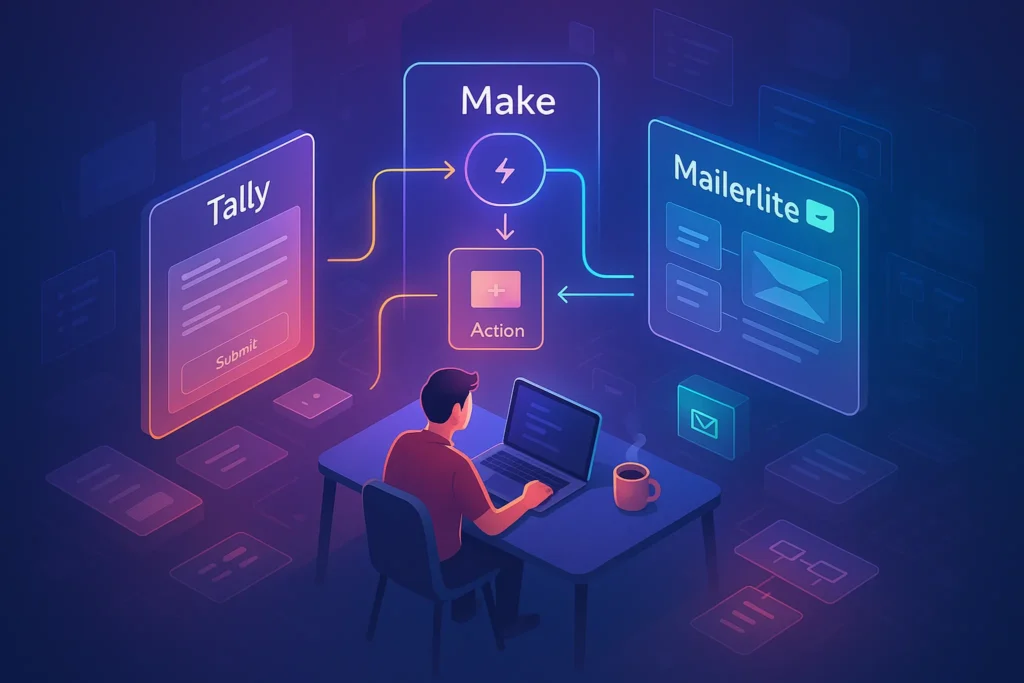
In Make.com, you typically start with a “Watch files in folder” trigger for Google Drive. That module fires whenever a new file appears or is updated in a specified folder or its subfolders. You then build a router with branches representing your folder rules: one branch for /Clients/2025/*, another for /Archive/*, another for /Financial/*, and so on. Each branch checks the file’s path, and optionally its type or size, before deciding which S3 upload module to call.
For example, the “Clients” branch might send objects to s3://company-prod-backups/clients/2025/ with standard storage class and server-side encryption. The “Archive” branch might send them to an archive bucket with a tagging scheme that triggers lifecycle transitions. The “Financial” branch might upload into an SSE-KMS encrypted bucket using a dedicated IAM role. You can also build small conveniences like timestamped renaming or prefix normalization so that your S3 keys stay predictable.
Make.com scenarios benefit from explicit error handling. Add a fallback route for failed uploads that posts to Slack or email, and maybe moves problematic files into a /Backup-Errors/ folder so your team can investigate. This kind of flow-based design is the same spirit used in more business-facing automations like Automate Google Sheets Reconciliation from Two CRMs—only here the payload is file objects instead of rows.
🧩 Option B: Rclone + Cron (CLI Power Approach)
Rclone is a command-line Swiss army knife for cloud storage, and it shines when you want fine-grained control. You define two remotes in your rclone.conf: one for Google Drive and one for S3. Then you create sync or copy commands with --include and --exclude filters that embody your folder rules.
A simple pattern might be: run one rclone job that copies /Clients/2025/ into s3:company-prod-backups/clients/2025/ with --s3-storage-class STANDARD, another job that sends /Archive/ into s3:company-archives/archive/ with --s3-storage-class GLACIER, and a third that sends /Financial/ into s3:company-finance-secure/ using restricted credentials. You can further refine behavior with patterns like --exclude "*.tmp" or --include "/Footage/**" so that temp files and cache artifacts are ignored.
Most teams schedule these commands with cron or a systemd timer. A good pattern is to run a --dry-run job first when you change filters, verifying which files would be touched, and then switch to the real run. In practice, once rclone rules are dialed in, they tend to run quietly in the background for months. You only revisit them when your folder structure changes or you add new S3 buckets.
💡 Nerd Tip: Document your rclone commands in a shared README next to your config. Future you will forget why a specific --exclude exists unless you write it down.
🧩 Option C: Lambda + API Gateway (Dev/OPS Native Approach)
If your team lives inside AWS, building the integration with Lambda can be appealing. The pattern is usually event-driven: a webhook or poller notices changes in Google Drive, then sends structured events into an API Gateway endpoint; that endpoint triggers a Lambda function that inspects the file path and metadata, consults your folder rule map, and issues a PutObject to the appropriate S3 bucket with the right headers and tags.
Inside Lambda, you can express your rule engine as a simple dictionary of prefix patterns to configuration objects. For example, "/Clients/2025/" → { bucket: "...-backups", prefix: "clients/2025/", storageClass: "STANDARD" }. The function reads this map, builds the S3 key, and attaches any necessary metadata. You can integrate AWS Secrets Manager to store Drive API credentials or service account keys, and you can hook CloudWatch logs and metrics to track throughput and errors.
This approach demands more engineering effort but gives you maximum flexibility. You can plug into S3 events for post-upload checks, integrate with S3 Inventory for verification, and build dashboards or alerts that match other infrastructure monitoring. If you are already following the patterns laid out in Cloud Storage Mastery, Lambda-based integration becomes just another piece of your infrastructure-as-code story.
🛡️ Step 4 — Add Safety Nets: Logs, Alerts, Verification
A rule-based integration is only as trustworthy as its safety systems. At minimum, you need a way to know when uploads fail, a way to verify that what you think is backed up actually is, and a way to recover from partial issues without re-copying everything. Many teams start with basic email or Slack notifications for failed jobs and grow into more sophisticated reporting as volumes increase.
For integrity, it is worth including some form of checksum or hash comparison, especially for large media files. Some setups compute a SHA-256 hash on upload and store it as metadata, then periodically run verification jobs that compare stored hashes against local or source copies for a sample of files. This is similar in spirit to the verification and hygiene mindset you’ll find in Cloud Storage Mastery: Organize and Protect Your Online Files, but focused on the backup pipeline itself.
S3 Inventory and access logs can help you audit what is actually in each bucket and when it was last modified. You might schedule a weekly report that checks whether all critical prefixes have seen updates in the expected timeframe; if not, something in your automation may have quietly broken. Finally, consider a “fail folder” strategy: if an automation tool cannot upload a file after a few retries, move it into a dedicated folder on Drive so a human can inspect it instead of silently dropping it.
💡 Nerd Tip: A backup you never test is just an expensive story you tell yourself. Schedule small recovery drills where you actually restore files from S3 to simulate a real failure day.
📂 Real-World Folder Rule Blueprint (Client Projects Example)
Let’s ground this in a concrete scenario. Imagine a small agency that runs everything out of Google Drive: client work, financials, raw footage, internal docs, and transient assets like screenshots. They want an automated backup into S3 that recognizes each folder’s purpose instead of blindly replicating everything into a single bucket.
They decide that /Clients/2025/* should land in an S3 bucket with fast retrieval because they constantly touch that work. They keep objects in Standard storage for ninety days and then shift older content into Standard-IA using lifecycle policies. Next, they treat /Financial/* as highly sensitive; those files go into a dedicated S3 bucket with SSE-KMS encryption, stricter IAM constraints, and a longer retention window because of tax and compliance requirements. Meanwhile, /Footage/* holds huge video files: they configure a bucket that uses Standard storage for active projects but applies rules to move assets into cheaper infrequent-access classes after a project closes.
Finally, they treat /Temp/* as a non-backup zone. Anything that lives there is considered expendable; their rule engine explicitly excludes that path, which keeps noise and costs down. /Screenshots/* gets a small extra rule: objects are uploaded with keys like screenshots/YYYY/MM/filename regardless of the original Drive subfolders, so that in S3 they have a neat chronological structure. That small decision pays off later when they search or prune.
All of this is encoded as folder → S3 mappings and is executed by their chosen automation tool. When someone in the team drops assets into a folder, they are also choosing the backup behavior. Over time, as their storage strategy evolves, they update the rules—not the habits. That is the real sign that the system is working for them.
⚡ Want a Plug-and-Play Folder Rule Engine?
Grab a ready-made blueprint for Drive → S3 backups: folder-to-bucket maps, lifecycle templates, and example rclone filters so you can ship a reliable backup layer in days, not months.
⚠️ Common Mistakes with Cloud-to-S3 Automation (And How to Avoid Them)
The first and most common mistake is treating everything as a full sync. It feels comforting to know that “Drive is mirrored in S3,” but that comfort disappears when you realize you are replicating trash, temp files, and low-value content alongside your crown jewels. Storage bills climb, lifecycle rules are hard to reason about, and you lose the ability to say which parts of your S3 estate are truly critical. Rule-based sync fixes this by making you explicitly decide what deserves backup.
Another frequent error is skipping versioning. Without versioning, a misconfigured rule or a human mistake can overwrite important files without any easy way back. The marginal extra cost of versioning is usually trivial compared to the cost of a lost contract or financial record. Think about how you approached hardening cloud accounts in How to Secure Your Cloud Storage Step by Step; the same logic applies here: resilience is built, not implied.
Misconfigured lifecycle policies can be quietly dangerous. If you send active project files straight into Glacier, you will hate your own setup the first time you need to restore something urgently. Conversely, leaving archive data in Standard forever wastes budget. A good pattern is to run an “intent check” for each prefix: ask yourself exactly when and how often you expect to touch those files, and set lifecycle rules accordingly. Adjust quarterly based on real usage.
Security and identity also trip people up. Using a single overpowered IAM user for all automations is convenient until those credentials leak or are misused. It is safer to define narrow IAM roles for each integration and to rotate keys regularly, just as you would for other critical services. The privacy-centred mindset from Pro Tips for Securing Your Online Privacy becomes very concrete in this context: minimal access, short-lived secrets, clear blast radius.
Finally, many teams forget to build retry logic and resilience for large files. Backups of footage or huge design assets often fail intermittently due to timeouts or transient network issues. If your workflow gives up after one failed upload, you will accumulate silent gaps in your S3 archive. Whether you use Make.com’s built-in retries, rclone’s robust flags, or Lambda’s DLQ patterns, ensure that “try again” is built into the flow.
💡 Nerd Tip: Add a monthly “S3 sanity review” to your calendar. Look at costs, recent uploads, lifecycle reports, and a couple of test restores. Ten minutes now can save hours on a crisis day.
Want More Automation & S3 Playbooks?
Join the free NerdChips newsletter and get weekly deep dives on automation workflows, cloud storage strategies, and real-world integration patterns you can actually ship.
100% privacy. No spam. Just practical, battle-tested guides from NerdChips.
🧠 Nerd Verdict: Backups That Think in Folders, Not Buckets
Most backup stories are still written in terms of tools—this sync app vs that CLI, this SaaS vs that script. The more interesting story is architectural: are you backing up objects randomly, or are you backing up a structure that reflects how your team actually works? A rule-based Drive → S3 backup turns folder names, prefixes, and lifecycles into levers you can pull with intent.
By combining a clear folder blueprint, well-configured S3 buckets, and a reliable automation layer, you get a system where every file “knows” where to go. That system pairs naturally with the storage discipline you can build from Cloud Storage Mastery and the security mindset of How to Secure Your Cloud Storage Step by Step. When you reach that point, the question is no longer “did the backup run?” but “are we ready to evolve our rules as the business changes?”
NerdChips’ take is simple: the future of backups is not more tools—it is smarter rules, expressed clearly, tested regularly, and owned by humans who understand what they protect.
❓ FAQ: Nerds Ask, We Answer
💬 Would You Bite?
If Drive went dark for 24 hours tomorrow, would you know exactly which S3 bucket holds your most important folders—and how long it would take to restore them?
Or is this the moment to design a folder-rule engine that finally makes your backups as intentional as your work? 👇
Crafted by NerdChips for creators and teams who want their best ideas to travel the world without their backups turning into chaos.