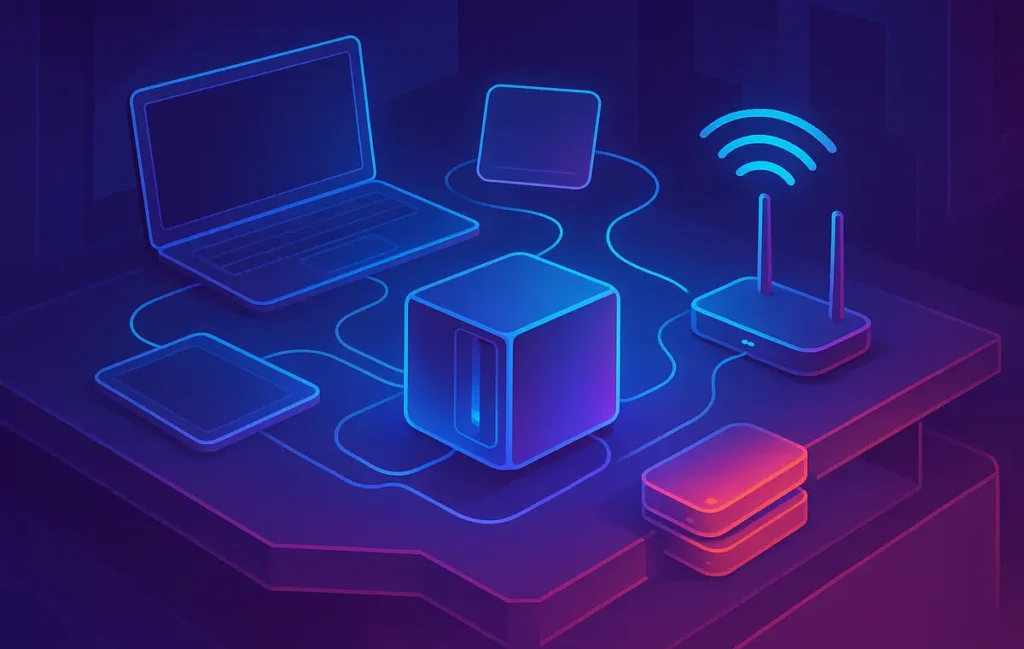
You can build a beginner-friendly home NAS on a tight budget by reusing an old PC or buying an entry-level 2-bay NAS, wiring it to your router via Ethernet, creating SMB shares, and pointing your devices’ backup tools to it. Think of it as a shared “always-on” hard drive—not a replacement for cloud, but a powerful first layer of your backup strategy.
🔧 Stop Using Your Main PC as a File Server (The Real Problem)
Most home setups look the same: one “main” laptop or PC silently carries everything. Family photos, client projects, downloaded movies, game saves, tax documents—everything lives on a single device that was never meant to be a central file server. As long as it turns on, life feels fine. The day it dies, is stolen, or Windows decides it has had enough, everything breaks at once.
Using your primary PC as your “server” also creates annoying friction. If someone in your home wants to access a file from another device, that main PC needs to be powered on, connected, and not in the middle of a random Windows update. That’s why people end up emailing themselves files or juggling USB sticks instead of having a simple shared space on the network.
A home NAS (Network Attached Storage) fixes this by becoming your always-on, low-power “file hub.” Instead of one laptop doing everything, you have a small device whose entire job is to store and share data: documents, media, and backups. With SMB shares, every Windows, macOS, and Linux device on your network can access the same folders as if they were local drives.
💡 Nerd Tip: If you already feel nervous about losing photos or projects, that’s your intuition telling you it’s time to stop improvising and start designing a proper storage setup.
Your NAS will not replace cloud backups or good backup habits. It becomes the core of your local strategy. For deeper strategies around protecting your entire digital life across devices and services, you can later layer in ideas from Pro Tips for Backing Up Your Entire Digital Life, but in this guide we stay firmly grounded in budget-friendly, hardware-plus-network reality.
By the end of this tutorial, you’ll have a clear plan to:
-
Choose budget hardware for a beginner NAS.
-
Connect it cleanly to your home network.
-
Create SMB shares everyone can use.
-
Set up simple, low-maintenance backup routines into your NAS.
No enterprise rack, no noisy server room—just a small, efficient box that quietly protects your files.
📁 What Is a NAS (and What It Isn’t)?
A NAS (Network Attached Storage) is basically a tiny, purpose-built file server that sits on your network and exposes storage over the local LAN. Practically, it’s a small computer with one or more drives inside, connected to your router via Ethernet. Other devices see it as a network location and can read/write files, stream media, or use it as a backup target.
The big mental shift is this: your storage is no longer tied to a single device. Your laptops, desktops, and even phones can all treat the NAS as the “house archive.” The device can run 24/7, use much less power than a traditional PC, and provide a consistent, predictable place for your important files and backups.
It’s important to differentiate a NAS from a simple external hard drive. An external drive is directly attached to one computer; if that computer is off, nobody else can access the drive. A NAS lives on the network, so anything on the same LAN (and with permission) can use it. It also usually comes with basic management tools for user accounts, shared folders, and sometimes apps like media servers or download managers.
It’s equally important to understand what a NAS is not. It is not a magic shield against data loss. If the NAS itself fails, is stolen, or gets encrypted by malware, your data is still at risk. That’s why in serious backup strategies, the NAS is one layer—not the whole system. You still want extra layers like offsite or cloud backup for your most critical data, which you can design using broader strategies similar to those in Pro Tips for Backing Up Your Entire Digital Life.
A NAS is also not a perfect replacement for cloud storage. Cloud services bring automatic offsite protection and easy sharing outside your home. A NAS excels at local speed, privacy, and control, but it still lives in your house. If your house has a problem, so does your NAS. In practice, many NerdChips readers find that a combination of “NAS for daily work and local backups” plus “cloud for offsite safety” hits the sweet spot.
💡 Nerd Tip: Think “local brain” (NAS) plus “remote memory” (cloud). Each has strengths; you don’t need to pick a single winner.
💰 Budget Planning: How Much Should You Spend?
Budget is the number-one reason people delay setting up a NAS. The good news: you don’t need a four-bay monster to start. For a first-time, budget-conscious home setup, think in ranges, not luxury.
For most beginners, there are two cost buckets: the box (NAS or repurposed mini PC) and the drives. If you’re starting from zero, the drives will often be the largest share of your cost, not the enclosure itself. It’s very common for families to underestimate how much storage they actually need, especially once they centralize photos, home videos, backups, and large downloads.
A practical starting point for many households is 4–8 TB of usable capacity. That might sound huge, but once you combine multiple laptops’ worth of data, raw photos, project archives, and a growing collection of media, it fills faster than you expect. A simple, mirrored two-drive setup gives peace of mind because if a single drive dies, your data is still intact.
Some users adopt an even leaner entry path: start with a single drive to hold media and basic backups, then upgrade to mirrored storage later. This works if you understand that until you add redundancy, your NAS is still a single point of failure. That’s a trade-off many budget builders are willing to make temporarily just to get off the “everything lives on my laptop” cliff.
If you want to keep costs ultra-low, you can reuse old hardware for the NAS itself and invest the majority of your budget into reliable drives. You don’t need gaming-level performance for file sharing and backups; low CPU power and modest RAM are enough. This is a common pattern among readers who want a beginner NAS setup that feels deliberate but doesn’t demand a big upfront purchase.
💡 Nerd Tip: If you’re forced to choose, prioritize better drives over a fancier enclosure. Drives hold your memories; the box just organizes them.
🧱 Choosing the Hardware: Prebuilt NAS vs DIY Box
When you design a beginner NAS on a budget, your biggest decision is: prebuilt NAS or DIY from existing hardware. Both paths can work extremely well; they just optimize for different things.
A prebuilt NAS is a small, dedicated appliance that already includes a tailored operating system and web interface. You slide in drives, power it up, and log in via your browser. User management, SMB shares, and basic apps are all guided through wizards. For someone who wants the shortest path from “I’m overwhelmed” to “I have a running NAS,” prebuilt gear is very appealing. The trade-off is cost: per unit of compute and storage, prebuilt boxes are typically more expensive than repurposed hardware.
On the other side is the DIY approach: reusing an old PC, small form-factor desktop, or mini PC you already own. You add internal or external drives, install a NAS-friendly operating system, and configure shares yourself. This usually delivers more raw power and flexibility per dollar but expects a bit more curiosity and willingness to follow setup guides. For many NerdChips-style builders who enjoy learning, this path feels more satisfying and budget-friendly.
| Option | Better If You Want… | Main Trade-Off |
|---|---|---|
| Prebuilt NAS Appliance | Fastest setup, polished UI, low maintenance. | Higher cost per TB, less flexible hardware upgrades. |
| DIY NAS from Old PC / Mini PC | Lowest cost, maximum flexibility, learning experience. | More manual setup, potentially higher power usage if the hardware is old. |
💡 Nerd Tip: If you’ve never built anything like this before, start simple. You can always migrate to a more advanced OS or enclosure later; your drives and data will move with you.
Regardless of which path you choose, keep the goal simple: a quiet, wired box that can stay on most of the time without bothering anyone. The “enterprise server in the living room” meme exists because people overbuild. For a home with a couple of laptops and a TV, you don’t need that. A small, low-power box or modest prebuilt NAS will comfortably handle SMB shares and scheduled backups.
⚡ Ready to Build Your First Home NAS?
Before you buy anything, sketch your NAS plan: devices to back up, estimated storage, and whether you’ll go prebuilt or DIY. A simple one-page plan will save you money and help you choose the right enclosure and drives instead of guessing.
💿 Drive Choices: Capacity, Redundancy & “RAID vs Backup”
Once you’ve decided on the box, the next big question is which drives to use and how to arrange them. This is where many beginners feel overwhelmed by acronyms. You’ll hear about RAID levels, shucked drives, NAS-rated disks, and more. For a beginner NAS setup on a budget, you don’t need to master every option—you just need to understand the difference between redundancy and backup.
Redundancy (like RAID 1 mirroring) means your NAS can survive individual drive failure without immediate data loss. With two drives in RAID 1, your NAS writes the same data to both. If one dies, the other still has everything. This keeps your NAS online and usable while you replace the failed drive. It protects against a very specific problem: a single disk dying at a bad time.
Backup, on the other hand, means you have a separate copy of your data somewhere else. That “somewhere else” can be an external drive you plug in occasionally, another NAS in a different location, or a cloud provider. Backup protects you from a wider range of disasters: ransomware, accidental deletion, house damage, theft, or both drives failing. RAID cannot solve those; it was never designed to.
For most beginners, a two-drive NAS in RAID 1 is a comfortable starting point: you get simple redundancy and an easy mental model (“If a drive dies, I still have everything”). Just remember that this is not your final backup plan—only a reliability boost for the main store. To add real safety, you can later sync your most important folders to the cloud or another device using a strategy similar to what’s covered in Cloud Storage Mastery: Organize and Protect Your Online Files.
If you truly need to squeeze the budget, you can start with a single larger drive and treat your NAS as “better centralized storage” first, then introduce redundancy and external/cloud backup as your next upgrade. But be honest with yourself: until you do that, your NAS is just a nicer single drive. For any files that are irreplaceable, it’s worth layering in a secondary copy. As you refine your setup, you’ll also want to apply step-by-step cloud hardening similar to How to Secure Your Cloud Storage Step by Step, especially once your NAS begins syncing with online services.
💡 Nerd Tip: Write down which data is “replaceable” (downloads, installers) and which is “irreplaceable” (photos, documents). Give your best protection to the irreplaceable group first.
🌐 Network Basics: Plugging Your NAS into Your Home LAN
The magic of a NAS only appears once it’s cleanly connected to your home network. Fortunately, this part doesn’t require you to be a network engineer. For a beginner NAS setup, the simplest and most reliable configuration is: NAS → Ethernet cable → home router.
Avoid the temptation to place your NAS on Wi-Fi. For sustained backups and large file transfers, Wi-Fi adds latency, congestion, and unpredictability. A wired connection gives you consistent throughput so your backups can run quietly in the background without choking your video calls or streaming.
After physically connecting the NAS, log in to your router’s admin interface and identify the NAS in the device list. Most routers will show its name or MAC address. Assign it a static IP or a “DHCP reservation” so it always gets the same address. This makes future configuration and SMB connections much easier; you won’t be hunting for a moving target every time the router reboots.
Security-wise, keep your NAS strictly on the internal LAN. As a beginner, you don’t need to expose its ports directly to the internet. Remote access can be considered later with VPNs or vendor-provided tunneling tools, but your first goal is rock-solid local access. Combine this with a hardened router and strong Wi-Fi configuration. If you haven’t already tightened that part of your digital life, this is a good moment to revisit fundamentals in How to Secure Your Home Wi-Fi Network.
💡 Nerd Tip: Name your NAS something human, like “atlas” or “family-nas,” instead of leaving the default. You’ll see this name in file explorers and backup tools, so make it recognizable.
Once the NAS has a fixed IP and is reachable via ping from your computers, you’re ready to create SMB shares and expose storage in a user-friendly way.
SMB (Server Message Block) is the protocol that makes your NAS feel like a network drive. It’s what lets you open File Explorer or Finder and browse shared folders as if they were on your own machine. Getting these shares right is one of the most satisfying parts of the setup because it turns your abstract “NAS box” into a tangible part of the home.
Start by deciding which high-level folders you want on the NAS. A simple structure might include “Family,” “Work,” “Media,” and “Backups.” Each shared folder can have its own permissions. For example, everyone might have read/write access to “Family” and “Media,” while “Work” is restricted to specific users. The goal is to avoid turning your NAS into a chaotic dumping ground where nobody knows what lives where.
In your NAS interface or OS, create these shared folders and enable SMB for each. Set up individual user accounts for each person in your household, rather than a single shared admin-style login. Not only is this better for security, but it also helps maintain accountability and cleaner file organization. People are less likely to randomly rename or delete things if they feel ownership of their own space.
On Windows, you can connect to a share using paths such as \\nas-name\Family or \\192.168.x.x\Backups. Once connected, you can map that share as a network drive so it appears in File Explorer with a drive letter. On macOS, use “Connect to Server…” in Finder and enter smb://nas-name/Family. Most Linux desktop environments will let you add SMB locations directly in their file managers as well.
💡 Nerd Tip: Start with fewer, well-named shares rather than dozens of micro-folders. You can always add more later, but cleaning up a messy share structure is painful.
Once SMB shares are in place, your NAS becomes part of everyday life. Saving project folders to the NAS instead of your laptop, or dropping family photos into a central “Photos” directory, becomes a small habit that pays off every time you buy a new device or reinstall an old one.
🔄 Setting Up Automatic Backups to the NAS (Zero-Touch Routine)
A NAS really earns its keep when it stops being “another folder” and becomes the silent target for automated backups. The goal is simple: once you configure backups, they happen whether you remember or not. Your only job is to occasionally check that they are still running.
On Windows, you can use built-in tools such as File History or third-party backup software to point backups at your NAS. Choose one or more SMB shares as the destination, select folders like Documents, Desktop, and Pictures, and set the schedule. Daily or multiple times per week is usually enough for personal devices. The idea is not to backup every single scratch file, but to capture important changes regularly.
On macOS, Time Machine is a natural match for a NAS that supports it. You add the NAS share as a Time Machine destination, authenticate, and let macOS handle hourly snapshots and version history. For a family with multiple Macs, this can silently protect all machines using a single shared hardware foundation.
For smartphones, the strategy is usually about photos and videos. Many NAS platforms offer companion apps that sync your camera roll to a designated share whenever you’re on Wi-Fi. Even if your NAS OS doesn’t, you can use generic file-sync apps or periodic manual uploads into a “Phone Uploads” folder. The key is consistency, not perfection.
If you want to go deeper into automation, consider integrating your NAS into a broader maintenance routine where cleanup and backup tasks run without you thinking about them. That’s exactly the kind of mindset explored in Self-Maintaining PC: Automate Your Computer’s Cleanup and Backups: a world where your systems tidy and protect themselves while you focus on work and life.
💡 Nerd Tip: Schedule a recurring calendar reminder once a month to spot-check backup logs and verify you can restore a test file. A backup you’ve never tried to restore is only a theory.
📬 Want More Calm, Automated Setups Like This?
Join our free NerdChips newsletter and get weekly, no-fluff breakdowns on backups, storage, and automation—so your digital life quietly takes care of itself while you build cool things.
🔐 100% privacy. No noise. Just practical guidance from NerdChips for people who want their systems to feel boring—in the best way.
☁️ Optional: NAS → Cloud for Offsite Backup (On a Budget)
Once your NAS is running and collecting backups, you’ve solved a huge part of the problem: everything is centralized and protected against a single laptop failure. The remaining gap is offsite protection. If something happens to your home—fire, flood, theft—both your devices and your NAS are at risk. That’s where a light layer of cloud backup becomes powerful.
You don’t necessarily need to upload every byte. A pragmatic approach is to pick a subset of truly irreplaceable data—family photos, legal documents, important client work—and sync only those folders to a cloud provider. Many users are surprised to discover that this “critical core” is much smaller than their total data footprint. That makes offsite backup more affordable than they assumed.
You can run scheduled sync jobs from your NAS to a cloud service, or from a small backup client on another machine that pulls from your NAS and pushes to the cloud. The exact toolset varies with your OS and NAS platform, but the principles are the same: encrypt where appropriate, verify that uploads succeed, and occasionally test restoring a sample folder. As your cloud footprint grows, you can organize and optimize it using ideas similar to those in Cloud Storage Mastery: Organize and Protect Your Online Files.
When your NAS and cloud begin talking to each other, the security of that cloud space matters more. Applying a hardened configuration with strong authentication, clean folder structures, and careful sharing options is the natural next step, and that’s where a methodical guide like How to Secure Your Cloud Storage Step by Step becomes a useful companion to your NAS journey.
💡 Nerd Tip: Aim for the classic 3–2–1 pattern over time—three copies of your data, on two different media, with one copy offsite. Your NAS gives you a strong “2,” and the cloud gives you the “1.”
🔐 Basic Security Checklist for Your Home NAS
Security doesn’t need to be complicated, but it does need to be intentional. A budget NAS is still a valuable target: it holds your best memories and your best work. The goal is not perfection; it’s to close the most obvious doors so casual attacks and accidents don’t turn into disasters.
Start with credentials. Change the default admin username and password the moment you set up the NAS. Use a strong, unique passphrase that lives in a password manager. Avoid giving out this admin account; everyday use should happen through normal user accounts with limited rights.
Next, turn off guest access or anonymous shares. It may seem convenient to allow anyone on your network to read or write to certain folders without a login, but this is an open invitation for malware and accidents. Even in small households, it’s better for each person to have their own credentials. This also keeps logs more meaningful when you troubleshoot issues later.
Keep your NAS firmware and OS updated. Treat updates like seatbelts: not exciting, but non-negotiable. Many attacks simply exploit well-known vulnerabilities that were patched months or years ago. Enabling automatic updates where safe, or at least checking monthly, goes a long way.
Your NAS lives behind your router, so the quality of your router and Wi-Fi security matters too. If your home Wi-Fi uses weak passwords or outdated encryption, then anyone who guesses the password effectively reaches your NAS. Hardening this layer using the practices in How to Secure Your Home Wi-Fi Network is a simple multiplier on all the work you’re doing with storage.
💡 Nerd Tip: Export and safely store a backup of your NAS configuration once it’s stable. If the device ever dies, you can restore settings onto a new box instead of rebuilding from scratch.
⚠️ Common Mistakes First-Time NAS Owners Make
The most expensive mistakes with NAS setups are often psychological rather than technical. People assume the box is magic and forget that it’s still just a machine on their network.
A classic error is believing “RAID equals backup.” Once people see two drives in a mirror, they feel invincible, and they stop thinking about offsite or external copies. Then they encounter ransomware, accidental deletions, or physical damage, and discover that perfectly mirrored drives can faithfully mirror their problems too. RAID preserves availability; backup preserves history and safety.
Another trap is never changing the default credentials or leaving the NAS reachable from the internet with weak settings. Many hacked devices are simply those left at factory defaults. If the setup wizard offers to “enable remote access with one click,” resist the urge until you fully understand what is being exposed and how it’s secured. As a beginner, prioritizing LAN-only access plus a strong Wi-Fi setup is a far safer starting point.
New NAS owners also tend to mix every type of file into a single, unstructured share. Over time, this turns your fancy NAS into a digital junk drawer. A modest amount of structure up front—separate areas for media, backups, and documents—will keep your NAS feeling like a system instead of a random pile of folders. This same thinking underpins broader digital hygiene advice you’ll see in pieces like Pro Tips for Backing Up Your Entire Digital Life, where structure is treated as a security and sanity tool.
A final mistake is setting up backups once and never checking them again. Disks fail, paths change, and credentials expire. If your NAS stops receiving backups six months before a laptop dies, you only discover it at the worst possible moment. That’s why monthly verification and small restore tests are part of a healthy routine, not optional extras.
💡 Nerd Tip: Treat your NAS like a quiet teammate. It still needs occasional check-ins, feedback, and maintenance—not just one intense setup day and years of silence.
🟩 Eric’s Note
I gravitate toward storage setups that make my future self’s life feel boring—in a good way. A home NAS is not about tech bragging rights; it’s about turning “I hope everything is okay” into “I know where my data lives and how it’s protected.”
🧠 Nerd Verdict: Is a Budget Home NAS Worth It?
For most people who care about their digital life even a little, a budget home NAS is one of the highest-leverage upgrades they can make. It replaces improvisation with intention. Instead of wondering which laptop has which folder, you know there’s a central, always-on hub. Instead of dreading the day a device dies, you have a clear story about where your data lives and how it’s backed up.
NerdChips sees the NAS not as a status symbol, but as quiet infrastructure. It doesn’t need RGB, complex dashboards, or enterprise features to be valuable. If it sits in a corner, uses little power, and reliably accepts your backups every day, it has already succeeded. As you mature your setup with automated PC maintenance, better cloud organization, and smarter backup routines inspired by guides like Self-Maintaining PC: Automate Your Computer’s Cleanup and Backups and Cloud Storage Mastery: Organize and Protect Your Online Files, the NAS simply becomes the steady heart of your local universe.
In a world where we obsess over CPUs and GPUs, storage is still where our memories and work actually live. A beginner NAS setup that respects your budget and your time isn’t glamorous—but it’s the kind of upgrade you quietly thank yourself for, years from now, when a device fails and nothing important is lost.
❓ FAQ: Nerds Ask, We Answer
💬 Would You Bite?
If you built a home NAS this month, which device would you trust less afterwards—your laptop, or your router?
And what’s the very first folder you’d move off your main PC and into that always-on box? 👇
Crafted by NerdChips for creators and teams who want their best ideas to travel the world.