🎬 Intro — Do You Really Need a 4K Webcam?
Remote work is still growing, and live streaming isn’t just for gamers anymore—it’s creators, consultants, teachers, and founders trying to look legit on camera. That’s exactly why 4K webcams exploded: they promise “studio clarity” without the complexity of a full camera rig.
But here’s the uncomfortable truth most buyers learn late: plenty of people buy a 4K webcam and still look worse than a friend using a decent 1080p camera—because they’re fighting bad lighting, unstable auto-exposure, or a webcam that “hunts” focus like it’s searching for Wi-Fi.
This guide is built around value, not buzzwords. You’re here for a budget-friendly 4K webcam that can handle two real-life jobs: streaming and work meetings. Not “Best Cameras for YouTube.” Not DSLR comparisons. Not a full gear rabbit hole. Just webcams, 4K, smart buying, and setup that actually works.
If you’re upgrading your desk anyway, this pairs perfectly with your broader home office upgrades—like the ideas in Remote Work Essentials: Best Gadgets to Upgrade Your Home Office—because your webcam doesn’t live alone; it lives in a whole environment.
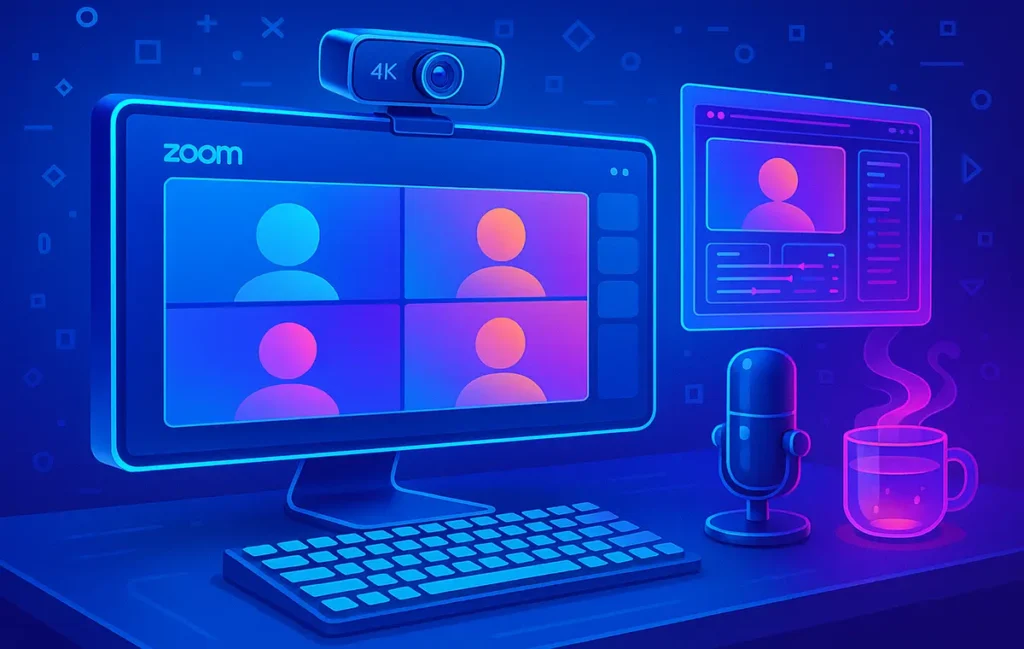
A budget 4K webcam is worth it in 2026 if you want cleaner cropping, sharper screen-share overlays, and “professional” clarity on Zoom—without buying a camera. The real trick isn’t chasing 4K on the box; it’s choosing a webcam with stable exposure, usable low-light behavior, and software that won’t fight you.
💡 Nerd Tip: If your face is brighter than your background by just one level (not ten), you’ll look “expensive” on camera even with a cheaper webcam.
💸 What “Budget 4K Webcam” Actually Means in 2026
In 2026, “budget 4K” usually means you’re not paying premium prices for cinematic depth-of-field or pro camera sensors—but you can still get a surprisingly professional image. The realistic target is a webcam that outputs a clean, stable picture, avoids ugly over-sharpening, and behaves consistently across apps like Zoom, Teams, Google Meet, and OBS.
A practical budget range depends on your region and sales cycles, but the idea is simple: you’re aiming for maximum clarity per euro/dollar without buying problems. The hidden cost with bargain webcams is rarely resolution—it’s reliability. If the webcam randomly drops frames, resets settings, or looks great in one app and awful in another, your “budget win” becomes a daily annoyance.
Also, not all “4K” is equal. Some webcams deliver true 4K detail; others are closer to “upscaled 1080p with extra sharpening.” You’ll notice the difference when you crop in (for a tighter framing) or when your lighting isn’t perfect. A good 4K webcam gives you room to crop without turning your face into a crunchy pixel sandwich.
Sensor size, lens quality, and bitrate matter more than most product pages admit. And lighting matters more than all of that.
💡 Nerd Tip: If your webcam software gives you manual exposure controls, that’s not a “nice-to-have.” It’s the difference between looking consistent all year… and looking different every time the weather changes.
🎥 Streaming vs Work Meetings — Different Needs, Same Webcam
Streaming and work meetings are cousins, not twins. Streamers often care about framing, color consistency, and how the webcam behaves when you add overlays, crop, or zoom. Meetings prioritize reliability: stable auto-exposure, decent autofocus, natural skin tone, and a picture that doesn’t flicker under office lighting.
A budget webcam has to balance both. For streaming, you might want to output 1080p at a higher frame rate for smoother motion (even if the camera is “4K capable”). For meetings, you usually want a flattering look that’s stable and doesn’t distract others—nobody wants to watch your camera pump brightness up and down while you explain quarterly results.
This is why buying purely based on “4K” can backfire. A webcam can be technically sharp but still fail in meetings if it overexposes highlights, struggles with mixed lighting, or produces a weird “digital face smoothing” effect.
If you’re building a clean desk setup, this is the moment to align your webcam choice with your broader workspace upgrade strategy—like the gear ideas in Upgrade Your Home Office: Top Gadgets You Need—because your webcam should feel like a dependable tool, not a fragile gadget.
💡 Nerd Tip: In meetings, “stable exposure” is more professional than “maximum sharpness.” People trust consistency.
🏆 Best Budget 4K Webcams for 2026 (Hands-On Focus)
Below are budget-friendly 4K webcam picks that make sense because of how they behave in real use, not because the spec sheet looks confident.
🟦 Logitech Brio 4K — The Safe, All-Round Choice
If you want a webcam that simply works across the most common apps, Brio-style webcams remain the safe play. The reason isn’t magic image quality—it’s consistency. For work meetings, you want a camera that doesn’t constantly change its mind about exposure or white balance. For streaming, you want something OBS recognizes cleanly and holds settings without drama.
A strong all-round 4K webcam earns its place by being predictable: it handles typical desk lighting without turning your forehead into a spotlight, and it doesn’t collapse the moment you sit slightly off-center. Many buyers also underestimate the value of decent auto-exposure tuning; the camera that doesn’t overreact to every small brightness shift is the one you’ll keep.
Where it shines for dual-use is the balance: you can use it “as is” for meetings, then switch to a more controlled look for streaming using the webcam’s settings or your capture app. For most people, this is the “buy once and stop thinking about it” choice—which is very much a NerdChips-style win.
If you want one webcam that just works for both daily meetings and casual streaming—without fighting settings every time—this is the most balanced option.
👉 Check current pricing and availability.
💡 Nerd Tip: If you stream, try a slightly wider FOV than you think you need—then crop in. It looks more natural and gives you framing flexibility.
🟧 Elgato Facecam Pro — For Streamers Who Want Control
This category exists for one reason: control. If you stream and you hate the “webcam look,” a Facecam-Pro-type webcam usually offers more manual tuning and less weird processing. The tradeoff is often audio: these stream-focused webcams may skip a built-in mic entirely or treat it as an afterthought. That’s not a problem—because you shouldn’t rely on webcam audio anyway (we’ll get to that).
What streamers love here is repeatability. You can lock exposure, lock white balance, set your look once, and keep it. That’s huge if you stream at night sometimes and during the day other times. The webcam that stays consistent becomes part of your brand identity, even if you’re a small creator.
For work meetings, it can still perform well—just remember that “manual control” also means “manual responsibility.” If you lock settings and then sit in a darker room, you might need one quick adjustment. Once you build that habit, it becomes easy.
If you care about locking exposure, color, and framing to build a consistent on-camera look, this webcam gives you real control—not presets.
👉 See current deals for creators.
💡 Nerd Tip: If your webcam supports it, lock white balance. Auto white balance is the #1 reason your skin tone looks different every call.
🟩 Insta360 Link — AI Tracking on a Budget
If your day includes presenting, teaching, or moving around, AI tracking can be more valuable than raw resolution. A Link-style webcam is designed to keep you framed and make you look like you have a camera operator—without actually hiring one.
For work meetings, auto-framing can feel surprisingly premium. If you lean to grab something, stand up to write on a board, or shift around while explaining, the camera keeps you “in the shot.” That creates a calmer viewing experience for others. It’s also great for creators who film quick tutorials or live demos where they’re not glued to one position.
For streaming, the benefit depends on your style. If your stream is static and you want a controlled look, tracking might feel unnecessary. But if you do live teaching, product demos, or creative sessions where you move, it adds polish—especially when your stream is meant to feel dynamic.
If you present, teach, or move while talking, AI framing can make you look more professional without touching the camera.
👉 Compare today’s prices.
💡 Nerd Tip: AI tracking looks best when your background isn’t cluttered. Clean background = smarter tracking + fewer weird camera decisions.
🟥 Dell UltraSharp Webcam — Business-First 4K Reliability
Some webcams are designed for creators. Others are designed for “this must work every day in corporate reality.” If your priority is meetings—long calls, consistent performance, and fewer weird moments—business-first webcams are often a smarter buy than flashy creator models.
What you’re paying for is not just sharpness. It’s the boring stuff that matters: stable connection, predictable behavior, and a picture that stays professional even when the lighting is average. You want the camera that doesn’t suddenly decide your background is the subject, or the camera that doesn’t turn every bright window into a blown-out mess.
For streaming, you can still use it. But it’s best suited to the person who wants “professional clarity” without turning their desk into a studio. If you’re the type who values calm tools that get out of your way, this is your lane.
If long work calls are your priority and you want consistent video without weird exposure shifts, this webcam is built for business-grade reliability.
👉 Check availability.
💡 Nerd Tip: If you’re on calls daily, prioritize “consistency per hour” over “best possible image.” Your future self will thank you.
🔍 Real-World Performance (Not Spec Sheets)
Spec sheets are optimistic. Real desks are not. Your webcam will face low light, mixed lighting (window + monitor + room lamp), and long sessions where heat and exposure behavior actually matter.
Start with low light. Many webcams claim “great low-light performance,” but what that often means is: they boost brightness by adding noise and smoothing details until your face looks like a watercolor painting. A better webcam doesn’t just brighten; it keeps your face readable without turning the image into mush. You’ll notice this most on hair detail, beard texture, and the edges around glasses.
Autofocus hunting is another real-world pain. A webcam can be sharp one second and then decide your background plant is the main character. In meetings, that’s distracting. In streaming, it looks amateur. If your webcam supports it, the best fix is simple: set focus manually, or choose a model that behaves calmly.
Rolling shutter is the subtle villain. When you wave your hand or move quickly, cheaper sensors can distort motion. It’s not always obvious, but it can make your video feel less “solid.” If you do demos or use hand gestures while speaking, this matters more than you think.
Finally, consider long sessions. If you do multi-hour meetings or stream for 2–4 hours, stability matters. A webcam that slowly changes exposure or starts dropping frames feels like a betrayal—because it’s not a “one-time flaw,” it’s a recurring tax on your attention.
💡 Nerd Tip: Test your webcam at your worst time of day (dark evening or cloudy morning). If it still looks good then, you’re safe.
🎙️ Do You Still Need a Microphone? (Yes.)
Yes. Even if the webcam says it has “dual noise-canceling mics.” Even if the marketing implies you can skip audio gear. The human brain forgives slightly imperfect video far more easily than it forgives bad audio. If your voice is thin, echoey, or inconsistent, people perceive you as less clear—even if your camera is razor sharp.
Webcam mics are limited by physics: they’re far from your mouth, they capture room reflections, and they’re typically tuned for “good enough” speech, not great presence. The upgrade path that delivers the biggest jump in perceived quality is often a real microphone—even a budget one—before you upgrade anything else.
If you’re building a creator-friendly setup, your best next step is pairing your webcam with a solid mic choice from Best Microphones for Podcasting and Video Creators. And if you want a practical, budget-friendly path to sound + video that works together, Affordable Podcasting Setup is a smart companion guide—because audio is the quiet cheat code of “professional.”
💡 Nerd Tip: The fastest “pro” upgrade is a mic placed 20–30 cm from your mouth, slightly off-axis. Your webcam can stay exactly where it is.
🧩 Streaming Setup vs Meeting Setup (Same Webcam, Different Config)
Here’s the mindset shift: you don’t need two webcams—you need two profiles.
For streaming, your goal is usually a controlled look. That means you might output 1080p even from a 4K webcam, because 1080p at stable settings often looks cleaner on streaming platforms than “4K that gets compressed anyway.” The advantage of a 4K webcam is that it gives you room to crop and compose. You can frame tighter without sacrificing clarity.
For meetings, your goal is reliability and naturalness. You want a flattering angle, stable brightness, and minimal fuss. If your meeting app offers “HD” toggles, enable them, but don’t obsess. The bigger wins come from: camera height near eye level, gentle front lighting, and avoiding a bright window behind you.
Software profiles make this easy. In OBS, you can define a scene where your webcam is cropped, color tuned, and paired with your mic. In Zoom/Teams, you keep it simpler: stable exposure, neutral color, and no dramatic processing.
If your desk is also your creation station, it helps to treat your webcam like part of your content toolkit—similar to how creators think about Top Gadgets for Content Creators—because your “camera presence” is now part of how the world experiences your work.
💡 Nerd Tip: For meetings, angle the webcam slightly down toward your eyes (not up). Upward angles add stress. Slightly down angles add calm.
🚫 When a Budget 4K Webcam Is NOT the Right Choice
A budget 4K webcam is a great tool—until your environment or expectations demand something else.
If you’re constantly in very low light, you may end up disappointed. Webcams are small-sensor devices. They can do a lot, but they can’t create light. In a dim room, you may get noise, softness, and exposure pumping. In that case, spending on lighting can outperform spending on a pricier webcam.
If you need a cinematic look—background blur that looks natural, depth-of-field that feels like film, and a camera aesthetic that’s part of your brand—a webcam won’t fully satisfy you. Some webcams simulate background blur, but it often looks like a cutout. That’s fine for meetings; it’s less convincing for high-end creator work.
If you run multi-cam productions or long-form YouTube filming, you might eventually want a dedicated camera workflow. But that’s a separate decision, and it’s not the goal of this post. This guide stays intentionally focused: budget-friendly 4K webcams for streaming and work meetings, where simplicity is a feature.
💡 Nerd Tip: If your “problem” is bad light, upgrading the camera is like upgrading your tires on an icy road. Fix the conditions first.
🧠 Eric’s Note
I gravitate to gear that removes friction instead of adding menus. A webcam should make you feel more confident on camera—not make you troubleshoot your face before every call.
🎨 Buying Checklist
Use this checklist to avoid the “4K trap” (sharp on paper, annoying in real life). If a webcam checks most of these, it’s usually a safe buy for both meetings and streaming.
- True detail vs fake sharpness: looks clean when you crop in (not just “sharpened edges”).
- Stable exposure: doesn’t constantly brighten/dim during calls.
- Low-light behavior: stays readable without turning your face into noisy mush.
- Autofocus behavior: minimal hunting (or option to set focus manually).
- Software support: settings that stick and don’t reset every reboot.
- Mount options: monitor mount + tripod support for better angles.
- Field of view control: wide enough to crop, not so wide you look far away.
💡 Nerd Tip: If you can’t control exposure and white balance at all, you’re buying a lottery ticket—not a tool.
🤔 Still Deciding? Here’s the Fast Pick
If you’re mainly on work calls and want something reliable, go with Dell UltraSharp. If you stream and care about controlling your on-camera look, Elgato Facecam Pro is the better fit. If you move, teach, or present a lot, Insta360 Link stands out. And if you want one safe, balanced webcam for everything, Logitech Brio 4K is the easiest choice.
👉 Pick the one that matches how you actually use your camera—not just the specs.
📬 Want More Creator-Grade Gadget Picks (Without the Hype)?
Join our free newsletter and get weekly insights on practical gear, creator workflows, and future-ready tech—delivered straight to your inbox. No fluff. Just sharp recommendations you can actually use.
🔐 100% privacy. No noise. Just value-packed tips from NerdChips.
📱 A Smart Side Upgrade: Your Phone Accessories Matter Too
One underrated move: if you sometimes switch between webcam and phone camera (for quick vertical clips, product shots, or backup calls), your accessories can save you time and quality. Things like mounts, compact lights, and audio adapters are small upgrades that remove friction.
If that sounds like your workflow, Best Smartphone Accessories for Content Creators is a useful add-on guide—because the “best camera” is often the one you can set up fast and use consistently.
💡 Nerd Tip: Consistency beats perfection. The setup you’ll actually use on a busy day is the one that wins.
🧠 Nerd Verdict
A budget 4K webcam is a smart buy in 2026 when you treat it like a tool, not a trophy. Choose stability over hype, prioritize exposure behavior over raw resolution, and remember the “pro look” is a triangle: webcam + lighting + audio. If you build that triangle, you’ll look credible on meetings and clean on streams—without turning your desk into a film studio.
❓ FAQ: Nerds Ask, We Answer
💬 Would You Bite?
If you had to pick just one upgrade for your on-camera presence this month—webcam, lighting, or microphone—which one would you choose and why?
And what’s your biggest pain point right now: low light, bad angles, or inconsistent quality across apps? 👇
Crafted by NerdChips for creators and teams who want their best ideas to travel the world.