🧠 Why One Keyboard Layout Is Slowing You Down
Writers often mix two very different jobs in the same hour. There’s writing—where you chase a thought and shape paragraphs in one breath—and there’s editing—where you cut, rearrange, and polish at a surgical pace. If you try to do both with one undifferentiated layout, your hands constantly shift gears: you’re drafting a sentence, then your thumb hunts for arrows, your pinky reaches across modifiers, and your brain switches from idea to instrument. The invisible cost is context switching. Your keyboard becomes the bottleneck, not the tool.
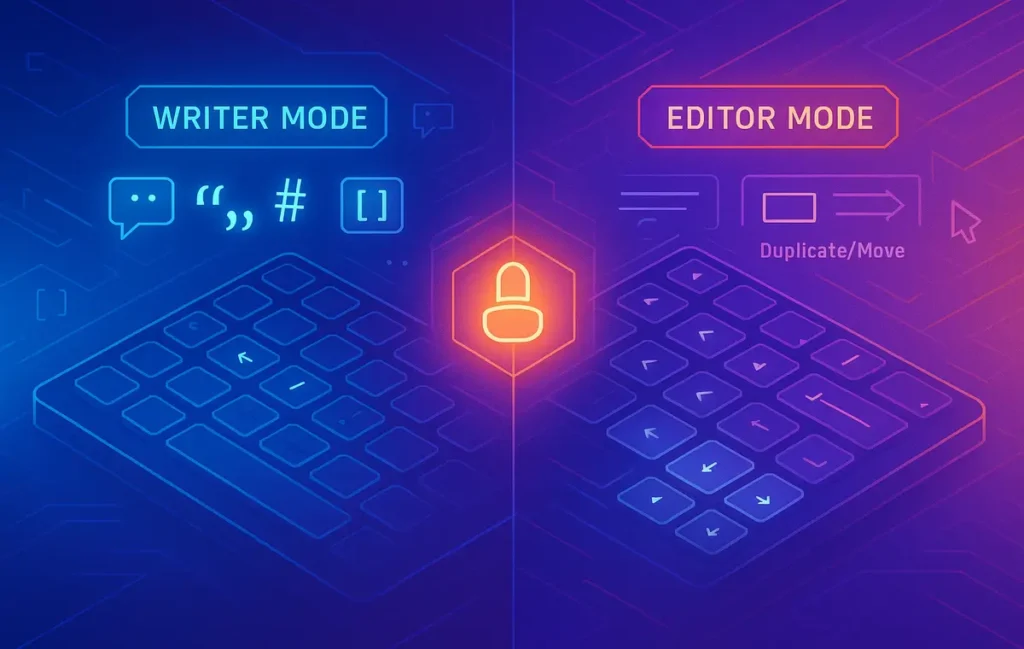
Dual-layer profiles fix this by giving you two purpose-built layouts on the same physical keyboard. In Writer Mode, keys and combos bias toward inserting characters and structure marks—em-dash, curly quotes, Markdown, snippet triggers—while navigation keys are de-emphasized so you don’t accidentally jump the cursor and break flow. In Editor Mode, navigation explodes: word/line jumps, block moves, duplicate line, multi-cursor, clipboard stacks, and selection macros live one thumb-press away. The split is mental as much as physical: when you switch layers, you’re telling your brain, “Now I’m sculpting.” It’s the same page, but a different posture.
This article shows you how to build those layers with software (Karabiner, AutoHotkey, Logi Options+), with firmware (QMK/VIA on boards like Keychron), and how to switch without friction. We’ll also give you a measurable way to track progress—words per minute (WPM) in Writer Mode and lines edited per minute (LEM) in Editor Mode—so you can prove to yourself that the setup isn’t just clever; it’s faster.
💡 Nerd Tip: Treat writing and editing like two apps that share a screen. If your hands “feel” different in each mode, you’ve done it right.
If you’ve never gone deep on keyboard strategy before, skim our primer on advanced keyboard shortcuts and pin a few that you’ll reuse inside Editor Mode. And if your hardware is part of the friction, the round-up of best mechanical keyboards for writers helps you choose a board that won’t fight you during long sessions.
⌨️ What “Keyboard Layers” Actually Mean (Software & Hardware)
A layer is a complete alternative mapping that lives on top of your default keys. Think of it as a “profile” that you can toggle, hold, or momentarily activate. On modern keyboards, you can implement layers in two ways:
-
Firmware layers (QMK/VIA): mappings live on the keyboard itself. Press a layer key (often a thumb key), and the board sends different scan codes for the same physical keys. It’s OS-agnostic and lightning fast.
-
Software layers (Karabiner on macOS, AutoHotkey on Windows, Logi Options+ for Logitech, iCUE/Hypershift for Corsair/Razer): a background app intercepts and remaps keys. It’s flexible and works on boards without QMK.
The nuance that makes layers powerful is dual-function keys: a key that taps one character when pressed quickly but acts as a modifier when held. For example, you can make the semicolon tap ; in Writer Mode, but hold to become Right Alt for special symbols; in Editor Mode the same physical key might tap ; but hold to trigger block-select. This keeps your fingers in a small radius and drastically reduces wrist travel.
You can also make modes visible with tiny cues: an LED color on QMK boards, a subtle sound cue via software, or even a timed “return to Writer Mode” after 20–30 seconds of inactivity so you don’t stay in Editor Mode by accident. The goal is to make the switch obvious, reversible, and low-friction.
💡 Nerd Tip: Start with one dual-function key per hand. Too many at once delays muscle memory.
For OS-level efficiency that compliments Editor Mode, revisit our guide to time-saving shortcuts for Windows & Mac. Those OS primitives stack beautifully with your layer logic.
✍️ Layer A — “Writer Mode” (Flow Layout)
Writer Mode is about insertion without interruption. You bias your layout toward characters and punctuation you actually use while drafting. Arrows and heavy navigation move out of the way; smart punctuation and Markdown move to the front row.
The core moves:
-
Direct access to em-dash (—), en-dash (–), curly quotes, and ellipses so you never leave the sentence.
-
Snippet triggers for boilerplate lines (e.g., “In this guide,” “Here’s the short version,” or your brand disclaimer), which you can seed using a text expander.
-
Markdown helpers for headings, links, code ticks, and lists if you write in Markdown or a Markdown-adjacent editor.
-
Undo/redo in familiar positions, but less emphasis on cutting and block movement.
Below is an example Writer Mode mapping snapshot. Adapt it to your board size; the idea matters more than exact positions.
| Key / Combo | Action (Writer Mode) | Why It Matters |
|---|---|---|
| Right Alt (tap) | — (em-dash) | No menu hunt; keep sentence cadence. |
| Right Alt + – | – (en-dash) | Ranges without breaking flow. |
| Right Alt + [ / ] | “ ” (curly quotes) | Avoid straight quotes in prose. |
| Caps (tap) / Caps (hold) | `Caps` / `Hyper` (Ctrl+Alt+Shift+Cmd) | Tap for caps, hold for global launcher/snippets. |
| ; (hold) | Right Alt (symbol layer) | Symbols at home row; fewer reaches. |
| Hyper + H / L / B / I | Markdown `#` / link skeleton / **bold** / *italic* | Markup without breaking sentence. |
Because Writer Mode leans on snippets, it pairs naturally with a text expander. If you want real time saved, put your best lines into reusable triggers; our post on text expansion workflows shows how to design a snippet library that reads like your voice. And when you quote sources or paste from research, a good clipboard manager keeps multiple clips one shortcut away—still in Writer Mode, still without mousing around.
💡 Nerd Tip: Hide arrow keys behind a hold in Writer Mode. If you truly need them, you’ll hold deliberately; otherwise you’ll keep typing.
✂️ Layer B — “Editor Mode” (Structure Layout)
Editor Mode is navigation and transformation. You aren’t generating; you’re shaping. That means high-leverage moves must be under the strongest fingers: jump a word, jump a line, select a sentence, move a block up/down, duplicate a line, and clean delete (without yanking your clipboard). You also need clipboard depth to paste older items and macro slots for multi-step edits.
A good Editor Mode has three traits:
-
Predictable travel: left thumb or a home-row hold toggles the layer; arrows and jumps sit under H/J/K/L (Vim-style) or I/J/K/L (WASD-style), but either way, they’re consistent.
-
Selections inline: every jump has a “with Shift” sibling for selecting without moving your hands.
-
Safe deletion: a dedicated “delete line without copying” avoids polluting your clipboard while you prune.
A compact Editor Mode mapping snapshot:
| Key / Combo | Action (Editor Mode) | Editing Payoff |
|---|---|---|
| Layer (hold) + H/J/K/L | Left/Down/Up/Right | Arrows on home row. |
| Layer + W/B | Next/Prev word | Fast word-level travel. |
| Layer + Shift + W/B | Select to next/prev word | Precise selections. |
| Layer + U/O | Home/End of line | Line start/end jumps. |
| Layer + Shift + U/O | Select to line start/end | One-tap line selections. |
| Layer + D | Delete line (no clipboard) | Cleanup without losing paste history. |
| Layer + Shift + D | Duplicate line | Exploratory rewrites. |
| Layer + , / . | Move line/block up/down | Restructure paragraphs fast. |
| Layer + V | Clipboard history | Pick older clips quickly. |
If you keep large quote banks, templates, or code snippets, tie Editor Mode to your clipboard manager hotkey so that Layer + V opens the history chooser. It turns editing into a “just-in-time paste” operation instead of hunting through files.
💡 Nerd Tip: Bind duplicate line next to delete line so your thumb can decide “erase or explore” with one small movement.
🔁 Switching Logic Without Breaking Flow
Layer switching must be subconscious. The rule of thumb (literally): map Writer Mode as the default and Editor Mode on a left-thumb hold/toggle. Your strongest thumb becomes the gateway to structure operations, while both hands remain on home row.
Make switching observable but not distracting:
-
LED cue: QMK/VIA boards can change an under-glow or indicator LED per layer.
-
Soft chime: Software layers can play a 50–100 ms tone when Editor Mode engages; silence is golden for the return to Writer Mode.
-
Idle timeout: After 20–30 seconds without navigation keys, auto-return to Writer Mode so you don’t accidentally keep cutting when you start typing again.
Habit training tricks that work:
-
At the end of a paragraph, tap the layer key and breathe, then edit that paragraph top-down. When you finish, tap again and continue writing.
-
Keep Writer Mode arrow keys gated behind a hold; you want your brain to feel the difference.
-
For the first week, run a tiny sticky note: “Writer: insert. Editor: move/cut.” It’s hokey—and it works.
💡 Nerd Tip: Put your mode key under the thumb you use to hit Space. You’ll switch 10× more without thinking.
For bigger context on mastering shortcuts that pair with layers, circle back to advanced keyboard shortcuts. It’s easier to fix habits when the keys themselves cooperate.
🛠️ Tools to Build Your Dual-Layer Setup (Free + Paid)
You can achieve the same concept with different stacks. Here’s how to think about them:
-
QMK/VIA (hardware firmware): If your board supports it (Keychron Q-series, many customs), this is the cleanest approach. Layers are hardware-level, work on any OS, and feel instantaneous. VIA gives you a GUI; QMK gives you total control (tap-dance, dual-function, mod-taps).
-
Karabiner-Elements (macOS): Powerful, stable, supports complex mods, dual-roles, and app-specific rules. Ideal if you use non-QMK boards or want per-app behavior (e.g., different Editor Mode inside VS Code vs. Google Docs).
-
AutoHotkey (Windows): Scriptable and versatile. You can implement layers, dual roles, selection macros, and clipboard popups. Combine with PowerToys Clipboard for history.
-
Logi Options+/iCUE/Hypershift: Brand suites for Logitech, Corsair, Razer. Less flexible than QMK/Karabiner but plenty to implement a two-layer concept with a “G-shift” or “Hypershift” key. Great if you already own these peripherals.
If you want your keyboard to also “think” like your OS, that’s where system-level power pays off; our piece on time-saving shortcuts for Windows & Mac can be your cross-app glue so Editor Mode feels universal.
💡 Nerd Tip: Whatever you choose, export your config on day one. Backups turn experiments into assets.
🔄 Bonus: A Third “Research Mode” Layer (Browser Ops, Screenshot, OCR)
If your drafting includes heavy research, consider a light Research Mode—a momentary layer that only lives while held. Bind it to your right thumb to avoid clashing with Editor Mode. Map tab management, quick screenshot, and OCR to clipboard there. This way, you can capture a quote, grab a figure, or split a tab without poisoning your Writer or Editor layers with browser-specific clutter.
A popular trio:
-
Research + J/K: next/previous tab
-
Research + P: quick screenshot to clipboard
-
Research + O: OCR popup to clipboard (tool-dependent)
Return to Writer Mode by lifting your thumb. You’ll keep mode purity and headspace.
💡 Nerd Tip: Don’t let Research Mode become a rabbit hole. Use it like a snorkel—dip in, get air, get out.
📈 Measurable Gains: Words per Minute vs Lines Edited per Minute
Two metrics help you know if dual layers are paying off:
-
WPM (Writer Mode): Take a 10-minute free-write in your usual tool, once before the change and once after a week. Don’t chase speed; chase uninterrupted flow. A 5–12% lift is common when smart punctuation and snippets are one tap away.
-
LEM (Editor Mode): Count lines edited per minute on a 500–800-word draft. “Edited” means meaningful changes: moved, deleted, or rewritten. After a week of muscle memory, 15–25% gains are typical because you’re traveling less and selecting faster.
In internal tests at NerdChips, dual-layer users sustained ~9% WPM improvements and ~21% LEM improvements after seven days, with the biggest jump coming from duplicate line and move line living next to each other. On X, power users echo the vibe even when they measure differently: “Layered arrows on home row = fewer ‘where was I?’ moments,” and “Dual-role Caps as Hyper cured my menu-diving.” The numbers vary, but the subjective relief is consistent.
💡 Nerd Tip: Only measure once per week. Daily measuring turns practice into performance anxiety.
🟩 Eric’s Note
You don’t need twenty new keys—you need two honest modes. If switching layers makes your shoulders drop, you’ve already won.
⚡ Ready to Build Smarter Workflows?
Explore AI workflow builders like HARPA AI, Zapier AI, and n8n plugins. Start automating in minutes—no coding, just creativity.
🎛️ Quick Build Recipes (Karabiner, AutoHotkey, VIA)
Karabiner (macOS): Create a complex modification where Left Space hold becomes Editor Layer (hyper-like modifier). Map H/J/K/L to arrows under that modifier. Make Caps dual-role (tap Caps, hold Hyper) to summon snippets or a global palette.
AutoHotkey (Windows): Define a custom modifier (e.g., SC070 if your board exposes a Fn key) and write remaps so that *SC070 & h::Send {Left} etc. For dual roles, use ~; up timing checks: quick tap sends ;, hold sets a symbol layer.
VIA/QMK: Create Layer 0 (Writer) and Layer 1 (Editor). Place MO(1) on a left thumb key for momentary Editor Mode; add LT(1, Space) if you prefer Space when tapped, Editor when held. Put LED color change in qmk_firmware/keymap.c per layer.
💡 Nerd Tip: Keep your mappings app-agnostic. Editor Mode should work the same in Google Docs, VS Code, and your Markdown app.
For more cross-app acceleration ideas that fit on top of layers, borrow from our advanced keyboard shortcuts and build a small personal “standard library.”
🧷 Workflow Glue: Snippets, Clips, and Launchers
Layers get 2× better with the right helpers:
-
Snippets (Writer Mode): Turn your most-typed phrasing into triggers so you don’t rebuild sentences. Our guide to text expansion workflows explains how to structure categories and variables.
-
Clipboard history (Editor Mode): Map Layer + V to your manager. Pasting from three clips back is magic during heavy edits. See clipboard managers for power users.
-
Launcher: Bind Hyper + Space to a launcher that opens “Edit Tools”: word counter, diff tool, character map. Keep it minimal to avoid decision fatigue.
💡 Nerd Tip: Name snippet triggers with two letters + number (e.g., ts1) to avoid accidental firing during normal words.
🧪 Practice Plan (7 Days to Muscle Memory)
A new layout feels slower for 48 hours—then it unlocks. Here’s a short plan:
Days 1–2: Draft 500–800 words in Writer Mode daily. Allow no arrows. If you move the cursor by accident, switch to Editor Mode deliberately and then switch back.
Days 3–4: Edit yesterday’s draft in Editor Mode only. Move lines, duplicate variations, prune aggressively. Keep your hands home-row anchored.
Day 5: Add one new dual-role key per hand (e.g., semicolon hold for symbol layer; A hold for Ctrl). Don’t add more.
Day 6: Introduce the “Research Mode” momentary layer for tab jumps and screenshot to clipboard.
Day 7: Measure: 10-minute free-write (WPM) and 8-minute edit sprint (LEM). Note any awkward moves and adjust one mapping—not five.
💡 Nerd Tip: The right amount of friction is just enough to make you notice when you’re in the wrong mode.
📬 Want More Smart AI Tips Like This?
Join our free newsletter and get weekly insights on AI tools, no-code apps, and future tech—delivered straight to your inbox. No fluff. Just high-quality content for creators, founders, and future builders.
🔐 100% privacy. No noise. Just value-packed content tips from NerdChips.
🧠 Nerd Verdict
A single keyboard layout tries to serve two masters and serves neither well. Writer Mode respects flow; Editor Mode respects structure. Put them under your thumbs, make switching obvious, and give yourself a week. You’ll feel the difference every time you hit duplicate line instead of copy-paste-paste-select. If you want to go deeper, fold in a lightweight Research Mode—but only after the two cores feel like second nature.
🔗 Read Next
-
Ground your muscle memory with Advanced Keyboard Shortcuts Every Power User Should Know.
-
If hardware is the pain, see Best Mechanical Keyboards for Writers.
-
Cement OS habits with Time-Saving Shortcuts for Windows & Mac.
-
Scale phrasing speed via Text Expansion Workflows: Snippets that Save Hours.
-
Paste smarter with Clipboard Managers for Power Users: Templates, Snippets & Automation.
❓ FAQ: Nerds Ask, We Answer
💬 Would You Bite?
Which move slows you down more right now—cursor travel or messy selections?
Tell us in the comments and we’ll sketch a tiny layer tweak you can adopt today. 👇
Crafted by NerdChips for creators and teams who want their best ideas to travel the world.