⌨ Intro: Shortcuts Are Not Party Tricks—They’re Control Surfaces
Keyboard shortcuts aren’t about shaving off a few seconds here and there. They’re about keeping your brain in “flow,” turning software from a maze of menus into a tactile instrument you can play by ear. Pros don’t memorize a thousand keys; they master the dozens that collapse their most common actions into muscle memory. In 2025, when apps are denser and context switches are brutal, the difference between a good operator and a great one isn’t talent—it’s whether their hands ever had to leave the home row.
💡 Nerd Tip: Don’t “learn shortcuts.” Choose the ten that move 80% of your work, then expand outward once they’re automatic.
🎯 Context & Who This Is For
If you’re a designer bouncing between Figma and Photoshop, a video editor living inside Premiere, a developer shipping from VS Code and a terminal, or a power user juggling Notion, Slack, and browsers—this is your guide. Instead of platform trivia, we’ll walk through cross-tool shortcuts and stacks that map to real workflows. When relevant, we’ll naturally point you to NerdChips deep-dives like Advanced Keyboard Shortcuts Every Power User Should Know for extra mastery, or Time-Saving Shortcuts for Windows & Mac if you need a clean reference to build your personal map.
🧠 Why Shortcuts Separate Pros from Amateurs
Speed matters, but focus matters more. Mouse-driven navigation constantly pulls your eyes from content to chrome; keyboard-driven navigation keeps your attention locked on what you’re making. Over a day of design comps, code reviews, or edit passes, that attention tax compounds. Pros train for low-latency cognition: jump to, transform, confirm, move on. They avoid UI hunting, they reduce micro-decisions (“which menu?”), and they keep their intent continuous.
A second effect is consistency. Shortcuts encode your workflow into repeatable, predictable moves: duplicate, rename, jump, commit. That predictability makes collaboration smoother because you aren’t improvising every action. Finally, shortcuts build muscle memory—not in the cliché sense, but in the literal “your hands know” sense. When the action lives in your fingers, your creative brain stays free to think.
💡 Nerd Tip: If you feel tired after simple tasks, it’s often UI hunting fatigue. Map three clicks to one key and your brain will notice the difference by lunch.
🌍 Universal Moves Pros Swear By (Cross-App, Cross-OS)
There are a handful of keystrokes every pro uses regardless of platform because they glue workflows together.
-
Focus switching:
Alt + Tab(Win) /Cmd + Tab(Mac) to jump between the last two active apps like a metronome. The goal isn’t browsing all windows—it’s toggling between “source” and “destination”: e.g., Figma ↔️ Slack, VS Code ↔️ Browser. -
Reopen last closed tab:
Ctrl/Cmd + Shift + Tin browsers and many editors—snaps back your train of thought when a tab vanishes. -
Clipboard superpowers:
Win + Vopens the native clipboard history on Windows; on macOS, pairCmd + C/Vwith a clipboard manager and standardize “paste without formatting” onCmd + Shift + V(or remap globally). -
Global search / command palette: Most modern apps expose a universal command bar—
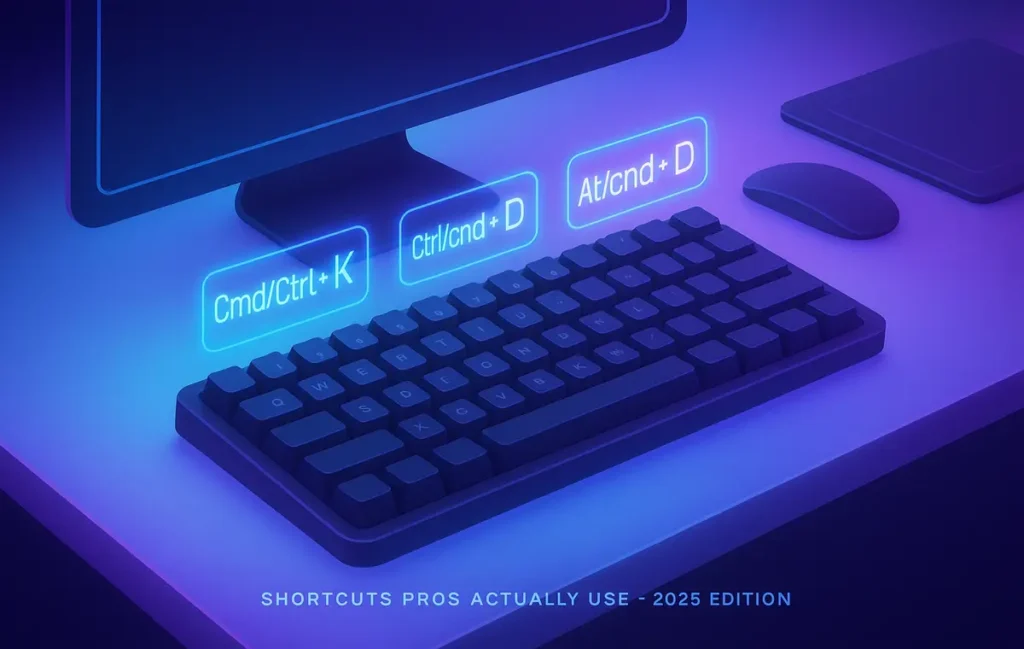
Ctrl/Cmd + KorCtrl/Cmd + P. Treat it as your “do anything” key: rename, move, toggle, jump, run. -
Screenshots you’ll actually use:
Win + Shift + SorCmd + Shift + 4/5—capture, annotate, paste. Pros log context fast instead of describing it in chat.
These moves are table stakes. They also underpin the stacks you’ll build in specialty apps.
💡 Nerd Tip: Set a single chord for “paste unformatted” across apps. Nothing breaks flow like mystery fonts and sizes.
🗂️ Pro Shortcuts for Productivity Tools (Notion, Slack, Docs)
Notion – Command Bar as Operating System: Ctrl/Cmd + / opens the command menu that replaces three different mouse paths. You’ll spawn blocks, insert databases, toggle to-do states, and run page actions. Pair it with Ctrl/Cmd + Shift + L to jump dark/light quickly when presenting. The pro move is block movement: Ctrl/Cmd + Shift + Arrow to lift entire sections up or down without losing selection or hierarchy. Write, restructure, move on.
Slack – Navigate at the Speed of Thought: Ctrl/Cmd + K is the switcher you’ll hit a hundred times a day. Add Alt + Up/Down (Win) or Option + Up/Down (Mac) to move thread focus without touching the mouse. Confirm with Enter, and your reply pops in the right place. Emoji reactions? :+1: typed, Enter. Save links for later? Ctrl/Cmd + Shift + S (Saved items) then Enter. It’s not about chat—it’s the routing of decisions.
Google Docs – Typesetting Without Menus: Ctrl/Cmd + Shift + C for word count when you’re drafting against brief, Ctrl/Cmd + K for links, and Ctrl/Cmd + Shift + 7/8 to flip between ordered and unordered lists. The power play is cursor teleportation: Ctrl/Cmd + Arrow jumps by words; add Shift to select in chunks for surgical edits. Keep your hands on keys and your sentences will tighten.
💡 Nerd Tip: In anything with a command palette (Ctrl/Cmd + K), think verbs (“rename,” “move,” “invite”) not “where is that setting.”
🎨 Creative Pros’ Shortcuts (Photoshop, Premiere, Figma)
Photoshop — Layers Like a Pianist: Ctrl/Cmd + J duplicates instantly; it’s the heartbeat of exploration. Combine with Alt/Option + Drag to duplicate selections as you move them. Toggle transform via Ctrl/Cmd + T and commit with Enter. Switch brushes with [ / ], hardness with Shift + [ / ], and hold Space for the hand tool on the fly. The professional rhythm is duplicate → mask → nudge → compare—you’re never destructively overwriting.
Premiere Pro — Cut, Ripple, Flow: Keep your left hand on Q/W for ripple trim (to the playhead from either side) and your right hand tapping C (razor) only when you truly need a hard cut. V returns to selection. - and = zoom the timeline, Shift + S toggles snapping. Expert editors rely on this small loop: mark → ripple → roll. It reduces timeline surgery and keeps audio in sync.
Figma — Precision Without Panic: Shift + R toggles rulers so you can lay out grids fast. Ctrl/Cmd + G groups, Ctrl/Cmd + Shift + G ungroups, Alt/Option + Drag duplicates with pixel-accurate offsets. The underrated gem: nudge distances—Arrow = 1px, Shift + Arrow = 10px. If you work with auto layout, Cmd/Ctrl + Option/Alt + K (create a component) early and reuse. Moving at component speed beats re-styling twenty layers later.
💡 Nerd Tip: In creative apps, duplicate first, edit second. Cmd/Ctrl + J is permission to experiment.
🧑💻 Coders & Power Users (VS Code, Terminal, Excel)
VS Code — Multi-Select Means Multi-Think: Ctrl/Cmd + D selects the next instance of a word; keep pressing to grab all. With cursors placed, type once to refactor many. Use Ctrl/Cmd + P to fuzzy-open files, Ctrl/Cmd + Shift + O to jump to symbols, and Ctrl/Cmd + Shift + \\ to match braces. Alt + Up/Down moves lines; Shift + Alt + Up/Down clones them. The pro stack is search → multi-cursor → transform → stage without leaving the editor.
Terminal — History Is a Superpower: Ctrl + R searches command history incrementally (“type to time travel”); hit it repeatedly to cycle matches. Pair with Alt + . (last argument) and Ctrl + A / Ctrl + E (beginning/end of line) to fix commands fast. !! reruns the last command; sudo !! re-runs it with privilege. When you log your best compound commands in shell aliases, the keyboard becomes your deployment pipeline.
Excel — Calculation and Movement Without the Mouse: Ctrl + Arrow jumps to edges of data regions; add Shift to select ranges instantly. Ctrl + Alt + F9 forces a full recalculation when linked sheets get messy, and F4 repeats your last action or toggles absolute/relative references in formulas. For analysts, the winning habit is select → formula → copy → special paste (Ctrl + Alt + V then choose)—done in seconds, correctly, every time. If you’re scaling your spreadsheet game, our guide 10 Pro Tips to Master Microsoft Excel for Data Analysis pairs perfectly with these keystrokes.
💡 Nerd Tip: Anytime your cursor leaves home row, ask: “Is there a key for this?” If yes, adopt it for a week. If not, bind one.
🕹️ Gaming Pros’ Keybind Philosophy (Applied to Work)
Esports players don’t accept default binds; they bind for reachability and redundancy. That same thinking upgrades creative and dev work. Move frequently used actions to keys you can press without stretching (Caps Lock as a second Ctrl, or remap it to Esc + Ctrl for Vim users). Put complementary actions under adjacent fingers (e.g., in Premiere, ripple cuts and selection tools on neighbor keys). Add a push-to-talk style modifier for “paste as plain text” or “move to next task” so your brain knows exactly what happens when it’s pressed.
The pro trick is to reduce mental translation. If your brain says “cut this,” your hand should never ask, “Where is the icon?”
💡 Nerd Tip: Build a one-page key map for each primary app—your personalized “pro controller.” Tape it near your monitor for two weeks.
⚡ Stop Clicking Endlessly—Work Like a Pro
Build your personal shortcut stack: pick 10 high-impact keys, bind them across apps, practice for 14 days. Your future self will thank you.
🔗 Shortcut Stacks: From Keys to Workflows
Shortcuts are best in stacks—chained moves that accomplish a routine end-to-end.
-
Code review loop:
Ctrl/Cmd + Popen file →Ctrl/Cmd + Shift + Ojump to function →Ctrl/Cmd + Dmulti-select a symbol → refactor →Ctrl/Cmd + Enterin Git panel to commit →Ctrl/Cmd + Shift + Kto push. -
Design handoff: In Figma,
Shift + Renable rulers → align grid →Cmd/Ctrl + Kcomponentize →Cmd/Ctrl + /run export plugin →Cmd/Ctrl + K(in Slack) jump to #handoff channel and paste. -
Content sprint: In Notion,
Cmd/Ctrl + /insert template → draft →Cmd/Ctrl + Klink internal references →Win + Shift + SorCmd + Shift + 4screenshot → drop into Slack withCmd/Ctrl + V→ publish checklist from Time-Saving Shortcuts for Windows & Mac to QA yourself.
These stacks turn everyday jobs into fluid routines. Once you feel them, you’ll never go back.
💡 Nerd Tip: Name your stacks. “Review & push,” “Handoff,” “Publish.” Your brain learns faster with labels.
📈 Mini Case Study: 30% Faster Design Edits through Layer Discipline
A senior designer at a SaaS brand timed two edit passes on a homepage. Pass A used the UI primarily; Pass B locked to keys—Cmd/Ctrl + J to duplicate layers, V to select/move, Alt/Option + Drag for precise duplication, rulers (Shift + R) on for alignment, and component creation early (Cmd/Ctrl + Option/Alt + K). With the mouse still used for drawing, the shortcut-run pass finished 30% faster and produced fewer alignment errors. The difference wasn’t the designer’s talent; it was eliminating “menu time” and turning repetition into single-keystroke moves. That speed compounds over a quarter of campaigns.
🧩 Troubleshooting & Pro Tips
If you forget shortcuts: keep a cheat sheet overlay (or a laminated one by your monitor). Hide it for an hour daily to force recall.
If shortcuts clash across apps: standardize global chords (e.g., Ctrl/Cmd + Shift + V for paste without formatting everywhere) and remap per-app outliers.
If adapting feels hard: adopt 3–5 keys per week. Tie them to a specific, frequent task (e.g., “Every duplicate is Cmd/Ctrl + J, no exceptions”).
If you team-share files: agree on a team map for core actions so handoffs are predictable and coaching is easier.
For platform specifics, our focused guides—20 Windows 11 Keyboard Shortcuts That Will Seriously Boost Your Productivity and Advanced Keyboard Shortcuts Every Power User Should Know—offer curated sets you can import into your routine today.
🗺️ 14-Day Shortcut Sprint
-
Days 1–3: Universal stack—
Alt/Cmd + Tab,Ctrl/Cmd + Shift + T, clipboard history, paste-as-plain-text chord. -
Days 4–6: Your primary editor (VS Code or Photoshop). Cement 5 core actions.
-
Days 7–9: Your navigator (Slack/Notion). Live in the command bar.
-
Days 10–12: Build one named workflow stack (e.g., “Review & push”).
-
Days 13–14: Remove two clicks you still do often—bind them.
💡 Nerd Tip: Log your wins. “Cut 15 minutes from weekly standup prep” is how you create buy-in for team-wide adoption.
📬 Want More Smart AI Tips Like This?
Join our free newsletter and get weekly insights on AI tools, no-code apps, and performance habits—delivered straight to your inbox. No fluff, just useful tactics for operators.
🔐 100% privacy. No noise. Just value-packed content tips from NerdChips.
🧠 Nerd Verdict
Pros don’t memorize keys to show off; they do it to think less about software and more about the work. In 2025, the winning pattern is the same across disciplines: a small universal stack, a small app-specific stack, and 2–3 named workflow stacks that turn routine into reflex. Want to go deeper? Pair this with our platform primers—Time-Saving Shortcuts for Windows & Mac and 20 Windows 11 Keyboard Shortcuts That Will Seriously Boost Your Productivity—then layer in specialty guides like Photography Pro Tips when your tools get more advanced. The moment your hands stop leaving the keyboard, you’ll feel the ceiling lift.
❓ FAQ: Nerds Ask, We Answer
💬 Would You Bite?
If you had to keep only three shortcuts for your daily work, which ones would make the cut—and what workflow would they unlock that you can’t live without?
Crafted by NerdChips for builders who want their hands to move as fast as their ideas.