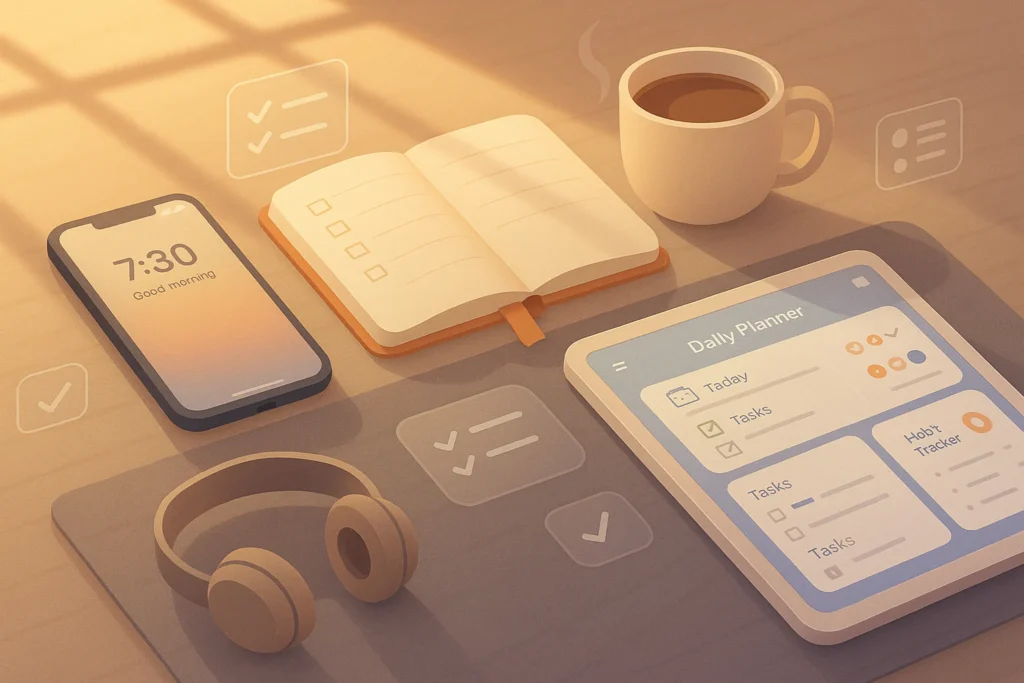
🎯 A Desk That Works Like a Cheat Code
A cluttered desk drains attention one micro-decision at a time. A well-designed setup does the opposite: it dissolves friction, protects your posture, and lets your best ideas flow. This isn’t a gadget shopping list or a “new toy” roundup. This guide is a collection of workflow and ergonomics pro tips to optimize your desk setup—how to place, route, light, and zone the tools you already own so your space becomes an ally. In 2025, desk optimization means a whole ecosystem: posture, light, sound, surface, screens, cables, and rituals that make deep work easier to enter and harder to break.
💡 Nerd Tip: A perfect desk is not pretty first—it’s predictable first. Beauty is the bonus you add after the friction is gone.
🧭 Who This Is For (And How To Use This Guide)
This playbook is built for content creators, remote workers, developers, editors, designers, students—anyone who spends hours at a desk and wants less strain, less mess, and more output. We’ll start with ergonomics, move through lighting, cable management, monitor optimization, workflow zoning, sound control, and aesthetics, then round out with smart add-ons, a real-world mini case study, and a troubleshooting section you can apply the same day. When you need gear-level details or room-scale setups, branch out to our companion pieces: build a complete environment with Ultimate Smart Desk Setup, tune posture with Ergonomic Home Office Setup, refresh your space with Upgrade Your Home Office, stock the basics via Remote Work Essentials, and pick creator-grade tools from Top Gadgets for Content Creators.
🪑 Ergonomics First: Posture Is the Root of Productivity
Ergonomics is where minutes turn into hours saved, not by moving faster but by not getting tired. The anchor is neutral alignment: feet flat, hips slightly above knees, spine tall, shoulders relaxed, elbows hovering around 90–110°, wrists straight, and eyes meeting the top third of your main display. You’re not locking yourself into a pose; you’re removing leverage points that cause pain.
If you use a sit-stand desk, treat standing as a condition change, not a victory pose. Switch every 45–60 minutes. When sitting, a small lumbar support or a chair with adjustable back tension keeps the low back upright without muscular overdrive. A keyboard tray (even a simple, low-profile one) lets you keep elbows at your side instead of flaring out, which is where neck/shoulder tension begins. Mouse hand fatigue? Alternate sides for simple navigation or adopt a vertical mouse to neutralize wrist deviation.
What about laptops? They are posture traps on their own. Elevate the laptop to eye level and decouple input: external keyboard and mouse on the desk plane where your elbows want to live. If you edit video or code for long sessions, map common shortcuts to thumb clusters or macro keys to reduce repetitive reach. The ergonomic goal is not “fancy”—it’s repeatability. Every day, your body should meet the same effortless geometry when it sits down to work.
💡 Nerd Tip: If your neck feels tight by mid-day, it’s rarely “weakness”—it’s screen height. Raise the primary display until your chin naturally tucks.
💡 Lighting That Works For You: See More, Strain Less
Lighting needs to serve two masters: your eyes and your camera. For your eyes, ambient light should be soft and even so your pupils aren’t yanking open and shut with every window. Place your desk so natural light falls from the side, not directly in front (glare) or behind (silhouette). When the sun shifts, sheer curtains are better than blinds for diffusing without banding.
For task work—reading print, sketching, soldering—use a pivoting task lamp that can sit low and off-axis, flooding the work surface without bouncing off your screens. If you’re on calls, front-fill your face with a gentle key (desk lamp or LED panel at ~45°) and use a dim, warm backlight to separate you from the background. Night work? Add bias lighting behind the monitor to lower contrast and reduce eye fatigue. You’re aiming for photographic lighting for humans, not hardware.
Creators who record regularly should fix a three-state scene: a bright “meeting” scene, a neutral “focus” scene, and a dim “evening” scene—with one-tap switching. It stabilizes mood and lets your space adapt to your task rather than forcing your eyes to fight room conditions.
💡 Nerd Tip: If the screen looks dim after fixing your lights, don’t crank brightness—lower ambient contrast with bias lights; your eyes will thank you.
🧰 Cable Management & Clean Surface: Mental Clarity by Design
The fastest way to make a desk feel “professional” is to remove visual noise. Not by hiding everything, but by giving every cable a path. Start with an under-desk tray to carry the power strip and excess runs. Use short patch cords (0.5–1m) to avoid spaghetti and Velcro ties in one color to create a single visual language. Route cables vertically along a rear leg with adhesive clips; leave a service loop behind the monitor arm for clean movement without tugging connectors.
On the desk plane, the goal is dock to freedom. One cable from the laptop into a dock, and from there, everything fans out underneath. Add wireless charging or a discreet charging puck at the desk’s non-dominant side to avoid cable creep. If you swap laptops, label the dock ports once and retire cable guesswork forever.
You’ll notice the effect immediately: clearer desk = quicker reset = fewer excuses to delay starting. Clean surfaces don’t just look good; they remove the micro-friction of “Where does this go?” dozens of times per day.
💡 Nerd Tip: Put a small tray or catch-all at arm’s length. If an item doesn’t earn a place on the surface by end-of-day, it goes in the drawer or out of the room.
🖥️ Dual / Ultra-Wide Monitor Optimization: Placement, Angles, Flow
Monitors help or harm depending on placement more than panel spec. With duals, pick a primary and put it dead center so your neck isn’t always turned. Secondary goes angled in at ~20–30° like an open book page. Keep the top bezel of both around eye level and the viewing distance about an arm’s length. If you edit timelines or large spreadsheets, an ultra-wide reduces window fiddling—but it still benefits from a slight curve and careful height so you’re not nodding through scenes.
If you write, design, or code, consider a vertical secondary for reading docs and reviewing long threads. It reduces scrolling and helps with side-by-side compare without endless tab switching. Wherever possible, mount displays on monitor arms so you can float them above the desk plane and reclaim space for notebooks or mixers.
The key principle is context constancy: primary display for creation, secondary for reference or communication, not the other way around. Once you lock that habit, task switching becomes a gaze shift, not a window hunt.
💡 Nerd Tip: Your eyes lead your hands. Put input devices directly below your primary display so your wrists follow your gaze, not the other way around.
🗺️ Workflow Zoning: Build a Desk That Thinks in Modes
Great setups aren’t flat—they’re zoned. Instead of one undifferentiated surface, carve your desk into Focus, Creative, and Meeting-Ready modes that you can enter with a physical gesture.
Focus is the minimal state: laptop or keyboard centered, notebook at the weak hand, phone face down or off-desk. Creative adds tools—drawing tablet, stream deck, MIDI keyboard, color checker—laid out so your elbows stay close and your shoulders don’t shrug to reach. Meeting-Ready means a reliable mic angle, camera height, neutral background, and lighting preset you trust without test calls.
You don’t have to rebuild the desk each time. Use one-touch toggles: a tray that slides in for creative gear, a stand that raises for call framing, a lighting scene that announces “I’m live.” Habit is the true workflow. The more automatic your mode changes, the less cognitive toll they exact.
💡 Nerd Tip: Put a “reset kit” (microfiber cloth, wipes, spare ties) in the top drawer. A 60-second reset ritual at day’s end buys 10 minutes of clarity tomorrow.
🔇 Sound & Distraction Control: Quiet Is a Performance Feature
Sound is a hidden tax. If your room is lively, claps echo and voices smear, making long calls tiring and recordings amateurish. You don’t need a studio; you need absorption where it counts. A couple of wall panels at first reflection points (beside and behind the mic direction), a rug to kill slap, and soft furnishings will drop reverb dramatically. Place the mic close—that matters more than any spec sheet.
For concentration, noise-cancelling headphones protect you from ambient chatter or street noise. Use a neutral soundscape at low volume; silence is not always the most sustainable state. If you share a home, a “do not disturb” light outside the door reduces accidental interruptions better than any calendar entry. Distraction control is part design, part etiquette—set the norms once and defend them gently.
💡 Nerd Tip: If your keyboard is loud on calls, angle the mic away from the deck and set a gentle noise gate—clear voice, less clatter.
🎨 Aesthetics That Motivate: Minimalism vs. Personalization
A beautiful desk doesn’t need RGB rainbows (unless that’s your thing). It needs coherence: a limited palette, repeating materials, and intentional accents. A plant introduces organic contrast and micro-breaks for your eyes. A single print or shelf helps the background read clean on camera. If you love color, assign it to swappable items (desk pad, art, light accent) so you can refresh the vibe without re-wiring the space.
Minimalism reduces cognitive load; personalization keeps you emotionally invested. The sweet spot is a calm base with a few joyful markers. If a trinket doesn’t make you smile or serve your work, it’s clutter. When it does, it’s a bookmark for your identity in the middle of output.
💡 Nerd Tip: Photograph your desk weekly. If something looks “off,” it probably feels off when you work. Adjust until the picture calms down.
🧩 Add-On Gadgets (Wisely): Only What Multiplies Flow
Accessories should remove steps, not add toys. A laptop stand raises the display and opens desk space for input devices. A stream deck is life-changing when mapped to real workflows: scene switching, mic mute, app launch, text snippets, timer presets. A simple smart speaker or button can trigger lighting scenes and start a focus timer without touching the mouse. If you edit content, a jog wheel or small mixer for mic/desktop levels keeps your hands in the task, not in the settings.
Resist the gadget cascade. Adopt one, live with it for a week, then decide if it earned its footprint. The best add-ons are the ones you forget because they became part of how you think.
💡 Nerd Tip: New gadget, new mapping. Write a tiny “cheat card” for the first week so your muscle memory learns faster.
🧩 Ready to Upgrade Your Workspace?
Compare top-rated monitor arms, ergonomic chairs, and cable kits. See which budget tiers actually improve posture, lighting, and flow—without overbuying.
🧪 Mini Case Study: The Developer Who Halved Fatigue
A backend developer reported neck strain and cable chaos by mid-afternoon. We raised the primary monitor to put the top bezel at eye height, moved the laptop to a side stand, and brought in a keyboard tray to keep elbows tucked at 100°. Two under-desk trays captured power and data runs; a dock reduced five cables to one. Lighting changed from a harsh overhead to side daylight + task lamp with a warm backlight for calls. Result after two weeks: neck stiffness cut in half, desk resets under two minutes, fewer late-day headaches, and a noticeable uplift in code review speed—less fidgeting, more flow.
💡 Nerd Tip: When in doubt, fix height, angle, light—most fatigue lives there.
🧯 Troubleshooting & Pro Tips (Fast Fixes With Why They Work)
If your neck hurts, your screen is low or too far. Lift it and bring it closer until eyes meet the top third without chin jut. If your desk keeps cluttering, you lack a home for incoming items; install a catch-all and a weekly reset ritual. If your lighting is “meh”, you’re fighting contrast—add bias lights or bounce a lamp off a wall to soften the scene. Cable mess usually means the power strip lives on the floor; move it under the desk, shorten runs, and tie everything into one neat loom.
The golden rule: make the right action the easy action. If putting the tablet away takes two steps, you’ll do it every time. If it takes five, it’ll live on your keyboard forever.
🧭 Comparison Notes (Where To Go Next)
This article focuses on tips & workflows to optimize the whole desk. When you’re ready to spec gear, tour rooms, and pick parts, move over to Ultimate Smart Desk Setup and Upgrade Your Home Office. If posture is still the bottleneck, implement the step-by-step in Ergonomic Home Office Setup. Need a foundational checklist for remote life? Use Remote Work Essentials. Creators looking to add tools that truly multiply flow—not clutter—can shortlist from Top Gadgets for Content Creators.
📬 Want More Smart Workspace Tips Like This?
Join our free newsletter and get weekly insights on desk optimization, creator workflows, and pro-grade ergonomics—delivered straight to your inbox. No fluff. Just practical wins.
🔐 100% privacy. No noise. Just value-packed workspace advice from NerdChips.
🧠 Nerd Verdict
A professional desk doesn’t chase gadgets—it removes friction. When posture is neutral, light is soft and even, cables vanish, screens meet your eyes, and your space flips modes with a gesture, you stop thinking about the desk and start thinking about the work. That is the whole point. The rest—color, plants, accents—is the reward you see every time you sit down to build. If you want a single north star for 2025, it’s this: design your environment so it makes the right decision feel obvious. That’s how teams and creators who follow NerdChips keep shipping when everyone else is tinkering.
❓ FAQ: Nerds Ask, We Answer
💬 Would You Bite?
If you could change one thing today for the biggest impact, would you pick better lighting, true ergonomics, or cable management—and what will your 15-minute first step be?
Crafted by NerdChips for creators and teams who want their best ideas to travel the world.