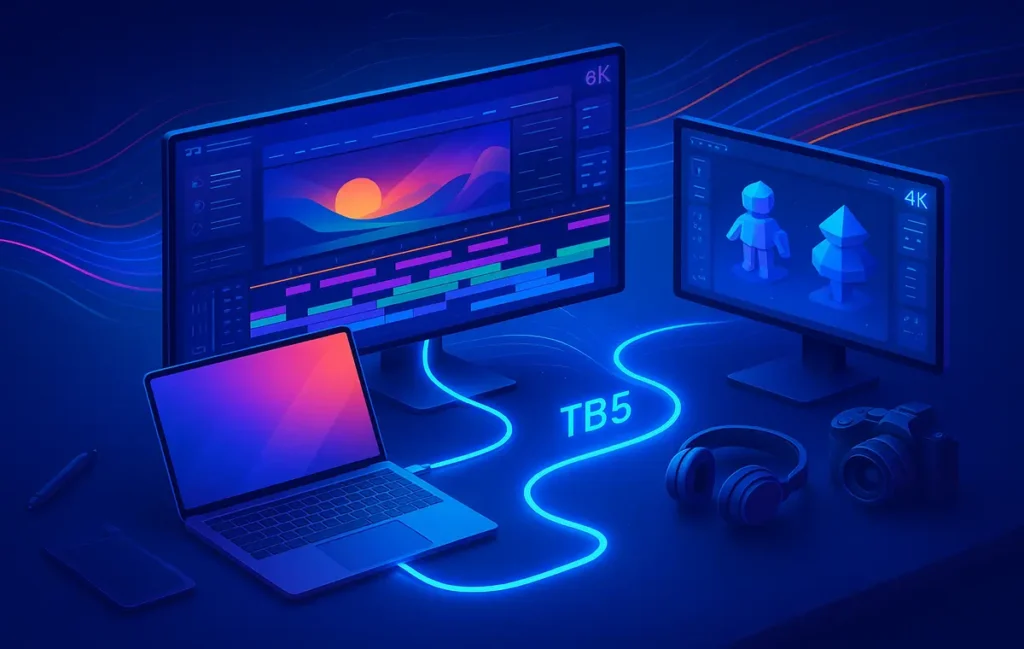
⚡ Thunderbolt 5 Hype vs Reality: The Upgrade Question for Creators
Thunderbolt 5 is finally moving from slides into shipping devices. Laptop makers are talking about 80 Gbps baseline bandwidth, 120 Gbps “Bandwidth Boost” for displays, and up to three 4K 144 Hz monitors or dual 8K screens over a single cable. LG is showing off 6K and 5K ultrawide monitors with TB5 ports, and motherboard vendors are releasing TB5 expansion cards that promise three 8K displays from one slot.
On paper, it looks like the moment every creator has been waiting for: one port to rule your displays, storage, and power.
But if you’re a video editor, 3D artist, photographer, designer, or streamer trying to keep a sane gear budget, the real question isn’t “What is Thunderbolt 5?” anymore. It’s much narrower and much more practical:
“In 2025, when does it actually make sense to upgrade my monitors for Thunderbolt 5—and when is that a waste of money?”
This article is not a full spec review of TB5. NerdChips already covers that angle in depth in pieces like Thunderbolt 4 vs Thunderbolt 5 – what actually matters for creators and USB4 v2.0 & DisplayPort 2.1: what creators need to know. Here, we’re going to assume you roughly know what TB5 is, and focus on a single thing:
Upgrade timing.
We’ll build a decision framework, walk through real-world scenarios, and clarify when you should upgrade the monitor, when you should upgrade the hub/dock instead, and when you should just squeeze more life out of your existing panel.
💡 Nerd Tip: If you can’t clearly describe what bottleneck TB5 would remove from your current workflow, you’re not ready to buy TB5 hardware yet.
🧠 What Thunderbolt 5 Actually Changes for Creators
Let’s recap the minimum tech context, because it directly shapes upgrade timing.
Thunderbolt 5 essentially rides on top of USB4 v2.0 and DisplayPort 2.1, but adds a certification layer and some creator-friendly guarantees. Baseline bandwidth doubles from TB4’s 40 Gbps to 80 Gbps bi-directional, and for display-heavy workloads, Bandwidth Boost can reallocate lanes so you get up to 120 Gbps in one direction purely for video traffic.
For you, that translates to very concrete display behaviors:
-
TB5 can drive up to three 4K displays at 144 Hz or two 8K displays at 60 Hz from a single port, depending on implementation.
-
It leverages DisplayPort 2.1, with up to 80 Gbps of video bandwidth—around 3× more than DP 1.4—making high-refresh 4K and future 6K/8K setups far more realistic.
-
It can deliver up to 240 W of power over a single cable, which means one TB5 link can charge your laptop, run multiple high-res displays, and feed fast external SSDs simultaneously.
Compared to TB4, that’s not just a “spec bump”. Intel’s own tech brief points out that TB5 can provide up to three times more video bandwidth than TB4 and about 50% more video bandwidth than DisplayPort 2.1 alone in its boosted mode. Thunderbolt Technology For dense timelines and multi-monitor setups, that matters.
But here’s the catch: none of this helps you if your current bottleneck isn’t the link.
If you’re on a 60 Hz 4K IPS panel, barely pushing 70% CPU during exports, TB5’s 120 Gbps ceiling won’t magically make your edits cleaner or your colors better. That’s why, in this guide, we’re treating TB5 as a tool to remove specific bottlenecks, not a magic key to “future-proof” everything.
If you want to go deeper on spec nuance—protocol tunneling, lane configs, or how TB5 compares channel-by-channel with TB4 and USB4—park this article for a bit and read Thunderbolt 4 vs Thunderbolt 5 – what’s new and what actually matters. Then come back here for the timing decisions.
🎨 Creator Workflows That Actually Benefit from TB5
Not every creative workflow gets equal value from TB5. Let’s break it down by persona, because your use case matters more than your port count.
🎬 4K/6K Video Editors: Multi-Monitor + External Drives
If you’re routinely cutting in 4K or 6K, especially with multi-monitor timelines, TB5 is one of the first standards that feels like it was designed for you on purpose.
Picture this setup:
-
A laptop docked to a 6K reference display for timeline + grading.
-
A secondary 4K display for bins, scopes, and chat.
-
One or two fast external SSDs feeding ProRes, BRAW, or H.265 footage.
-
All of it over one cable to a TB5 dock or TB5 monitor with hub features.
This is exactly the kind of scenario that monitors like the LG UltraFine evo 6K are being marketed for. TB5, DP 2.1 and HDMI 2.1 on the back mean your monitor becomes a hub: power delivery, high-bitrate video, and storage can live on the same chain instead of hanging off random USB-C ports.
When you combine that with a TB5 dock or expansion card, TB5’s 80–120 Gbps bandwidth ceiling starts to look less like marketing and more like protection against bottlenecks. Heavy 10-bit 4:2:2 timelines, multi-monitor grading, and high-speed external scratch disks all want a slice.
💡 Nerd Tip: If you’re already juggling dropped frames when scrubbing 4K/6K timelines on dual displays, TB5 is more likely to help you than someone who just edits YouTube shorts on a single 1440p screen.
🧱 3D & VFX Artists: High Refresh + Color-Accurate Panels
For 3D and VFX, the interesting part of TB5 isn’t just raw throughput—it’s how many pixels at what refresh you can push without kludgy workarounds.
Imagine running:
-
A 5K ultrawide or 5K2K 120 Hz monitor for viewport and UI.
-
A true reference panel for look-dev and color.
-
Potentially a third display for console, node graphs, or shot/scenes overview.
TB5’s ability to carry DisplayPort 2.1 means it can, in theory, support dual 4K 144 Hz or multiple 8K outputs through hubs and docks, depending on implementation and GPU horsepower.
If you’re working in real-time engines or heavy viewport-bound scenes, a 120 Hz or 144 Hz main panel changes how interactive your work feels. TB5 isn’t the only way to get there—native DisplayPort 2.1 on a GPU can do similar things—but it gives laptop and dock-based workflows a path that doesn’t involve juggling multiple GPU ports and inconsistent dongles.
Creators on X have summed it up well in threads about early TB5 docks:
“The difference isn’t that my viewport suddenly got prettier—it’s that it stops choking when I crank up resolution and throw an extra 4K display into the mix.”
If that’s your pain point today, TB5 is worth watching closely.
📷 Photographers & Designers: Wide Gamut 4K/5K First, TB5 Second
If your work is primarily stills, layout, illustration, or UI design, your panel usually matters more than your port—at least right now.
A well-calibrated 4K or 5K monitor with 98–100% DCI-P3 or Adobe RGB, solid brightness, and stable uniformity will give you more real-world improvement than a TB5 logo. In this world, TB5 is “nice to have” mostly for cable simplicity and future multi-monitor add-ons, not a reason to rush an upgrade.
This is where the NerdChips philosophy really leans on panel-first thinking. A guide like How to choose a high-resolution monitor for creatives (without wasting money) is still your first stop: get resolution, panel type, and color coverage right, then worry about which port carries the signal.
💡 Nerd Tip: If you still haven’t nailed down panel basics—brightness, uniformity, ergonomics, calibration—Thunderbolt 5 is not your bottleneck.
📺 Streamers & Devs: Panel Quality and Ergonomics > TB5
For streamers, developers, and hybrid “code + content” creators, TB5 can feel like massive overkill right now.
If:
-
You’re streaming in 1080p or 1440p,
-
You mostly live on a single 27–32″ 1440p/4K panel, and
-
Your external device needs are modest (one SSD, maybe a capture card),
then a TB4 or USB-C dock with good DisplayPort 1.4 or HDMI 2.1 is usually more than enough. TB5 becomes interesting when you start stacking multiple high-refresh monitors or migrating to AI-heavy local dev environments where external TB5 SSDs and eGPU-style setups could make a difference.
Right now, the majority of streamers will see more benefit from better panels, better arms, and smarter layouts than from TB5 itself.
Eric’s Note: I don’t upgrade just because a new logo appears on a port. I upgrade when I can point to a painful bottleneck and say, “That’s the thing this solves.”
📊 Upgrade Timing Framework – Do You Actually Need TB5 in 2025?
Let’s turn this into a step-by-step decision framework. The idea is simple: if you can pass all four checkpoints, your case for a TB5-driven display upgrade in 2025 is strong. If you fail early, you probably need to invest elsewhere first.
1) Panel Bottleneck Check
Ask yourself, “If I swapped my ports but kept my current panels, would my work actually look or feel better?”
For many creators, the honest answer is no. If you’re still on:
-
A low-brightness IPS with poor contrast,
-
A 60 Hz “office-grade” 1440p display, or
-
A panel with mediocre color coverage and bad uniformity,
then the biggest upgrades you can buy are resolution, panel tech (better IPS, OLED, mini-LED) and calibration—not a new connection standard.
This is where revisiting something like How to choose a high-resolution monitor for creatives is more valuable than spec-hunting TB5. Until you’re on a panel that can show the quality you care about, adding 120 Gbps of pipe doesn’t make your output better.
💡 Nerd Tip: If your clients rarely complain about color or detail, but you constantly fight cluttered timelines and cramped UI, your first upgrade is probably screen real estate, not Thunderbolt.
2) Bandwidth Stress Test
Now ask: “Am I already hitting the limits of my current port and bandwidth?”
You’re more likely to be bandwidth-limited if:
-
You’re running dual or triple monitors from a single TB3/TB4 or USB-C port,
-
Some displays are stuck at 4:2:0 chroma or lower refresh rates because you ran out of bandwidth, or
-
You notice flickering, downscaled resolutions, or forced 60 Hz when you add just one more screen.
TB4 can technically drive dual 4K60 or a single 8K60, but once you mix in external drives and docks, practical setups start to creak. TB5’s 80–120 Gbps pipe, plus DP 2.1, is designed to remove exactly this pain by giving significantly more headroom for multiple high-res, high-refresh displays.
If you aren’t fighting these issues—your one or two monitors run at their full capabilities without weird compromises—your timing for TB5 can safely slide later.
3) I/O & Docking Needs
Next, look at how you connect your gear.
If you’re already dreaming of a setup where one cable:
-
Powers your laptop,
-
Feeds multiple high-res displays,
-
Connects fast external SSDs or even TB5 storage pushing >6000 MB/s, and
-
Handles network and peripherals via a dock,
then TB5 starts to look compelling. Dock vendors are already showing TB5 hubs that lean on DP 2.1 and the 120 Gbps boost to support more high-end monitors from a single port, while still leaving space for storage and peripherals.
If, on the other hand, your “dock” is basically a glorified USB hub and you’re not saturating TB4 today, upgrading to a smarter dock (even TB4) could make more sense than jumping straight to TB5 monitors.
4) Roadmap View (12–18 Months)
Finally, zoom out: “What am I realistically upgrading in the next 12–18 months?”
If you know you’re going to:
-
Replace your main laptop or desktop with an AI-ready TB5 machine,
-
Move into 6K or 5K2K monitors, or
-
Redesign your desk around fewer cables and more high-refresh panels,
then aligning your display purchase with this wave makes sense. For example, if you plan to pick up something like an LG TB5 monitor or another DP 2.1 + TB5 display in a year, grabbing a TB5-capable dock or card now can be a way to phase the cost.
On the other hand, if your PC and laptop are on a 3–4 year cycle and still running solidly on TB3/TB4, it’s often smarter to invest in better displays first, then jump to TB5 when both ends of the chain are ready. For the bigger “what’s next” picture on display tech—OLED, mini-LED, micro-LED, and how TB5 fits in—it’s worth reading The future of displays from OLED & mini-LED to micro-LED, TB5, and beyond alongside this framework.
💡 Nerd Tip: Future-proofing works best when you line up multiple upgrades into one clean jump, instead of sprinkling half-steps across three years.
🧪 Scenarios — When to Upgrade Your Monitor vs Just Your Hub
Let’s translate the framework into three clear scenarios.
🖥️ Scenario A – 4K Dual-Monitor Editor on TB3/TB4
You’re an editor on a TB3 or TB4 laptop, running:
-
One 4K60 main panel for your timeline.
-
One 4K60 secondary panel for bins, scopes, UI.
-
One or two external SSDs daisy-chained off your dock.
Most of the time it works, but when you load heavy projects or connect extra gear, something gives: one display drops to 30 Hz, your color space quietly changes, or your dock gets flaky.
In 2025, you have two upgrade paths:
-
TB5 Dock / Hub First:
If your monitors already meet your quality needs (good 4K panel, acceptable color, decent brightness), upgrading to a TB5 dock while keeping your screens can remove bandwidth headaches without touching your displays. This is especially attractive if your monitors rely on DisplayPort or HDMI and don’t care what’s on the upstream cable. -
TB5 Monitor as Hub:
If one of your displays is due for replacement anyway, a TB5 monitor that acts as a hub—like LG’s UltraFine evo line with TB5, DP 2.1, and USB-C downstream—lets you kill two birds with one cable: better panel + higher bandwidth.
In this scenario, you probably don’t need to upgrade both displays and the dock at once. Start with the piece that solves the most pain. If your panel is still fine, TB5 dock first. If your main panel is weak and you’re hungry for better color and resolution, TB5 display first and dock later.
🎛️ Scenario B – 6K / 120 Hz “Future-Proof” Setup
You’re planning something more aggressive:
-
A 6K 32″ or 5K2K 40″ creator panel,
-
Possibly at 120 Hz or with strong HDR for grading and motion work,
-
Additional 4K displays in the future, and
-
An AI-PC or TB5 laptop refresh in the same 12–24 month window.
Here, the timing argument for TB5 is much stronger. High-end monitors like LG’s 6K and 5K2K TB5 models are explicitly positioned as long-horizon tools. They ship with multiple TB5 ports, DP 2.1, HDMI 2.1, and hub features because they’re meant to sit at the center of your desk for many years.
If you’re already stretching TB4 to run high-res displays plus storage, jumping early to TB5—either via a monitor or via a TB5 expansion card like ASUS’s ThunderboltEX 5—gives you a head start.
In this scenario, it’s reasonable to make a bigger, more coordinated upgrade:
-
New AI-capable workstation with TB5.
-
TB5 monitor with hub capabilities as your anchor.
-
TB5 dock or card to tie it all together if needed.
The risk isn’t overkill; it’s budget. You’re paying early-adopter prices. If that cost is acceptable and you’re confident your workflows will grow into it, 2025 is a logical entry point.
💻 Scenario C – Single 4K 60 Hz Creator on a Solid Panel
You’ve got:
-
One good 27–32″ 4K60 IPS monitor,
-
Reasonable color coverage and calibration,
-
A single TB3/TB4 or USB-C cable from laptop/PC to screen, plus maybe an SSD,
and everything feels… fine.
Maybe exports are a bit slow, but your display is not the problem. Your biggest frustrations are probably CPU/GPU time, storage speed, or just plain creative time.
In this scenario, Thunderbolt 5 is almost certainly overkill in 2025.
Your best plays are:
-
Upgrade to a better panel (OLED, mini-LED, or higher quality IPS) if color or contrast are weak.
-
Move to a better dock or USB4/DP 1.4/2.1 adapter if you need cleaner connectivity.
-
Improve storage, RAM, and GPU before worrying about TB5.
TB5 becomes relevant later, when:
-
You add more monitors,
-
Start chasing higher refresh rates, or
-
Replace the machine itself with a TB5 host.
💡 Nerd Tip: If a TB5 monitor doesn’t clearly change either your visual quality or your desk simplicity on day one, it’s safe to wait.
⚡ Thinking About a Thunderbolt 5 Desk Refresh?
Before you drop four figures on a TB5 monitor, map your whole workflow—displays, storage, AI workloads, and docks. Turn your upgrade into a strategy, not a reaction to a logo.
🧷 How to “Future-Proof” Without Wasting Money
“Future-proofing” is one of the easiest ways to overpay for ports you’ll never use.
A more grounded approach for 2025:
-
Choose the panel first, then the port.
Start with resolution, size, panel tech (OLED, mini-LED, IPS Black), and color coverage. Those impact every project you ship. Only once that’s locked in should you ask whether TB5 vs TB4 vs USB-C vs DP 2.1 is the right path. -
Treat TB5 as a consolidation tool, not a magic boost.
TB5’s biggest win is consolidating power + multiple displays + fast storage into fewer cables with less compromise. If your current setup already does that cleanly, you don’t gain much by swapping the logo on the connector. -
Align TB5 with natural refresh cycles.
If your laptop/PC is due for replacement in 12–24 months, time your TB5 display purchases around that window. It’s perfectly reasonable to buy an excellent DP 1.4/2.1 or TB4 monitor now and then connect it via TB5 later when the rest of your stack is ready.
For a deeper look at how panel tech itself is evolving—and why it can matter more than ports—pair this thinking with The future of displays: from OLED & mini-LED to micro-LED, TB5, and beyond and the USB/DP overview in USB4 v2.0 & DisplayPort 2.1: what creators need to know.
🧱 Red Flags & Marketing Hype Around TB5 Monitors
Any time a new standard lands, marketing gets loud. TB5 is no exception.
Watch out for these patterns:
-
“Thunderbolt 5 ready” without clear bandwidth details.
If a monitor or dock claims TB5 compatibility but glosses over how many displays, at what resolution and refresh, be cautious. True TB5 devices should be upfront about supporting multi-4K or 8K chains, not hide behind vague future language. -
Single TB5 port with weak downstream I/O.
Some displays may offer one fancy TB5 upstream port but skimp on downstream options. If you can’t actually chain another high-end display or connect fast storage meaningfully, you’re not getting full TB5 value. -
Logo-first, panel-second design.
A TB5 badge on a mediocre panel is still a mediocre panel. Poor local dimming, low contrast, limited color coverage, or weak HDR will hurt your work more than an older port ever will. -
Overcomplicated daisy-chains.
It’s tempting to run “one cable to rule them all” daisy chains, but every extra link can introduce quirks. Sometimes, a cleaner setup with one TB5 link to a dock and then simple DP/HDMI connections to each monitor is more stable than an elaborate TB5 daisy-chain.
Creators on X have already started pushing back on messy marketing, with comments like:
“It says TB5 on the box, but the panel is just a mediocre 4K60 with bad HDR. I’d rather buy a good DP 2.1 monitor and a separate dock.”
If a spec sheet spends more time on buzzwords than panel fundamentals, that’s your signal to slow down.
🧩 Practical Buying Checklist for 2025 Creators (TB5 Edition)
Here’s a short, focused checklist to run before you put a TB5 monitor in your cart.
-
Resolution & Size:
Decide whether your next “anchor” display should be 4K, 5K2K, or 6K, and in what size. A 32″ 6K panel behaves very differently from a 40″ 5K2K ultrawide in layout and ergonomics. -
Panel Type & Quality:
Choose between IPS, IPS Black, mini-LED, or OLED. Contrast, uniformity, and HDR behavior will shape your daily editing more than the port. Guides like how to choose a high-resolution monitor for creatives are worth revisiting here. -
Refresh Rate & Motion:
If you edit a lot of action or work in real-time engines, prioritize 120 Hz or 144 Hz where possible. TB5 plus DP 2.1 opens doors for multi-monitor high-refresh setups that older standards can’t sustain as easily. -
Color Coverage & Calibration:
Look for clearly stated coverage numbers (sRGB, DCI-P3, Adobe RGB) and calibration options. A TB5 monitor with 98–100% DCI-P3 and strong calibration tools is a long-term asset; a TB5 monitor stuck near basic sRGB is not. -
Connectivity Mix (TB5 vs TB4 vs USB-C vs DP 2.1):
Ask what your real benefit is from TB5: is it the higher bandwidth, the dock-style hub features, or just single-cable convenience? For many creators, a well-designed USB-C/DP 2.1 display plus a good dock is still a strong combo. For deeper context on the protocol side, cross-check with USB4 v2.0 & DisplayPort 2.1: what creators need to know and the TB comparison in . -
Budget & Timing:
Decide if you’re buying at early-adopter prices or willing to wait. TB5 monitors like LG’s early models arrive with premium pricing; a lot of their value comes from being central long-term anchors, not short-term impulse upgrades.
💡 Nerd Tip: A solid 4K or 5K monitor on TB4 today, plus a clean path to TB5 later, is often a better use of money than a mediocre TB5 monitor right now.
📬 Want More Creator Hardware & Display Deep Dives?
Subscribe to the free NerdChips newsletter and get weekly breakdowns on monitors, docks, GPUs, and creator workflows—so every upgrade actually moves the needle.
🔐 100% privacy. No noise. Just practical, test-driven insights for serious creators.
🧠 Nerd Verdict: When Should Creators Actually Upgrade to TB5 Displays?
If we strip away the hype, the 2025 verdict looks like this:
-
You should prioritize a TB5-driven display upgrade this year if you’re already pushing dual or triple high-res monitors, juggling bandwidth on TB3/TB4 docks, and planning a CPU/GPU refresh soon. In that world, TB5 is a way to cleanly scale your desk without weird compromises.
-
You should upgrade your dock or hub first if your panels are still solid but your connectivity is messy. A TB5 dock chained to good DP/HDMI monitors may give you 90% of the benefit with far less cost than a full monitor refresh.
-
You should wait on TB5 displays if you’re on one decent 4K60 panel and your real bottlenecks are elsewhere. A better monitor, faster storage, or stronger machine will move the needle more than a new port logo.
In other words: Thunderbolt 5 is a timing upgrade, not a fashion upgrade. You win when it lands right at the moment your ports—not your panels, not your CPU, not your creativity—are holding you back.
❓ FAQ: Nerds Ask, We Answer
💬 Would You Bite?
If you look at your current setup, do you see a port bottleneck or a panel bottleneck first?
And if you had to choose in 2025—would you rather buy one great TB5 monitor, or keep your screens and invest in a smarter dock and faster machine instead? 👇
Crafted by NerdChips for creators and teams who want their pixels, ports, and projects perfectly in sync.