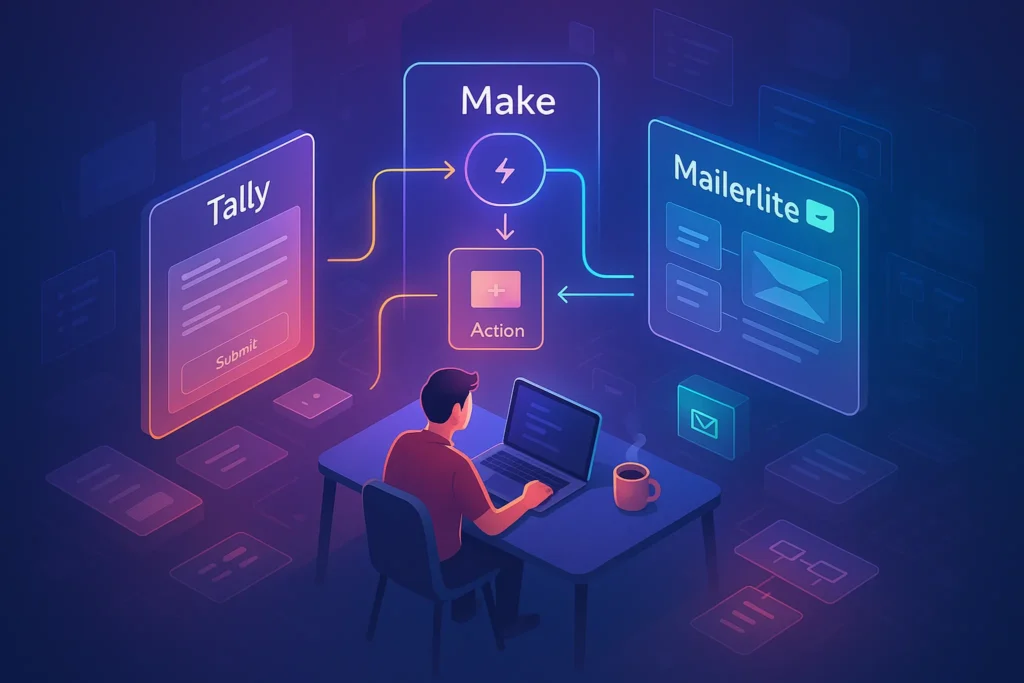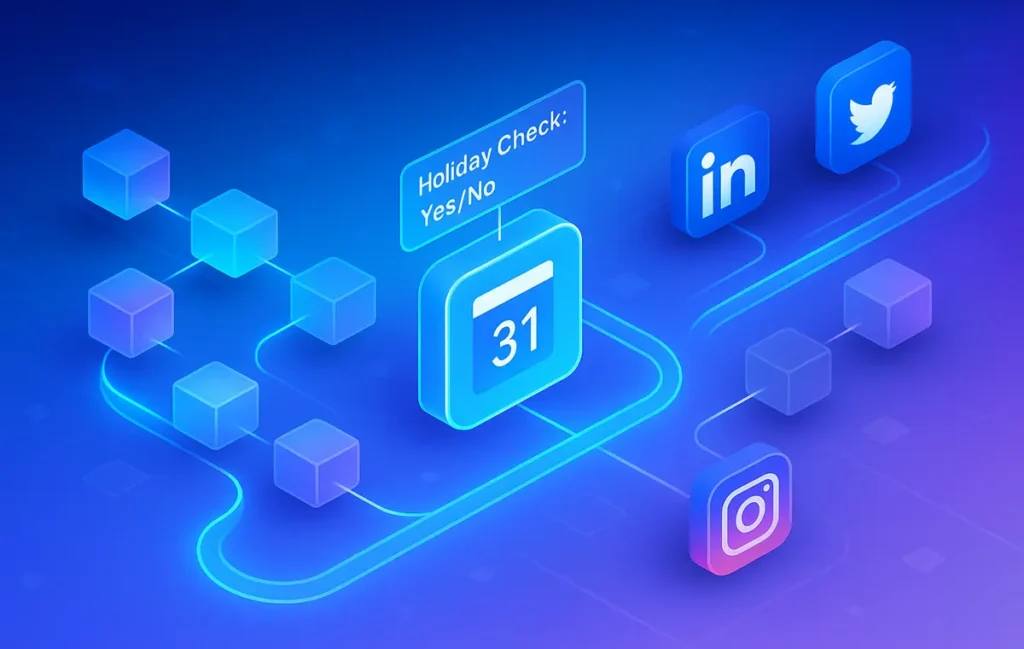
A calendar-aware posting queue connects your scheduler or automation tool to Google Calendar, checks “Is today a no-post day?” before publishing, and automatically skips or shifts content on holidays. Instead of manually pausing schedules, you let skip logic and queue rules keep your brand from posting the wrong thing at the worst time.
🔍 Intro — Scheduling Posts Is Easy. Scheduling Smart Posts Is Not.
Most teams feel proud the moment they finally have posts scheduled “weeks ahead.” But if you’ve ever watched a chipper promo go live during a national tragedy or a major holiday, you know that blind scheduling is almost as risky as not scheduling at all. The queue did its job. The workflow did its job. The context, however, was completely wrong.
In practice, what breaks is not your scheduling tool but the lack of awareness around when not to post. You end up pausing queues manually before every holiday, editing schedules in five different tools, or rushing into dashboards at 8 a.m. because you suddenly remembered that today is a public holiday in one of your core markets. For lean teams and solo creators, this is exactly the kind of mental overhead that kills consistency.
A calendar-aware posting queue solves that problem by treating your posting schedule as conditional, not absolute. Instead of “post every weekday at 10 a.m.,” you’re effectively saying, “post every weekday at 10 a.m. unless Google Calendar says today is a holiday or blackout day.” Tools like Zapier, Make, and n8n already support pulling events from Google Calendar and using them as filters or conditions, and most modern schedulers support queue-based workflows, as we’ve explored in Best Social Scheduling Tools: Queues, AI Timing & Approval Workflows.
This NerdChips tutorial walks you through designing a holiday-aware workflow that works across Instagram, LinkedIn, TikTok, X, or wherever you publish. You’ll learn how to use Google Calendar (or any ICS calendar) as a free “no-post brain,” how to wire it into low-code automation tools, and how to design skip logic so your queue just quietly does the right thing.
💡 Nerd Tip: If you’ve ever said “We’ll just remember to pause the queue,” that’s your signal to automate it instead. Memory is not an automation strategy.
🧠 What Is a Calendar-Aware Posting Queue? (Plain English)
A calendar-aware posting queue is simply a normal queue with one extra brain cell. Instead of publishing on a fixed schedule no matter what, it checks an external calendar—usually Google Calendar or an ICS feed—to decide whether today is a day when posts should be skipped, delayed, or replaced.
In plain English, you still have a queue of posts waiting to go out: your evergreen tips, promos, thought leadership threads, or TikTok hooks. You still have a schedule: for example, “weekdays at 9 a.m. and 3 p.m.” The difference is that your automation flow runs a quick test right before publishing: “Does Google Calendar say today is a no-post day?” If yes, it moves the post forward or leaves it in the queue. If no, it publishes as normal.
Because this logic is platform-agnostic, it works almost everywhere. You can use it to govern posts on LinkedIn and X through API-based schedulers, pipe content into Meta’s surfaces where supported, or even govern RSS-to-social automations. The underlying pattern is always the same: queue + external calendar data + conditional trigger.
Google Calendar is ideal as your “source of truth” because you can subscribe to public holiday calendars for specific countries, create your own internal “No-Post Days” calendar, and expose everything via ICS feeds. Many automation tools, including Zapier, Make, and n8n, can read from Google Calendar directly, and free scheduling workflows (like the ones we’ve outlined in How to Schedule Social Media Posts for Free) can be extended with the same pattern.
A calendar-aware queue doesn’t replace your usual content calendar tools; it complements them. You can keep planning campaigns inside more visual systems like those in Content Calendar Tools: Plan, Approve, Ship, while using the holiday-aware logic as a final guard-rail just before publishing.
💡 Nerd Tip: Treat the queue as “intent” and the calendar as “permission.” You intend to post every day, but only get permission when the calendar says the context is clear.
🔁 How Holiday Skipping Works (Logic Flow)
To build confidence, it helps to visualize exactly what’s happening in your workflow. At its core, holiday skipping is nothing more than a gate in front of your usual publish step.
The day starts. At 09:00, your automation tool (or scheduler) tries to publish the next item in your queue. Before it fires the “create post” action on X, LinkedIn, or another channel, it calls Google Calendar—either via a direct integration or by reading an ICS feed—and asks: “Are there any all-day events today that match ‘Holiday’ or live in my No-Post calendar?”
If the answer is yes, the workflow stops or branches into a “skip” path. That might mean doing nothing and leaving the post in place, or moving its scheduled time forward by 24 hours. If the answer is no, the workflow proceeds as normal and the post goes out. In tools like Zapier, this is usually implemented with a filter step between your time trigger and your social action; in Make or n8n, it’s a simple router or IF node that evaluates calendar data.
Where things get interesting is in your fallback logic. For example, some teams prefer a strict “no posting at all on holidays,” while others are okay with posting a special holiday-themed message. You can capture this nuance by setting up multiple calendars: one for “Hard No-Post Days” (national days of mourning, major religious holidays where silence is best), and one for “Soft No-Post Days” where you only want neutral or supportive content. Your automation can then route posts differently depending on which calendar is active.
In a practical benchmark shared by social teams on X, brands that implemented even a basic version of this logic saw a measurable drop in “we need to delete that post” incidents and last-minute manual rescheduling. One social lead described it bluntly: “The queue stopped embarrassing us on autopilot, which is all I wanted.” That’s the outcome you’re aiming for—less drama, more quiet correctness.
💡 Nerd Tip: Write your holiday logic down in one sentence: “On these days, we never post X or Y.” Your workflow should be a direct translation of that sentence, not a random collection of filters.
📅 Step-by-Step Setup Using Google Calendar (Free Method)
The simplest way to make your posting queue calendar-aware is to use Google Calendar as a central source of holiday and blackout data, then expose that data to your automation tool. The setup is not complicated, but each step matters if you want reliable behavior.
Start by adding public holiday calendars for all relevant regions. In Google Calendar’s “Browse calendars of interest” section, you can subscribe to country-specific holidays that are maintained by Google. For multinational brands, this alone is a huge upgrade: instead of manually tracking dozens of dates, you inherit an always-updating list. If you serve multiple countries with different cultures, you can subscribe to multiple holiday calendars and treat them separately in automation.
Next, create a dedicated “No-Post Days” calendar. This is your internal layer: product launches, internal off-sites, sensitive industry events, or dates you decide are inappropriate for normal posting. The important part is separation: public holidays in one calendar, internal blackout days in another. This keeps your logic clean and makes it easy for non-technical teammates to add entries without breaking the system.
Once your calendars are structured, you need to publish ICS links. In Google Calendar settings, each calendar has a secret address in iCal format (.ics). Some tools connect directly to Google Calendar via OAuth; others read ICS URLs. Either way, this URL becomes the bridge between your calendar and your automation platform.
Finally, connect the calendar to your automation tool of choice:
-
In Zapier, you’ll typically use “Schedule by Zapier” (time trigger) and “Find Event in Google Calendar” or “New Event Today” as the gatekeeping step.
-
In Make, you’d use a “Scheduler” module followed by “Google Calendar > Search Events” and a router.
-
In n8n, you can use a Cron node to start the workflow, followed by a Google Calendar node to check for events and an IF node to decide whether to continue.
-
In IFTTT, capabilities are more limited, but you can still create applets that don’t fire when certain calendar conditions are met, or that only post when your “No-Post” calendar is empty.
Even at this stage, you’ve already gained a big advantage: you now have a central place (Google Calendar) where changing an event automatically changes your posting behavior, without having to log into five separate scheduling tools.
💡 Nerd Tip: Give your blackout calendar a short, explicit name like “SOCIAL – NO POST.” That way, nobody on the team confuses it with general events.
⚙️ Build the Automation — Zapier, Make, and n8n Workflow Patterns
Once the calendar side is in place, it’s time to design the actual automation. Think in patterns, not tools: the same logic can be implemented almost identically in Zapier, Make, or n8n. Below are three core patterns you can adapt.
🧩 Version 1: Simple Skip Workflow (Single Channel)
This is the most bare-bones version and a good starting point if you’re already using the kind of free scheduling techniques described in How to Schedule Social Media Posts for Free.
At a fixed time each day—for example, 09:00—your automation triggers. The first thing it does is call Google Calendar and search for all-day events on today’s date, looking specifically at your “No-Post Days” calendar and optionally selected public holiday calendars. If events are found, a filter step stops the workflow: no social action is taken, and your queued content remains untouched for tomorrow.
If no events are found, the workflow proceeds to your publish step: sending a request to your scheduler, posting via an API, or triggering a “create post” action in a connected tool. If you use low-cost scheduling stacks like the ones in Automating LinkedIn Content Scheduling Without Expensive Tools, this can be as simple as pushing content into a spreadsheet-driven queue and letting a separate layer handle distribution.
This version doesn’t actively push content forward; it simply “does nothing” on no-post days. The upside is simplicity and fewer moving parts. The downside is that your queue effectively stretches out over time: what you thought would go out this month may spill into the next. For many evergreen content calendars, that’s perfectly acceptable.
💡 Nerd Tip: Start with this simple pattern and run it in “log only” mode for a week—log whether each day would have posted or not—before you connect it to your live social accounts.
📦 Version 2: Queue-Based Workflow (Auto-Pushing Content Forward)
If you want stricter control over how your queue behaves, a queue-based workflow is more powerful. Here, your posts live in a structured queue—often a database, spreadsheet, or the native queue of a social scheduling tool—and your automation picks the “next” post each day, then either publishes or reschedules it based on holiday logic.
The workflow starts at your scheduled time. It first retrieves the next post from your queue: usually the first row in a spreadsheet that hasn’t been marked as “posted,” or the oldest item in a database collection. It then calls Google Calendar to check for active no-post events, just like in Version 1.
If today is a holiday, the workflow doesn’t simply stop. Instead, it pushes the post forward by updating its scheduled date or “earliest publish” field by 24 hours (or however much you define). This keeps the relative order of the queue intact, but shifts everything to account for skipped days. If today is clear, it sends the content to your social channel, then marks the item as “posted” so it won’t be picked again.
This pattern is ideal when your queue is part of a more structured content system, like a content calendar built with the tools we cover in Content Calendar Tools: Plan, Approve, Ship. It also plays nicely with AI-assisted distribution workflows described in AI Tools for Content Distribution: Smarter Reach, where posts might be generated or repurposed automatically and then fed into a queue.
From a reliability standpoint, this version makes holiday effects more predictable: you always know that “next three posts” means three non-holiday slots, not “three calendar days regardless of context.”
🌐 Version 3: Multi-Account / Multi-Channel Logic
Real-world setups rarely publish to just one channel. You might be posting to LinkedIn, X, and TikTok, with different levels of sensitivity and different regional audiences. That’s where multi-channel logic comes in.
In this design, your queue contains metadata about both the content and its target channels. Some posts are marked as “global evergreen,” others as “region specific,” and some as “sensitive” (e.g., jokes, heavy promos) that require extra caution. Your workflow reads that metadata alongside the calendar data.
Imagine a post tagged as “Global + Sensitive.” On days where your global no-post calendar has events, the workflow either delays it or swaps it for a neutral “evergreen tip” from a backup pool. Meanwhile, non-sensitive posts tagged for a specific region might still go out if the holiday only affects other markets. This kind of nuance is where calendar-aware automation really earns its keep: one automation can respect multiple calendars and rules without you micromanaging each queue.
Teams who’ve implemented multi-channel logic often report fewer last-minute “Can someone please pause everything?” messages in Slack, and more confidence in letting automation run through weekends or late nights. One marketing ops lead wrote on X: “We used to have a hard rule: never fully trust automation. After building holiday and news-cycle skip logic, our rule flipped to: never ship without it.”
💡 Nerd Tip: Keep your routing rules human-readable. If your IF conditions look like a math puzzle, they’ll be impossible to maintain six months from now.
⚡ Ready to Build Smarter Posting Workflows?
Explore automation platforms like Zapier, Make, or n8n to turn your social queues into context-aware systems. Start with a simple holiday skip rule, then expand into queues, AI-assisted content, and multi-channel routing.
🧱 Optional Enhancements for Smarter Holiday-Aware Queues
Once the basic holiday skip logic works, you can start layering more intelligence on top without making the system fragile. The goal is to keep your workflow opinionated but still simple enough that a new team member can understand it.
One practical enhancement is regional holiday merging. If your brand serves multiple key markets, you can maintain separate calendars (e.g., “No-Post – US,” “No-Post – DE”) and have your workflow decide per channel. An English-only LinkedIn page might respect only global and US holidays, while a German-language profile cares more about local events. You’re still using free public calendars as a base, but the routing logic becomes a bit more nuanced.
Another high-leverage layer is company-specific blackout days. These might include internal announcements, sensitive industry anniversaries, or crisis periods where you’ve decided in advance that normal publishing should stop. By keeping these on a dedicated calendar, you can flip the entire system into “silent mode” just by creating an event, no matter which scheduler is in use underneath.
More advanced setups add sentiment-aware skipping, where an AI layer scans news headlines or social sentiment before posts go out, and pauses certain categories if the tone feels off. Some teams use distribution-focused AI tools similar to the ones we highlight in AI Tools for Content Distribution: Smarter Reach—not to generate posts, but to act as a “vibe check” before publishing. It’s not perfect, but it’s another safety net.
Finally, you can implement auto-delay based on news cycles. For example, you might decide that when major breaking news hits in your industry, all promotional posts are delayed by 24–48 hours while neutral or helpful content may still go out. This is often implemented using a manual toggle (e.g., a special “NEWS – SLOW DOWN” event on your no-post calendar) rather than fully automated detection, to avoid overreacting to minor stories.
💡 Nerd Tip: Add enhancements one at a time and document them. The smartest workflow is useless if nobody remembers what it’s supposed to do in six months.
🐛 Debugging Tips: Making Calendar-Aware Queues Reliable
Any automation that touches calendars, time zones, and external APIs will fail in sneaky ways at some point. The difference between a NerdChips-style workflow and a brittle one is how well you anticipate and debug those issues.
One of the most common pitfalls is ICS sync delay. Public holiday calendars and shared ICS feeds don’t always sync instantly into your automation tool. Some platforms cache calendar data or only fetch updates every few hours. This is why it’s often safer to connect directly to Google Calendar via its native API modules (Zapier/Make/n8n integrations) rather than relying on static ICS feeds whenever possible.
Time zone issues are another silent killer. If your automation platform runs in UTC but your Google Calendar is set to your local time, a “no-post day” event might start or end at the wrong moment. Always confirm that your scheduler, calendar, and automation tool agree on the base time zone, and if you’re publishing globally, design your logic around the audience time zone that matters most for each channel.
You’ll also want to guard against queue duplication. When errors occur in the API call to your social platform, some workflows will retry automatically, which can lead to multiple posts or confused queue states. Make it a rule that a post is marked as “posted” only after a confirmed success response. If your automation tool supports it, log each attempt with a unique ID in a sheet or database so you can audit what happened.
Finally, plan for API failures and rate limits. Social APIs occasionally flake out or temporarily throttle requests. Instead of letting those failures crash your entire workflow, catch errors and route them into a “Needs Attention” log or Slack channel. That way, you can manually fix a handful of posts rather than wondering silently why nothing has gone out for two days.
💡 Nerd Tip: Run your workflow in “shadow mode” for a week—logging actions without posting—to surface time zone, holiday, and retry issues before they hit your real feeds.
🟩 Eric’s Note
My favorite automations are the ones you forget exist until you realize how much drama they quietly removed. A good calendar-aware queue feels like that: not flashy, just fewer “oh no” moments in your day.
📬 Want More Automation Playbooks Like This?
Join the NerdChips newsletter to get weekly breakdowns of real automation workflows: calendar-aware queues, AI-augmented content distribution, and lean systems that help small teams punch above their weight.
🔐 100% privacy. No spam. Just systems thinking for creators and operators who care about doing more with less.
🧠 Nerd Verdict
Calendar-aware posting queues are one of those unglamorous automations that quietly separate amateur scheduling from grown-up operations. When your queue reads Google Calendar before it posts, you stop relying on memory and late-night Slack messages to keep your brand from being tone-deaf. Instead, your “don’t post on these days” rules become an actual system that runs whether you’re online or not.
For NerdChips, this is the sweet spot of automation: simple enough for a solo operator to implement using Google Calendar and a tool like Zapier, Make, or n8n, but powerful enough to save hours of manual rescheduling for larger teams. When you combine holiday-aware queues with the right scheduling stack from Best Social Scheduling Tools: Queues, AI Timing & Approval Workflows and distribution smarts from AI Tools for Content Distribution: Smarter Reach, your content pipeline becomes both faster and safer.
If your social strategy already leans on automation, this is the missing guard-rail. If you’re just starting to automate, it’s one of the highest-leverage first steps you can take. Either way, your future self—and your future brand reputation—will be glad you wired your queue to a calendar.
❓ FAQ: Nerds Ask, We Answer
💬 Would You Bite?
If you had to start with one channel and one workflow, where would you install a calendar-aware queue first—LinkedIn, X, or somewhere else?
Share your current stack and which piece you’d connect to Google Calendar. The best real-world setups often come from seeing how other teams stitched their tools together. 👇
Crafted by NerdChips for creators and teams who want their best ideas to travel the world without tripping over the calendar.