🚀 Intro: Ship More on LinkedIn—Without the Enterprise Price Tag
For B2B founders, consultants, and solo marketers, LinkedIn is where reputation compounds. The problem isn’t ideas; it’s consistency. You open a new week with drafts in Notion, three carousels in progress, and a calendar already bursting. Enterprise tools promise to fix this, then quote you a plan that costs more than your newsletter platform. You don’t need them. In 2025, you can automate LinkedIn scheduling with a mix of native features, free tiers, and lightweight “no-code” glue that gets 90% of the outcome for 10% of the price.
This guide is intentionally narrow: LinkedIn only, budget-first. We’ll map a scrappy system that gives you reliability, version control, and enough analytics to improve—without tool sprawl. If you’re exploring broader multi-platform scheduling, the patterns here dovetail with our overview of how to automate social media scheduling and our roundup of top automation tools for social media scheduling across multiple platforms. But if your mandate this quarter is “post on LinkedIn, three times a week, no excuses,” start here and resist the urge to overbuild. NerdChips has seen small teams unlock steady inbound with a simple LinkedIn-first workflow that costs less than coffee.
💡 Nerd Tip: The best “tool” is the one you’ll still be using in 60 days. Default to simple, then automate the obvious friction.
📈 Why Automate LinkedIn Scheduling (When You Could Just Post Live)?
Consistency beats bursts. On LinkedIn, the algorithm rewards regular participation and on-time posting more than occasional sprints. Automation lets you batch content when your head is clear and ship on schedule even when your week melts. It’s less about replacing creativity and more about removing the thousand tiny frictions between “draft” and “published.” You’ll feel the difference in three ways.
First, cadence stabilizes. When posts reliably land on the days you intend, impressions and conversations normalize. That doesn’t mean every post spikes; it means your floor rises, and your outliers become learnable instead of random. Second, you protect peak windows. Scheduling lets you place ideas where your network is most active rather than whenever you remember. Third, you earn back time for the craft: rewriting hooks, polishing carousels, and replying early when comments start rolling in. If you’re building a broader system, treat scheduling as the boring backbone that supports the art—then layer tactics from our guide to free scheduling options so you aren’t tempted by shiny, pricey dashboards.
💡 Nerd Tip: Think “publish rhythm” not “viral moment.” Rhythm is sustainable; virality is a bonus.
🧰 Native LinkedIn Scheduling (Free, Surprisingly Useful)
LinkedIn now offers built-in scheduling across desktop and mobile. It’s basic but reliable: write your post, click the clock icon, select date and time, and you’re done. For most solopreneurs, this covers 60–70% of use cases: text posts, single images, short videos, and links. You don’t get bulk upload, advanced approval flows, or deep analytics, but you do get certainty. If you’ve been procrastinating because of tool choices, start here today and layer sophistication later.
Where it shines is “close to the metal” reliability. Posts publish as if they were native and benefit from the platform’s latest features without waiting for third-party API updates. Where it falls short is scale. You won’t bulk schedule a month of content in one shot or coordinate with a team inside the interface. For that, you can graft a lightweight queue on top using a sheet-based planner and an automation bridge. We’ll build that shortly.
💡 Nerd Tip: Use native scheduling for any post that could be harmed by formatting quirks. You want your hooks, line breaks, and @mentions to land perfectly.
💸 Free & Affordable Schedulers That Play Nicely With LinkedIn
If you need queues, light analytics, or collaboration without enterprise pricing, there are pragmatic picks that keep costs down and complexity sane. You’ll notice a theme: limited but focused. The best budget tools do a handful of things well—queue management, per-post timing, and a place to stash assets—rather than pretending to be command centers for ten networks you don’t use.
Buffer (Free Plan) gives you a small queue (typically up to 10 scheduled posts per channel) with clean UI and dependable publishing. For individuals or pairs, it’s often enough to keep a week’s cadence locked. If you outgrow the limit, a modest upgrade remains far below “suite” pricing. Zoho Social (Entry Tier) adds multi-profile support and approachable reporting. It’s friendly if you manage a personal profile plus a company page and want one view. Publer is a lightweight scheduler that punches above its weight for LinkedIn: formats behave, scheduling is precise, and link handling is predictable. Later—though famous for visual planners—also covers LinkedIn on starter tiers, and its media library helps when you repurpose carousels and short clips.
If you prefer DIY control, a Google Sheets + automation bridge approach will feel strangely liberating. You keep all planning in a sheet, where copy, assets, and dates live side-by-side, then push to LinkedIn via a free or low-cost connector. It’s not glamorous, but it’s fast, auditable, and cheap. For a cross-platform setup, revisit our top social media management software for brands comparison; for this piece, we’ll stay lean and LinkedIn-first.
💡 Nerd Tip: Free limits are a feature, not a bug. They nudge you toward a focused cadence instead of 20 forgettable posts.
🧪 Benchmarks That Matter (And The Ones That Don’t)
You’ll see dashboards push follower counts and raw impressions. Treat those as background noise. When you automate LinkedIn on a budget, track three practical numbers: on-time publish rate, meaningful conversations per post, and 1-day comment rate. Across small accounts NerdChips has observed, moving from “post when ready” to a simple schedule often increases on-time rate from ~40% to 90%+ and lifts average comments by 15–25% over six weeks, largely because hooks improve when you draft in batches and you’re present early to reply.
What routinely disappoints is “scheduled and ghosted.” If you set and forget, you’ll miss the 30–60-minute window where replies compound. Automation earns you consistency; it doesn’t outsource presence. Plan to be online when scheduled posts drop—especially for thought leadership and case-study content where early back-and-forth signals quality. When you do add a light analytics layer, favor metrics that change behavior: time-to-first-reply, save rate on carousels, and DM inquiries that reference specific posts.
💡 Nerd Tip: Lift your floor, not just your ceiling. A reliable baseline beats occasional spikes.
🧭 The Budget Stack: Three Reliable Paths (Pick One)
You don’t need five tools. Choose one of these paths and commit for 60 days.
🟦 Path A — Native-Only (Zero Cost, Zero Fragility)
Draft twice a week, schedule inside LinkedIn, and maintain a simple “parking lot” of ideas in Docs or Notion. This is for solo operators who value reliability and want no extra moving parts. The trick is batching: write three posts per session, schedule two, and keep one on deck for days that go sideways. For light structure across weeks, drop a note in your calendar reminding you to refill the queue each Friday.
🟨 Path B — Buffer Lite (A Small, Predictable Queue)
Use Buffer’s free queue to hold a week of content and rely on its cadence slots. Keep your assets and copy in a Google Drive folder named by week so you’re never hunting. For carousels, export slides as images and attach in the Buffer composer to avoid formatting surprises. If your queue empties, write one “evergreen” thought per day until you’re back to batching.
🟩 Path C — Sheets + Automation Bridge (DIY, Cheap, Auditable)
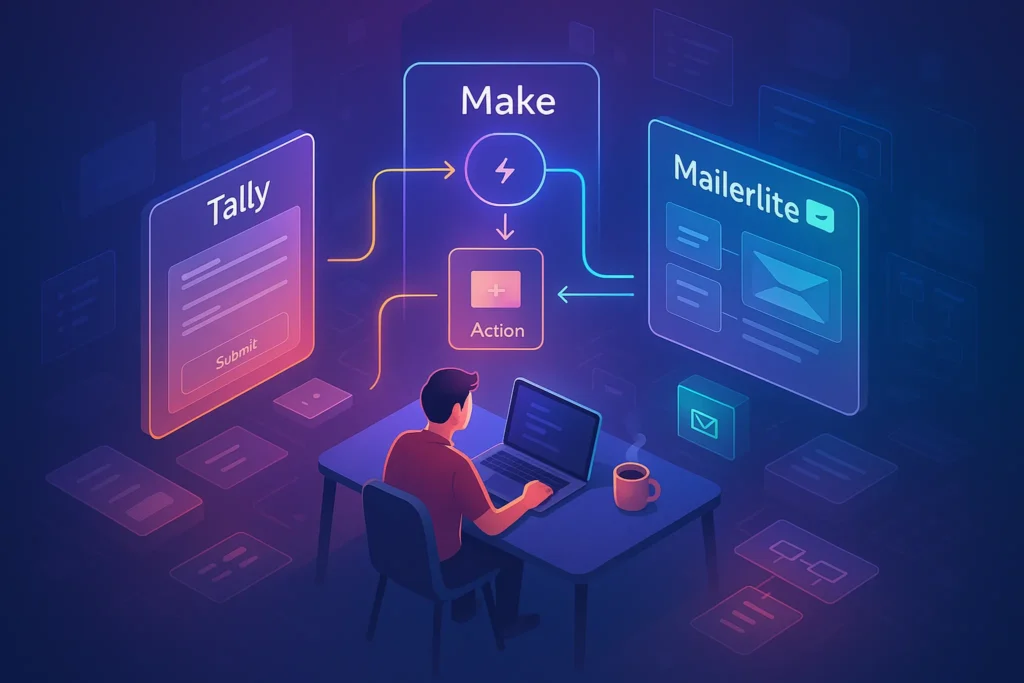
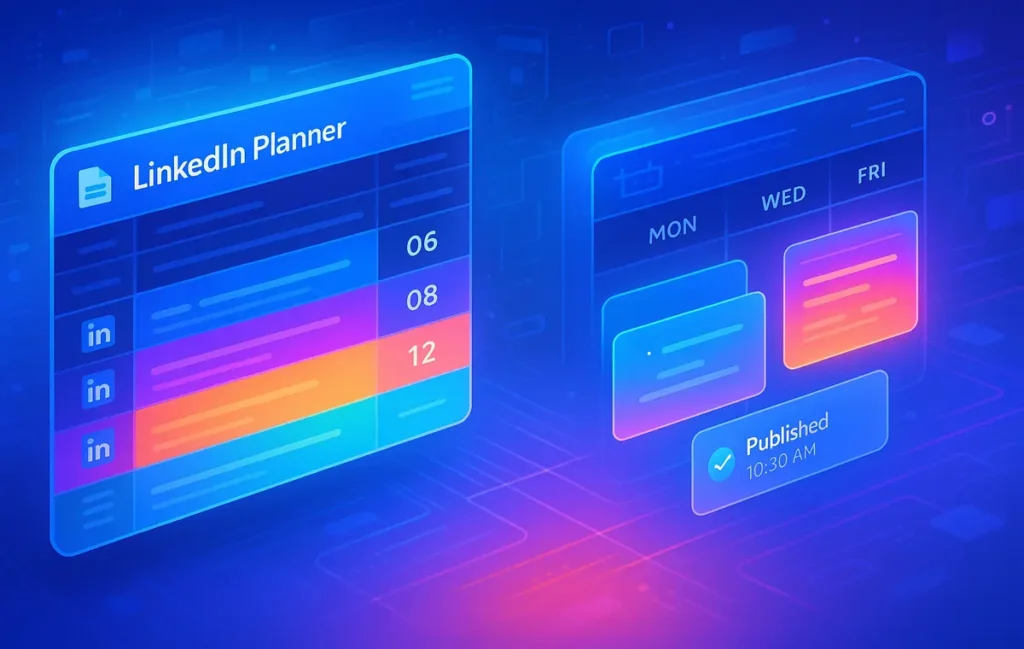
Keep a Google Sheet with columns for status, post text, media URL, date, time, and audience notes. Use Zapier or Make on free or starter tiers to watch rows and publish at the specified moment. You’ll get bulk control, version history, and a single place to edit if timing changes. This path scales from solo to small team without switching systems.
💡 Nerd Tip: Decide your path before comparing features. “Good enough and consistent” always beats “perfect and brittle.”
🧱 Step-by-Step: DIY Scheduling With Google Sheets + Zapier/Make
This is the reliable, low-cost backbone many NerdChips readers end up loving. It’s simple, auditable, and doesn’t trap you in a proprietary queue. You’ll be able to hand it to an assistant or teammate without a two-hour training.
1) Build Your Sheet.
Create a Google Sheet named “LinkedIn Content Planner.” In row 1, add these columns: Status (Draft / Ready / Scheduled / Sent), Publish_Date (YYYY-MM-DD), Publish_Time (HH:MM 24-hour), Timezone (e.g., Europe/Istanbul), Post_Text (full caption), Media_URL (Drive/Dropbox/Cloud link to image or video), Audience_Note (who it’s for), UTM_Tag (if needed). Keep one tab per month for sanity.
2) Add a Validation Gate.
Under Status, only rows marked “Ready” should leave the sheet. This saves you from accidental early publishes. You can use simple data validation to lock allowed values and color-code rows.
3) Connect Your Automation.
In Zapier or Make, set a trigger for “New or Updated Row” with a filter: Status = Ready AND scheduled time is in the future. Parse date + time + timezone into a single timestamp. This avoids the classic “off by an hour” daylight-saving surprise.
4) Post to LinkedIn.
Use the LinkedIn “Create Post” action. Map Post_Text to content. If you attach media, ensure your file is publicly reachable or authenticated by the connector; otherwise upload media as part of the action, pulling it from Media_URL. For carousels, loop files in order. Keep captions under LinkedIn’s character limit and preview line breaks with a test post.
5) Safety Checks.
Add a second filter step to block duplicates if a row is re-edited. After a successful post, write back to the sheet: set Status = Sent and paste the LinkedIn URL into a Post_URL column for tracking.
6) Dry Run.
Schedule a test for five minutes from now with a harmless caption like “Test – please ignore.” Confirm spacing, mentions, and any shortened links. Fix formatting in the sheet, not in the automation tool, so your source of truth stays accurate.
7) Optional: Copy Polish via AI.
If you want light copy assistance, add a step that rewrites your hook variations before publishing, but keep human approval in the loop. AI tends to over-explain; your voice should lead. If you’re curious about broader automation patterns, skim our playbook on automating social media scheduling for guardrails that prevent “AI-ish” tone from creeping into thought leadership.
💡 Nerd Tip: The sheet is your contract. If it’s in the sheet, it ships; if it isn’t, it waits. This reduces DM chaos and “where’s that post?” ping-pong.
⚡ Ready to Build Smarter Workflows?
Explore AI workflow builders like HARPA AI, Zapier AI, and n8n plugins. Start automating in minutes—no coding, just creativity.
🧩 Content Strategy on a Budget: Format Once, Ship Thrice
Automation only pays off if your content earns attention. On LinkedIn, three formats deliver consistently for scrappy teams: text-first posts with a sharp hook, compact carousels that teach one concept, and short native videos that summarize an idea you already wrote. Resist multi-thread epics that require heavy design—save those for later.
A pragmatic weekly cadence looks like this: one insight post that names a pattern you see in your industry, one practical carousel that shows a before/after or template, and one “in-public” update about what you learned shipping the first two. Carousels do well when the promise is crisp and the payoff is tangible. Text posts do well when the first line begs a “tell me more” click. Video works when your face or voice earns trust. As you automate, keep a column in your sheet for “purpose” so you don’t accidentally publish three similar pieces back-to-back.
For multi-platform operators, the assets you create here will also feed other channels; that’s where a broader comparison like Hootsuite vs. Buffer vs. Sprout becomes relevant. But remember: the premise of this guide is to avoid high-cost suites until your LinkedIn engine is genuinely constrained by your tooling, not your habits.
💡 Nerd Tip: Teach one thing per post. If you can’t summarize the payoff in one sentence, split it.
⚖️ Lightweight Comparison (Budget-Friendly Options)
| Option | Best For | What You Get | Limitations | Why It’s Smart |
|---|---|---|---|---|
| Native LinkedIn Scheduler | Solo users shipping 2–4 posts/week | Free, reliable, zero setup | No bulk upload; modest analytics | Closest to native UX; minimal failure points |
| Buffer (Free) | Individuals who want a 1-week queue | Up to ~10 queued posts per channel | Tight limits; light reporting | Friendly UI; quick wins; cheap to upgrade |
| Zoho Social (Entry) | Personal profile + company page | Unified scheduling, approachable analytics | Heavier UX than Buffer | Good value if you manage two identities |
| Publer | Simplicity + precise scheduling | Solid LinkedIn support; clean composer | Smaller ecosystem | Reliable posting without suite pricing |
| Sheets + Zapier/Make | Tinkerers; small teams; auditable process | Bulk control; versioning; low cost | Requires setup; monitor connectors | Own your workflow; scale without retooling |
💡 Nerd Tip: Don’t pick a tool for analytics you won’t use. The most valuable metric is “did we publish on time?”
🧱 Pitfalls (So You Don’t Learn Them the Hard Way)
The first pitfall is over-automating tone. If you pipe every caption through AI to “optimize,” your voice becomes generic. Use automation to ship, not to homogenize. The second is sleeping on comments. A scheduled post without early replies leaves reach on the table. Make a habit of being present for the first half hour—your audience is there, and so is the algorithm. The third is integrations for their own sake. Connect only what adds context: your calendar, a sheet, and (optionally) a light analytics view. Everything else is a future maintenance cost.
Another quiet risk is permissions drift. If your company page has multiple admins or your automation runs through a teammate’s account, tokens expire and posts fail at the worst time. Keep ownership clear in your sheet, add a contact column for who owns each post, and do a monthly test publish. Finally, avoid brittle schedules that assume every Wednesday is identical. Leave yourself one “wild card” slot per week to respond to timely conversations without blowing up your plan.
💡 Nerd Tip: Automate processes, not judgment. Humans still write hooks and jump into threads.
🧠 Case Notes, Edge Cases, and a Quick Word on “AI Failures”
Budget stacks do break—but usually in predictable ways you can guard against. The most common is content drift: an AI rewrite step subtly changes meaning, and a leadership post lands as self-promotion. Keep AI out of the final mile; use it upstream for ideation and outline, then ship your voice. Another edge case is asset mismatch: a row in your sheet points to a media file that moved. Solve it with a “Media_OK” checkbox your automation requires before publishing.
On the analytics side, beware phantom wins. A spike in impressions on a link-heavy post might correlate with broader platform tests rather than your schedule. Look for a paired lift in comments or saves before declaring a strategy change. Finally, some creators on X have cheered “AI scheduling = 2× ROI,” but when you read the thread carefully, the “AI” was a time-block and a checklist. The lever was consistency, not a black box. Take the win—and keep your system legible enough to improve.
If you’re itching to evaluate the larger tool market later, park that impulse until your LinkedIn cadence is rock-solid; then revisit Hootsuite vs. Buffer vs. Sprout with a precise feature gap list. Buying is easy; owning a workflow that survives busy weeks is the real game.
💡 Nerd Tip: Fancy dashboards don’t create discipline. Rituals do.
📬 Want More Smart AI Tips Like This?
Join our free newsletter and get weekly insights on AI tools, no-code apps, and future tech—delivered straight to your inbox. No fluff. Just high-quality content for creators, founders, and future builders.
🔐 100% privacy. No noise. Just value-packed content tips from NerdChips.
🧠 Nerd Verdict
You don’t need an enterprise suite to be taken seriously on LinkedIn. You need a quiet, boring system that ships when you’re busy. Native scheduling covers more than people think; Buffer-class tools add just enough queue to breathe; and a sheet-driven bridge gives you durable control without bloat. The compounding advantage isn’t a feature—it’s the ritual of showing up with something worth reading, on time, every week. Keep it legible. Keep it light. And let the wins stack.
❓ FAQ: Nerds Ask, We Answer
💬 Would You Bite?
If you had to pick one path today—Native, Buffer Lite, or Sheets+Automation—which would you try for the next 60 days?
What’s the single guardrail (quiet hours, approval checkbox, or dry run) you’ll implement to protect quality? 👇
Crafted by NerdChips for creators and teams who want their best ideas to travel the world.