⚙️ Intro
If your day feels shredded into micro-decisions—reply pings, copy-paste loops, file renames, app juggling—you’re not “bad at focus.” You’re being taxed by dozens of 5–30 second actions that reset your brain’s momentum. The friction is tiny, but the cost compounds: each micro-switch burns context and pushes deep work further away. This 2025 guide shows how to automate the small things so you can do the big things. It’s not about building a giant, brittle workflow you’ll abandon next week; it’s about installing light, reliable automations that reroute low-value touches before they hijack your attention.
We’ll work from principles to playbook. First, design a focus-first environment: a single capture inbox, opinionated defaults, and a bias for batching. Then add micro-automations—email triage, text expansion, clipboard memory, auto-renaming, screenshot routing, VIP alerts, calendar buffers, app launch routines, and laser-targeted mobile shortcuts. If you later want larger flows, layer them onto the same foundation with the help of Workflow Automation 101: Zapier & IFTTT, or go broader with No-Code Automation for Solopreneurs. If your day already lives inside AI assistants, tie this with AI Automation: Assistants for Daily Tasks for a human-in-the-loop approach that stays accurate.
💡 Nerd Tip: Keep this simple: a few great automations you use daily beat a hundred clever ones you forget exist.
🧭 Principle: Automate for Focus, Not for Fancy
Productivity dies when automation becomes a hobby. The win is not a perfect flowchart; it’s a mind that stays on one track long enough to ship. Start with a Rule of 2 Minutes: any task you do repeatedly that takes ~2 minutes or less is a candidate for automation. That includes textexpanding intros, filing routine emails, renaming downloads, stamping UTM blocks into outreach, starting a focus timer with Do Not Disturb, or dropping screenshots straight into the right project folder. The less you think during the first mile of a task, the more attention you save for judgment and creativity.
Batching protects your working set. Instead of peeking at email or messages like a nervous thermostat, deliver them to you in predictable windows. Use scheduled digests for low-stakes updates and VIP alerts for the people or issues that truly justify an interruption. Default decisions keep effort tiny: a default calendar buffer of ten minutes before and after meetings, a default output format for screenshots, a default renaming pattern for files. Finally, everything funnels into one capture inbox you trust—notes, tasks, and quick ideas. You can triage later when your brain isn’t expensive.
When you do want a bigger setup—say, a daily agenda that assembles itself—take a look at Automate Your Daily Schedule with Apps and AI. But for now, resist tool-hunting. Focus is a systems problem, not an app store problem, and NerdChips always pushes for fewer moving parts.
💡 Nerd Tip: Automations should feel like “gravity,” not a guessing game. If you can’t predict what will happen before you click, it’s too clever.
🧩 Micro-Automations That Matter (A Practical Playbook)
✉️ Inbox Triage Without the Noise
Treat your inbox like a postal center, not a chat room. Auto-labels sort routine mail—receipts, newsletters, updates—out of your Now view. Two policies keep you sane: VIP-only alerts and scheduled digests. VIPs are the 5–10 senders where minutes matter; everything else can wait for the top of the hour or a twice-daily digest. Set canned responses for the answers you send weekly—intro handoffs, meeting slots, “got it” acknowledgements, delivery confirmations—and map them to short triggers. This is not laziness; it’s consistency. You’ll make fewer errors and get out of the inbox sooner.
If email still dominates your day, couple this with a calendar block that aggregates action items, as shown in Automate Your Daily Schedule with Apps and AI. The mental relief of “email is scheduled, not ambient” is huge.
💡 Nerd Tip: Disable unread badges. Let the digest interrupt you, not the red dot.
✍️ Clipboard Memory & Text Expansion
Keyboarding is where time evaporates without anyone noticing. A robust clipboard history lets you paste the last 20 things you copied without bouncing between windows. Text expansion turns keystroke puzzles into instant templates: ;sig drops your signature, ;utm inserts a full UTM block ready to tweak, ;brief creates a small creative brief shell, ;ship generates your “done/delivered” message. Keep ten to start and refine tone monthly. For outreach that uses UTMs, pairing snippets with the checklist from Workflow Automation 101 helps you stay clean across channels.
💡 Nerd Tip: Add variables to your snippets (name, date, link) so you stay fast without sounding like a robot.
⏱️ Smart Timers that Enforce Boundaries
Timers only matter if they change your environment. A good focus timer should start Do Not Disturb, mute non-VIP notifications, pause notifications on your desktop chat app, and optionally block the distracting sites you always “just check” when work gets hard. Tie the break into your rhythm: open a short stretch or water prompt, and then show messages. Want a deeper system? Pair the timer with the tactics inside Focus Tools That Beat Procrastination so you can switch modes without self-negotiation.
💡 Nerd Tip: One 50-minute block with full protection beats three 25-minute sprints that leak pings.
🗒 Notes & Quick Capture That Don’t Derail You
Capture shouldn’t feel like switching apps; it should feel like dropping an object into a gravity well. Set a universal hotkey that opens a tiny text box anywhere and drops your thought into one inbox. If you talk faster than you type, enable voice-to-text for the same inbox. Auto-tag entries with the active app or top window, so a note written while your design file is front-most inherits a “Design” tag. Later, during admin time, you’ll triage with context intact. When you’re ready to delegate notes or have an assistant summarize your capture, AI Automation: Assistants for Daily Tasks shows how to keep a human in the loop for accuracy.
💡 Nerd Tip: Your capture inbox should feel bottomless, but your processing queue should be small. Separate them.
🗂 Files, Downloads & Screenshots that File Themselves
Downloads and screenshots accumulate because naming is boring. Make it automatic. Screenshots should save as YYYY-MM-DD Project Name – Topic.png into a per-project folder. Downloads should route by file type and keywords: invoices to Finance, contracts to Legal, assets to Brand, and anything with “screenshot” to the right project. Add a weekend cleanup job that archives or deletes temporary folders so Monday starts crisp.
💡 Nerd Tip: If your screenshot workflow still lands on the desktop, you’re leaking minutes and context every day.
📅 Calendar & Focus Blocks with Built-In Buffers
Your calendar is not just a place to store appointments; it’s a boundary machine. Auto-create a daily “Deep Work” block when your day is under a certain meeting load. Add five-to-ten minute buffers before and after meetings so you’re not context-switching at highway speeds. If your day is complex, let a scheduling automation surface your next best-action stack, as we do in Automate Your Daily Schedule with Apps and AI. The point is to make calm the default, not a special event.
💡 Nerd Tip: If a meeting has no agenda by 6pm the day before, your default is to move it. Protect the block.
🔕 Notifications that Respect Attention
You don’t need zero notifications; you need curated notifications. Whitelist VIPs for immediate pings, batch everything else into hourly or twice-daily summaries, and kill badges on apps that pretend to be urgent. On desktop, hide dock/taskbar icons for apps that aren’t part of your current task. On mobile, use Focus modes with app filters; in a “Writing” Focus, let in only timers and family, not social. If you’re in a meeting, enable auto-replies for your chat app: “In a session—back at :45.” It’s polite, and it trains your environment not to yank your sleeve.
💡 Nerd Tip: If a notification never changes your next action, it’s a report, not an alert. Push it to a digest.
🖥️ Desktop Routines that Start Your Day on Rails
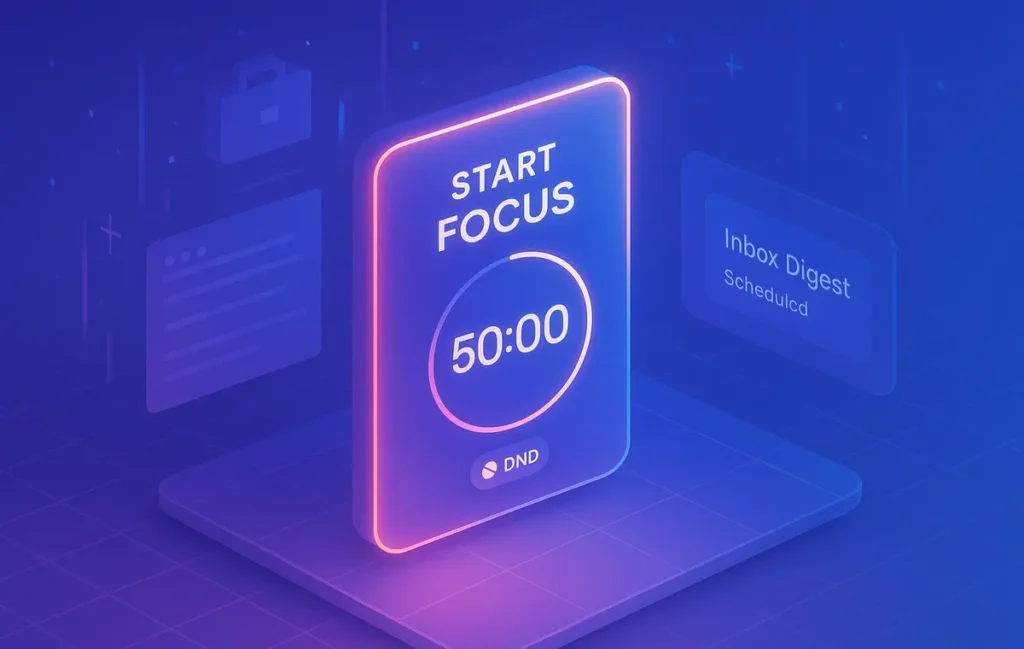
A single “Start Focus” routine should open your working set, apply DND, set the right music/ambience, and restore your last workspace. Close-of-day should archive downloads, snapshot your active document, and prepare tomorrow’s first task. If you prefer to build a couple of small automations instead of one mega-routine, let No-Code Automation for Solopreneurs guide you through a modular approach.
💡 Nerd Tip: Put the first task in the window. You should see it the second your desktop appears.
📱 Mobile Shortcuts When You’re Away from the Desk
Mobile is where good intentions die. Create three shortcuts: “Running Late” (auto-texts ETA + next slot), “In Session” (enables Focus, sets auto-reply, logs the session), and “Idea Capture” (voice-to-text into your inbox with a link to current location or calendar event). Keep them on your home screen so you can use them without thinking.
💡 Nerd Tip: If a mobile shortcut needs more than one tap, it’ll lose to muscle memory. Design for one-tap.
🧪 Tools (No-Code Friendly, Minimalist Stack)
You don’t need a shopping spree. A lean stack for micro-automation includes: a text expander/clipboard manager, the rules already living inside your email, calendar, and cloud storage, and a light workflow layer for 2–3 repeaters—think “new invoice → rename + save” or “form submission → task + template.” When you’re ready to wire systems together, start with the foundations in Workflow Automation 101: Zapier & IFTTT and then push into higher-leverage scenarios described in AI Automation: Assistants for Daily Tasks. For a solo operator, the mindset and examples inside No-Code Automation for Solopreneurs keep everything simple enough to survive busy weeks.
From a results standpoint, teams that implement even five of the playbook automations typically report a double-digit drop in context switches and a noticeable rise in finished focus blocks within two weeks. That’s not magic; it’s fewer resets and less “where did I put that?” hunting.
💡 Nerd Tip: If a tool requires you to become a part-time admin, it’s wrong for micro-automation. Swap it.
⚡ Ready to Build Smarter Workflows?
Explore AI workflow builders like HARPA AI, Zapier AI, and n8n plugins. Start automating in minutes—no coding, just creativity.
🚀 60-Minute Setup (From Zero to Flow)
You can install a baseline in a single hour by moving in a straight line: list → choose → wire → test → schedule. The goal is not perfection; it’s a friction-free Monday.
| Phase | What You Do | Proof It Works |
|---|---|---|
| Inventory | Write 10 tiny tasks you repeat daily/weekly; pick the 3 with the highest annoyance tax. | You can circle the “worst three” in under 2 minutes. |
| Create one VIP filter (alerts on), one digest (everything else), and 3 canned responses. | Inbox badge off. One test VIP triggers; digest lands on schedule. | |
| Text | Define 10 snippets (sig, brief, ship, UTM block, calendar link, intro). | Type `;sig` and see it expand everywhere you write. |
| Timer | Bind a 50-minute focus timer that turns on DND + blocks your top 5 distractions. | Start timer; notices vanish; blocked sites are actually blocked. |
| Files | Auto-route screenshots and downloads into project folders with a date-name pattern. | Take a screenshot; it appears renamed in the right folder. |
| Routine | Map “Start Focus” to one hotkey: open tools, set ambience, toggle DND. | Press once; everything you need appears, nothing else. |
For your next 60 minutes later this week, consider generating a daily agenda that auto-pulls top tasks and meetings—outlined in Automate Your Daily Schedule with Apps and AI—or wiring one small cross-app recipe from Zapier & IFTTT 101.
💡 Nerd Tip: Version your setup like a product: v1 today, v1.1 on Friday. Make one change, measure it for a week.
📏 Maintenance & Measurement (Keep It Light)
Micro-automation fails when it goes stale. Spend 15 minutes weekly to prune and refresh. Delete rules that never fire, promote snippets you keep editing, and archive digests you never read. Track three lagging indicators: context switches (how often you break blocks), finished focus blocks (count per week), and inbox latency (time from arrival to triage). If you need tactics to defend blocks from procrastination, borrow guardrails from Focus Tools That Beat Procrastination and treat them as environmental defaults rather than willpower challenges.
A practical benchmark many NerdChips readers hit: after two weeks, a 20–30% drop in mid-block app switches and a 2× increase in completed 50-minute blocks. Your mileage will vary, but the shape of the curve is consistent: the first four automations deliver most of the relief, the rest provide polish and resilience.
💡 Nerd Tip: If a rule didn’t change your behavior, it’s not an automation—it’s a decoration. Remove it.
🚧 Pitfalls & Fixes (Bookmark This)
| Problem | Likely Cause | Fast Fix | Guardrail |
|---|---|---|---|
| Too many rules to remember | Automation FOMO | Delete everything except 3 “high-pain” rules | Quarterly audit with a 10-rule cap |
| Alert fatigue | Default notifications left on | VIP-only pings + hourly summaries | Review VIP list monthly; keep it under 10 |
| Stale snippets | Never scheduled a refresh | Ten-minute monthly rewrite of tone and links | Centralize snippets; avoid duplicates |
| Files still messy | Routing doesn’t cover edge cases | Add 1–2 keyword rules; schedule weekend cleanup | Use date-prefix naming everywhere |
| Focus timer ignored | No environmental change | Enable DND + app/site blocks with timer | Visible on-air indicator (light/menu icon) |
💡 Nerd Tip: Every automation should remove a decision or a search. If it doesn’t, it’s not pulling its weight.
📬 Want More Smart Focus Systems?
Join the NerdChips newsletter for weekly playbooks on micro-automation, deep-work defense, and no-code ops—field-tested, copy-ready, and light on hype.
🔐 100% privacy. No noise. Just value-packed productivity systems from NerdChips.
🧠 Nerd Verdict
Micro-automation is a posture, not a project. You’re not trying to build a factory; you’re trying to keep your brain on the one thing that actually moves results. When the first mile of every task runs itself—email sorted, snippets standing by, files already named, timer protecting your attention—you stop leaking energy on setup and start spending it on outcomes. The NerdChips approach is deliberately boring: use the rules your tools already have, add a couple of tiny workflows, and keep a human in the loop for anything that touches commitments or clients. Two weeks from now, you should feel the difference in how your day flows.
💡 Nerd Tip: If an automation doesn’t make your next action obvious, it’s not done yet.
By the way, if you’re exploring bigger routines later, our primers on Zapier & IFTTT basics and AI assistants for daily tasks are the next natural steps.
❓ FAQ: Nerds Ask, We Answer
💬 Would You Bite?
What’s the smallest, most annoying task you’ll automate today—and what will you measure over the next week to prove your focus improved?
Crafted by NerdChips for creators and teams who want their best ideas to travel the world.