🧭 Why Menu Bar Apps Are Perfect for Deep Work
The Mac menu bar is the most underrated productivity surface on your desktop. Unlike full-screen apps, a menu bar tool stays present without stealing your attention. That matters because deep work thrives on two things modern desktops are bad at: continuity and low friction. Every time you summon a sizable window, drag your cursor across mission control, or switch spaces, you add a small mental toll called context switching. It’s tiny in isolation and devastating in aggregate. If you interrupt yourself ten times per hour for five seconds each, you’ve just bled almost a full minute of attention—and recovering focus typically costs 20–30 seconds on top. Run that math over a three-hour block and you’ve lost the equivalent of a short break without the benefits of a real break.
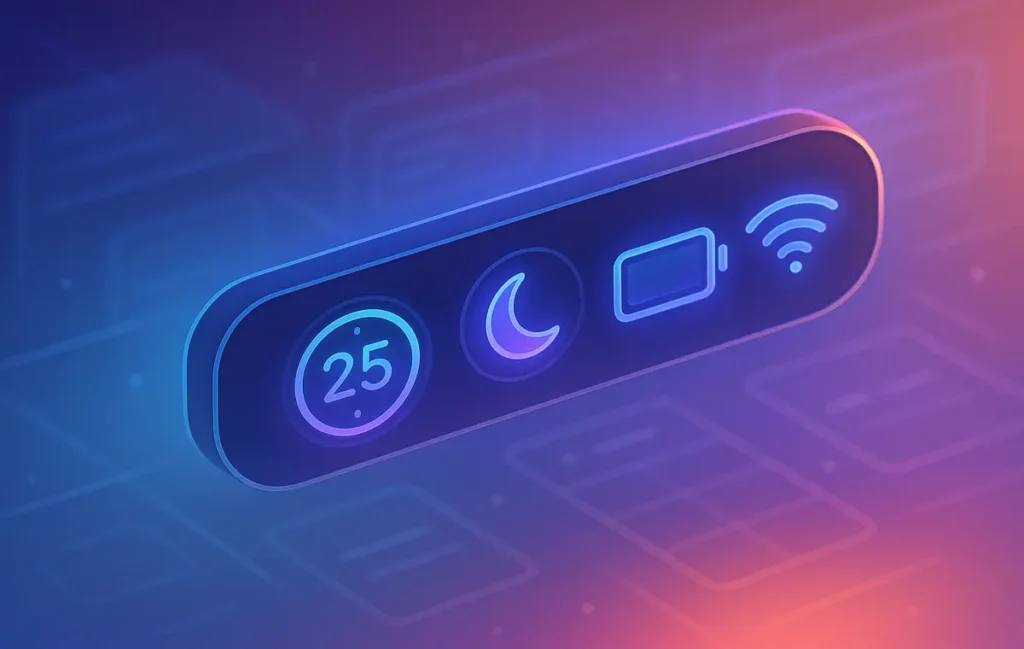
Menu bar utilities flip that equation. They give you quick actions—start a focus timer, mute the microphone, enable Do Not Disturb, paste a saved snippet, toggle a script—without dragging you into a new UI. You interact with them in micro-bursts: a glance, a click, a keyboard shortcut. No dock clutter, no window wrangling, no “where did my timer go?” mysteries. For the kind of long, high-leverage work we champion at NerdChips, minimizing interface overhead is a practical way to buy back mental energy.
💡 Nerd Tip: Measure attention costs like you measure money—small fees compound.
This post focuses strictly on free (or usable freemium) menu bar tools that protect your time, reduce cognitive load, and make deep work smoother. It’s intentionally different from catch-all “must-have” lists. If it doesn’t live in the menu bar or it demands constant window management, it didn’t make the cut.
🎯 Selection Criteria (So You Know What Made the List)
“Free” is often a fuzzy word in software, so here’s how we define it: the app is either fully free/open-source or offers a free tier that’s truly usable for serious work. We excluded trials that become crippleware and any tool where the menu bar is an afterthought. The second filter is UI footprint—the utility must operate primarily from the menu bar with minimal windows. Third is direct value for deep work: timers, environment control (audio, screen, sleep), attention protection (Do Not Disturb, hiding icons), and instrumentation (lightweight metrics you can act on).
One more principle ruled the short list: speed to action. If it takes longer than three seconds to get a result, it’s too heavy. You should be able to trigger a 50-minute sprint, mute notifications, and dim distractions without breaking the mental thread you were holding. When possible, we also looked for native keyboard shortcuts or compatibility with macOS Shortcuts so you can set global hotkeys.
💡 Nerd Tip: If an app supports a URL scheme or Shortcuts action, you can bind it to a single key and never touch the mouse.
🥇 The 2025 List (Ranked, With Real-World Use Cases)
Below you’ll find the best free menu bar apps to build a frictionless focus stack. Each entry explains what it does, why it helps deep work, and the small settings that make it sing.
⏱️ Horo — “Zero-Friction Countdown & Pomodoro”
Horo is a tiny, joyful timer that lives entirely in the menu bar. Type “25m” and hit return; it starts immediately and shows a clean countdown up top. For deep work, that immediacy matters—you reduce decision friction to a single keystroke. The subtle menu bar progress keeps you aware without shouting. Use Horo as a soft constraint: set 50 minutes for a focus sprint, then allow a 10-minute reset. If you prefer classic Pomodoro, create presets like “25m / 5m” and trigger them via quick input. Two tips make it powerful: enable auto-notifications at the end (with sound off) and toggle repeat for multi-block sessions. Pair it with Do Not Disturb and you’ve got a dependable rhythm that makes “start” easy and “stop” timely.
📋 Maccy — “Fast Clipboard, Minimal Memory Tax”
Maccy is a lightweight clipboard manager with a menu bar presence and a no-nonsense philosophy. It captures your last N copies (configurable), exposes a fast filter box, and pastes instantly. For deep writing or coding, this eliminates repetitive searches and window toggles to retrieve fragments you already used. Keep the history modest (30–50 items), enable clear on quit, and turn on Paste Without Formatting to stop fighting fonts in docs. Bonus: define a couple of pinned snippets for the phrases you type every day—meeting boilerplate, code fences, or research headings. The point isn’t hoarding; it’s fluid recall. 💡 Nerd Tip: Use distinct anchors like “@@todo” or “;;note” to filter pinned snippets in two keystrokes.
🧰 Hidden Bar (or Dozer) — “Calm the Noise”
Clutter is a tax on attention. Hidden Bar (and its sibling Dozer) let you collapse menu bar icons behind a tidy chevron. Put “set-and-forget” utilities on the far right and your live focus tools on the left. The effect is subtle and powerful: fewer moving parts in your peripheral vision and faster target acquisition for the icons you actually use mid-flow. Turn on auto-hide at login, and resist the urge to keep everything visible. A calmer horizon equals a calmer mind.
☕ KeepingYouAwake — “Stay Awake, Don’t Lose Flow”
During intense sessions, macOS power-saving can nudge your display or system to sleep at inopportune moments. KeepingYouAwake is a friendly Caffeine-style toggle in the menu bar. Set a default duration (90 minutes is a sweet spot), and bind a global hotkey via System Settings. This matters for notebook users who move between rooms, external displays, or battery modes—there’s nothing more flow-wrecking than a dimming screen in the middle of a breakthrough. Pro move: combine with Shortcuts so your Start Focus routine turns this on automatically.
📈 Stats — “Know When Your Fans Are About to Roar”
Stats is a clean, open-source system monitor that adds compact CPU, memory, network, and temperature readouts to the menu bar. You don’t need graphs to do deep work, but you do need early warning when Chrome eats a core or a runaway script makes your fans whine. Keep the displays minimal—CPU percentage and network up/down are enough—and show temperature only when it crosses a threshold. Intervention can be as simple as closing a tab or pausing a background sync before it becomes audible distraction. Remember: prevention is quieter than recovery.
📅 Itsycal — “Time Windows, Not Time Holes”
Itsycal is a tiny calendar that drops down from the menu bar with upcoming events and a snappy month view. Scheduling deep work is half the battle; seeing it at a glance is the other half. Color-code your “Focus” calendar and keep the next two blocks visible so you can defend them. Add quick events like “Focus — Chapter 3 outline (50m)” without opening a full calendar app. If meetings dominate your day, use Itsycal plus DND to guard recovery time after calls.
🎯 MeetingBar — “Join Fast, Leave Faster”
If your day includes Zoom, Meet, or Teams, MeetingBar puts one-click “Join” in the menu bar and shows a subtle countdown to the next call. The deep work angle isn’t “more meetings”; it’s less meeting friction. By shaving thirty seconds off each join and surfacing time remaining, you reclaim mental space you’d otherwise spend hunting links. Enable auto-DND during meetings so notifications pause while you’re speaking, then bounce back to a focus block when you’re done. MeetingBar is free and open-source, and when combined with Itsycal you get a complete picture of the day without opening Calendar.
🔇 Background Music — “Distraction-Aware Audio”
Background Music sits in the menu bar and gives you per-app volume control plus auto-ducking when it detects other audio. Two use cases shine for deep work: lower browser audio to near-zero while keeping your focus playlist at a steady level, and enable auto-pause for music when a video or call starts. The result is fewer jolting shifts and no surprise blares from a stray tab. Configure a default app volume profile and you can keep system cues gentle without losing awareness.
🌗 Shifty — “Comfort for Long Sessions”
Shifty offers precise control over Night Shift from the menu bar. If you write, design, or code after sunset, easing blue light and gently warming the display reduces eye strain. What matters for deep work isn’t the pseudo-medical claims; it’s comfort. When your environment feels easier, you last longer. Create a location-aware schedule and a quick toggle—go warmer for writing, neutral for color-sensitive design, and back again without spelunking System Settings.
🧩 SwiftBar (or xbar) — “Your Personal Command Center”
SwiftBar turns tiny scripts into dynamic menu bar widgets. Want a one-click Focus Mode that toggles Do Not Disturb, starts a timer, enables KeepingYouAwake, and launches your writing app? You can script it—and keep the button in plain sight. Prefer a word count or a repo watch as a subtle nudge? Build a widget. The beauty here is automation without windows. SwiftBar is free, scriptable, and perfect for tying your stack together. 💡 Nerd Tip: Keep each widget single-purpose; chaining many actions is fine, but the surface should stay simple.
🔒 SelfControl — “Block the Drift”
SelfControl is stark: you create a blacklist of distracting sites, set a timer, and hit start. For the duration, those sites are blocked—even if you reboot. Although it opens a small window for configuration, its day-to-day posture is menu bar friendly with a countdown and quick status glance. Use it to protect critical sprints or to break the doom-scroll habit during afternoon dips. The philosophical move here is removing willpower from the loop so focus becomes the default, not a hero move. Pair with a humane timer and you’ll be surprised how ordinary deep work feels.
🧱 Stack Recommendation: A Calm, Capable 3-App Setup
If you want the shortest path to real results, start with three tools and one automation:
-
Timer: Use Horo to anchor 50/10 or 25/5. The visual countdown becomes your metronome.
-
Distraction Shield: Run SelfControl in 45–60 minute blocks during your timer windows. Discipline becomes a switch, not a daily argument.
-
Environment Stability: Toggle KeepingYouAwake and set Shifty to a warm color for long reads. Add Stats only if you tend to fight fan noise.
Now bind them together with SwiftBar or the Shortcuts menu bar so one hotkey (e.g., ⌃⌥⌘F) does all of this: start a 50-minute Horo timer, enable Do Not Disturb, toggle KeepingYouAwake for 60–90 minutes, and launch your writing tool. The change you’ll feel isn’t “more apps”—it’s less negotiation with yourself.
As you get comfortable, introduce Maccy for frictionless pasting and Hidden Bar to quiet the horizon. If your day includes calls, layer Itsycal + MeetingBar; post-meeting, your shortcut should immediately re-arm DND and start the next focus block.
Small benchmark you can reproduce: cut context switches from 12/hour to 4/hour by moving recurring actions to the menu bar (timer start, DND, wake toggle). At ~20 seconds of attention tax per switch, that’s ~160 seconds saved per hour—+8% more usable focus time in a standard 55-minute sprint. No study required; you can watch it happen on your desk.
For planning the week, it helps to zoom out and sense-check your system. If you’re rethinking your Mac setup holistically, you’ll love the practical ideas in our guide to making the most of macOS without bloat. And if procrastination keeps sneaking in, experiment with the frameworks inside our playbook on focus tools that actually beat avoidance loops before you add more apps.
⚡ Ready to Build Smarter Workflows?
Explore AI workflow builders and pair them with your menu bar stack to automate the boring parts. Keep your attention for the work that matters.
🎹 How to Add Global Hotkeys to Any Menu Bar App
Once your stack is in place, the real acceleration comes from global shortcuts. Head to System Settings → Keyboard → Keyboard Shortcuts and add App Shortcuts for anything that exposes a menu item (e.g., “Start 50m” in Horo). For utilities without menu items, use Shortcuts: create a “Start Deep Work” automation that sets Focus to “Do Not Disturb,” runs a shell script to toggle KeepingYouAwake, opens your project, and fires a Horo preset using its quick-entry string. Then enable “Pin in Menu Bar” so your routine lives up top.
Two rules keep hotkeys useful: keep combinations consistent (e.g., all focus actions on ⌃⌥⌘ + letter), and ensure they never conflict with editors you use. If you code in VS Code or write in Obsidian, check their bindings first.
💡 Nerd Tip: Use functions you can finish with your left hand so the right stays on the mouse when needed. It’s a tiny ergonomic edge you will feel by the third session.
🧪 When to Go Paid (And Why You Might Not Need To)
Paid tools shine when you need features like cloud sync (clipboard history across machines), unlimited timers and analytics, sophisticated site blocking schedules, or sensory design (premium ambient audio). If you orchestrate complex workflows or collaborate with a team, premium options will remove a few more edges. But for 90% of solo creators and ICs, the free stack above—plus Shortcuts—delivers everything you need for reliable deep work.
Before upgrading, ask the two-week question: will this feature deliver compounding value every week for the next two months? If the answer is shaky, keep refining your free stack and your habits. A surprising number of performance gains come from configuration clarity: a hotkey you’ll actually press, a timer you can see, and a shield you trust.
If you’re curious about broader tooling beyond the menu bar, we maintain an evolving rundown of essential productivity picks that complement a lean Mac setup; scan our analysis in best productivity apps and keep your attention diet clean.
🚀 Mini-Setup Walkthrough: 10 Minutes to Your First Deep Work Block
Let’s get practical. Start your timer—yes, with Horo—and do this in one pass:
Open the App Store or the project pages for Horo, Maccy, Hidden Bar, KeepingYouAwake, Stats, and Itsycal. Install and log in only where necessary. Next, pin Horo, Maccy, and KeepingYouAwake to the left side of your menu bar, and push low-touch icons behind Hidden Bar’s chevron. In Horo, set a default 50-minute preset and turn on end-of-timer alerts with the sound muted so you don’t jump. In Maccy, trim history to 40 and enable paste without formatting. In KeepingYouAwake, choose a 90-minute default and turn on “Activate on Launch.” In Stats, display just CPU% and Network; hide the rest until needed. In Itsycal, color your Focus calendar and show the next two blocks in its list view.
Now open Shortcuts and build “Start Deep Work”: enable Do Not Disturb, run shell caffeinate -dimsu -t 5400 (or rely on KeepingYouAwake’s toggle), open your main writing app, and send the keystroke to Horo’s quick entry for “50m”. Pin the shortcut to the menu bar and bind ⌃⌥⌘F in the Keyboard section. You’re done—press once, get a 50-minute runway.
If you want humane time tracking without micromanagement, try pairing your routine with the principles in our breakdown of time-tracking tools that don’t feel like surveillance: simple labeling, coarse granularity, and a clear weekly review beat minute-level data you’ll never use.
To keep it alive tomorrow (and the day after), embed the block in your day plan. Our guide on building a daily routine that actually sticks shows how to scaffold this habit with guardrails instead of guilt.
🧪 A Quick Reality Check (Benchmarks You Can Run at Home)
You don’t need a lab to validate your stack—only a notebook and two sessions. On Day 1, run your normal workflow and count: timer starts, DND toggles, sleep interruptions, and tab hunting events. Multiply each by ~20 seconds of recovery. On Day 2, run the menu bar stack. Most people see:
-
Fewer micro-actions (3–5 vs 10–12 per hour).
-
Quieter environment (fans less likely to spike because you catch CPU spikes early).
-
Cleaner horizon (fewer icons = less scanning).
If your savings add up to 10 minutes per hour, you’ve reclaimed 80 minutes in an eight-hour day—without working longer. The compounding effect over a month is frankly wild.
-
💡 Nerd Tip: Pin your routine in the menu bar so “Start” never competes with “Should I start?”
-
💡 Nerd Tip: Don’t hoard app data. Configure what you’ll act on, hide the rest.
-
💡 Nerd Tip: Keep icons to the left for “live” tools; everything else hides behind the chevron.
🧩 Mini Comparison (Menu Bar-Only, Free-First)
| Need | Best Free Pick | Why It Helps Deep Work | Pro Setting |
|---|---|---|---|
| Timer / Sprint Rhythm | Horo | One-keystroke countdown keeps you in flow. | Preset “50m” + silent alert. |
| Clipboard Recall | Maccy | Fast, searchable history avoids window switching. | Paste without formatting. |
| Clutter Control | Hidden Bar / Dozer | Fewer icons = less scanning. | Auto-hide on login. |
| Stay Awake | KeepingYouAwake | No surprise sleep during sprints. | 90-minute default. |
| System Awareness | Stats | Catch fan/CPU spikes early. | Show CPU% + Network only. |
| Calendar Glance | Itsycal | Plan & guard focus blocks. | Color a “Focus” calendar. |
| Meeting Join | MeetingBar | Reduce join friction, auto-DND. | Countdown to the next call. |
| Sound Hygiene | Background Music | Per-app volume and auto-ducking. | Lower browser audio globally. |
| Night Comfort | Shifty | Reduce eye strain at night. | Warm profile after sunset. |
| Automation Hub | SwiftBar / xbar | One-click routines, no windows. | Bind to ⌃⌥⌘F. |
| Distraction Blocking | SelfControl | Hard block removes willpower. | 45–60 minute blocks. |
📬 Want More Smart AI & Mac Workflow Tips?
Join our free newsletter for weekly deep-work playbooks, no-code automations, and practical app setups—field-tested by NerdChips.
🔐 100% privacy. No noise. Just value-packed content, once a week.
🧠 Nerd Verdict
The menu bar is a quiet power-up. When you bring everyday controls—time, noise, sleep, and friction—into a single narrow strip, you stop negotiating with your tools and start doing the work you sat down to do. The free stack above is more than a list; it’s a workflow language. A single key starts the block, a glance confirms state, a tiny badge nudges you back when you drift. And because it’s light, it survives the messy weeks when your calendar looks like a city map. If you only change one thing after reading this, make it this: press one key to begin. The rest follows.
To round out your system with habit scaffolding, fold these tools into a routine you can defend. Our practical walkthrough on daily routines that stick pairs perfectly with this stack so your attention has a home every day.
❓ FAQ: Nerds Ask, We Answer
🗨️ 💬 Would You Bite?
What’s the one menu bar action you’ll bind to ⌃⌥⌘F this week?
Tell us your setup—and we might feature your stack in a future NerdChips teardown. 👇
Crafted by NerdChips for creators and teams who want their best ideas to travel the world.