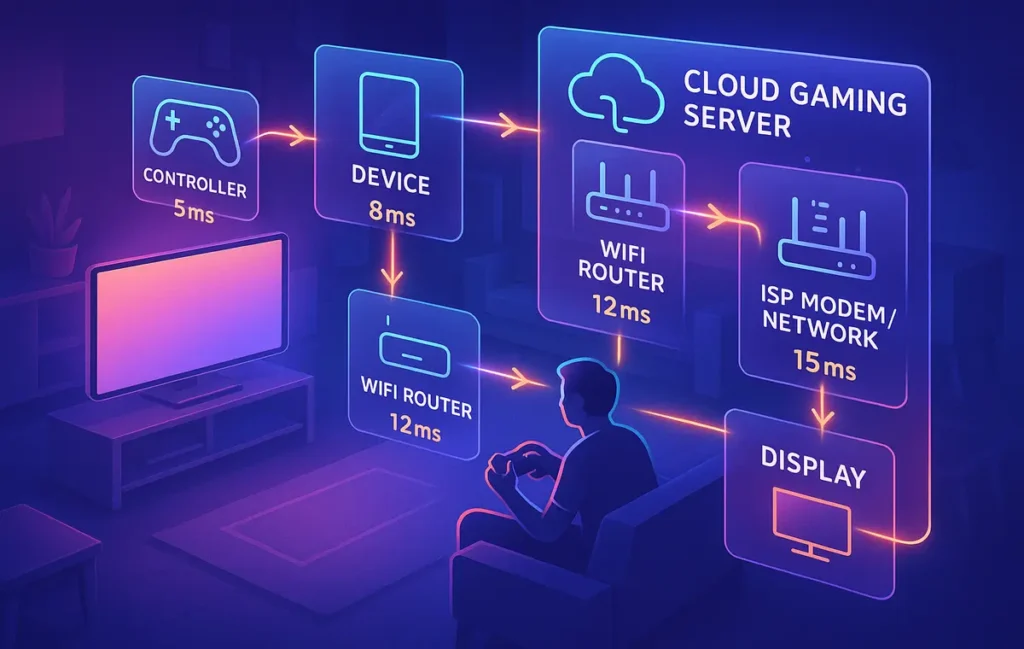
Latency budgeting for cloud gaming means breaking your total delay into segments—controller, device, home network, ISP, and data center—then optimizing each slice. Aim for a total “round trip” of roughly 30–45 ms for a snappy feel, and treat Wi-Fi and ISP routing as the first big suspects before blaming the cloud.
Intro
Most cloud gamers talk about lag as if it’s one single monster number: ping is bad, Wi-Fi sucks, cloud gaming just isn’t ready. The reality is more interesting and way more fixable. That “laggy” feeling you get in GeForce Now, Xbox Cloud Gaming, or PlayStation’s streaming is actually the sum of several small delays. Once you break those delays into a latency budget, you can stop guessing and start tuning.
Cloud gaming is especially sensitive because your button press has to travel further than in a classic console setup. Your input leaves the controller, goes through your device, crosses your home network, reaches an ISP, jumps across a backbone to a data center, and only then does the game render and stream frames back to you. Every hop adds a millisecond tax. Most people only notice the Wi-Fi part, but the real picture is a full chain.
In this NerdChips guide we’re going to treat your cloud gaming setup like an engineering problem, not a vibe. We’ll define a realistic latency budget, show how each component contributes, and walk through a concrete example where a ~95 ms “muddy” setup becomes a ~42 ms “snappy” one. If you’ve already experimented with different controllers, routers, or streaming platforms after reading something like Cloud Gaming Gear: Controllers, Routers & Latency Fixes, this guide is the missing math layer that makes those tweaks predictable instead of random.
💡 Nerd Tip: Any time you catch yourself saying “it feels slow,” treat that as a prompt to measure, not just complain. Numbers are the difference between superstition and control.
🧠 Eric’s Note
There’s no magic switch that makes cloud gaming perfect, but once you see where your milliseconds actually go, it stops feeling like black magic and starts feeling like a puzzle you can solve piece by piece.
🧩 The Cloud Gaming Latency Chain (5 Components)
Before we talk about budgets, we need a mental model for the entire path your input travels. Think of cloud gaming latency as a chain of five main components that together add up to what your hands perceive on the controller.
The first component is input latency: the time between you pressing a button and your device registering that input. Wired controllers typically add just a few milliseconds, while wireless controllers — especially over Bluetooth — can add extra delay and jitter. On X you’ll often see gamers say things like, “Going wired felt like I upgraded my internet,” even though nothing about their ISP changed. That’s the input slice of your budget asserting itself.
The second part is local device processing. Even though the game runs in the cloud, your local device (PC, TV, handheld, phone) still has to decode the video stream, handle input, manage the OS, and push frames to the display. A weak CPU or overtaxed SoC, background tasks, and poor power modes can add subtle delays between input and visible reaction. This is where refresh rate and display response time matter: a 120 Hz panel showing frames promptly can shave a handful of milliseconds off your effective round trip.
Third, you have home network latency. This is the part most people blame — and sometimes they’re right. Wi-Fi contention, distance from the router, interference from neighbors, and old standards like Wi-Fi 5 can all add both extra latency and jitter. Ethernet, in contrast, gives you a fairly flat, low-latency link between your device and router. At this stage we’re just crossing your living room, but you can lose 10–20 ms here if things are misconfigured.
Fourth is ISP transit latency, which covers the local loop from your home to the ISP’s first aggregation point, then out to their regional PoP and backbone peers. Two connections with the same “speed” on paper can feel completely different if one ISP has cleaner routing and better peering to your cloud gaming provider. This is the slice where many players confuse bandwidth with latency: 1 Gbit/s with messy routing can feel worse than 200 Mbit/s with a clean path.
Finally, you have data center render + return trip. Inside the cloud provider’s infrastructure, your input has to reach the game server, the frame needs to be computed and encoded, and then the video stream has to travel back across the network to you. This is also where the platform’s own optimizations and server load come into play. Some providers are more aggressive with encoder settings, which can keep this slice in the 8–14 ms range under good conditions.
Add all five components together and you get your felt latency: the delay you instinctively react to when aiming, parrying, or flicking in a shooter. When we talk about budgeting, we’re really talking about how much of that total we’re willing to “spend” on each piece — and where we can reclaim some milliseconds without re-wiring the universe.
🧮 Build Your Latency Budget (Target: ≤ 60 ms Playable, ≤ 35 ms Ideal)
Let’s put some numbers on this. Most players start to describe cloud gaming as “totally fine” somewhere below ~60–70 ms of total round-trip latency. Below ~45–50 ms, they often say it feels surprisingly close to a local console. Below ~35 ms, you’re in territory where only very competitive players or rhythm-game nerds will even think about latency.
The goal of latency budgeting isn’t perfection; it’s choosing a target envelope that matches your hardware, region, and expectations. As a working model, we’ll aim for a 30–45 ms total budget as ideal for fast-paced games, with anything up to ~60 ms still very playable for most genres.
🧮 Target Budget Model
Here’s a reasonable budget per component that many home setups can approximate with some effort:
-
Controller → Device: roughly 3–8 ms. Wired controllers or low-latency wireless dongles trend toward the lower end; generic Bluetooth pads trend higher.
-
Device → Router: about 1–4 ms over Ethernet, and 8–20 ms over typical Wi-Fi depending on standard, distance, and interference.
-
Router → ISP: usually 5–12 ms in a healthy connection. This includes the last mile and first few network hops.
-
ISP → Data Center: roughly 8–18 ms, heavily dependent on your physical distance to the cloud gaming region and your ISP’s routing quality.
-
Server Render + Encode: often 8–14 ms on a well-tuned platform under normal load.
-
Return Trip: essentially mirrors the outbound network path, so you can think of it as similar to the sum of your router → ISP and ISP → DC slices.
When you add these up with conservative but achievable values — say 4 ms for input, 3 ms device → router over Ethernet, 8 ms router → ISP, 12 ms ISP → DC, 10 ms server, and another 8–10 ms on the way back — you land in the 35–45 ms range. That’s where cloud gaming starts to feel “counterintuitively good” for many players.
On the other hand, if you keep a Bluetooth controller at 12 ms, run Wi-Fi 5 at 18 ms, have a slightly congested local loop at 12 ms, and sit further from the data center at 25 ms, you’re suddenly staring at a budget closer to 90–100 ms before you even consider encoding overhead. That’s how two people on the same platform can have radically different experiences.
💡 Nerd Tip: Don’t obsess over the exact numbers. Focus on the distribution. If half your budget lives in Wi-Fi alone, you’ve found a cheap, high-impact target.
🎯 TL;DR Ideal Budget
If you want a simple mental equation, think of it like this:
Controller → Screen → Server → Back → Screen ≈ 30–45 ms
You’re not going to track every millisecond in real time, but any change you make should be evaluated against that goal. Swap to Ethernet? That should shave several ms off the device → router slice. Move to a closer data center region? That should cut the ISP → DC part. The idea is to make your total round trip feel like a small, well-managed number instead of a mysterious blob.
🧪 Step 1 — Measure Your Current Latency Budget (Real Tools)
You can’t budget what you haven’t measured. The good news is you don’t need a lab setup to get meaningful numbers; you just need to break the problem into segments.
Start with the built-in metrics from your cloud gaming provider. GeForce Now, Xbox Cloud Gaming, and others typically expose overlays showing round-trip latency, jitter, and sometimes server region. Turn those on and play a game you know well. Note the average latency in a normal match, as well as the minimum and spikes. This gives you a baseline for “felt” latency. Many players are surprised to see that their “awful” experience is actually sitting around 70–80 ms, which is more fixable than it feels.
Next, measure home network latency from your gaming device to the router. On a PC, a simple ping to the router’s IP (often 192.168.x.1) will show you how much delay Wi-Fi or Ethernet is adding. Over Ethernet, you should typically see 1–3 ms with very little variation. Over Wi-Fi, you might see anything from 5–30 ms with occasional spikes. If the graph is jagged and unstable, no amount of ISP tuning will fully rescue your experience until you fix the local link.
Then, run a traceroute (or tracert on Windows) from your device to a known endpoint that’s close to the cloud gaming provider, or at least to something like their generic domain. Each hop shows the incremental latency between you and that point. The first hop or two after your router reflect router → ISP and local loop conditions. Later hops show you the ISP → data center slice and whether there are particular segments with outlier delays.
Overlay this with a more general online gaming lag test if you’ve already been through guides like How to Reduce Lag in Online Multiplayer Games. Those tests often highlight packet loss and jitter, which don’t always show up clearly in a single ping value but matter a lot for cloud gaming’s smoothness.
Finally, pay attention to device-side behavior during tests. If fans spin up and frame rate dips while streaming, your local decoding might be struggling. Keep an eye on CPU/GPU graphs. A device that’s constantly at 90–100% load can introduce extra latency even if your network numbers look clean on paper.
💡 Nerd Tip: Record your measurements in a simple table or note. Before-and-after comparisons feel way more satisfying when you can literally see that you turned a 95 ms chain into a 45 ms one.
🔌 Step 2 — Fix the Biggest Budget Thief: Home Network
In many homes, the largest single chunk of wasted latency lives between your device and your router. This is the Wi-Fi vs Ethernet battlefield, and cloud gaming makes the differences brutally obvious.
If you’re currently on Wi-Fi 5, with a router in another room and a couple of walls in between, your device → router latency might be bouncing between 12–22 ms, sometimes higher under load. That’s already half of a good total budget, burned just getting out of your room. Nearby networks on the same channel, microwave ovens, and Bluetooth devices all compete for spectrum and add jitter.
Ethernet, by contrast, usually sits in the 1–3 ms range with almost no variation. For cloud gaming, that consistency is golden. Running even a flat cable along the wall or under a rug can give you a bigger real-world upgrade than buying a faster broadband plan. If you’ve ever jumped from Wi-Fi to Ethernet mid-session and felt the game suddenly “lock in,” that’s exactly what’s happening: your device → router slice shrank dramatically.
If you can’t realistically wire your device, upgrading your wireless game still matters. Moving from Wi-Fi 5 to Wi-Fi 6 or 6E can cut typical latency in half, to the 5–10 ms range under good conditions. If you’re already thinking about new routers or mesh systems, it’s worth going deeper into the tech side with something like Wi-Fi 7 Explained: Real-World Gains vs 6E. Early Wi-Fi 7 implementations show device → router latencies as low as 2–4 ms in ideal conditions, which brings high-end wireless within striking distance of Ethernet for many households.
Beyond hardware, router settings matter. Auto-selected 2.4 GHz networks tend to be crowded and slow for gaming; prioritizing 5 GHz or 6 GHz bands reduces interference and improves stability. Disabling generic “Smart Connect” features can help you keep your gaming device locked to the best band instead of bouncing between them. Some routers offer specific “gaming modes” or QoS presets that prioritize low-latency traffic over bulk downloads — used wisely, these can keep your latency budget stable even when someone else starts a big Netflix binge.
💡 Nerd Tip: One of the simplest, high-impact tests you can do is to play a game on Wi-Fi, then repeat the same test wired. If your overlay shows a drop of 15–25 ms, you’ve just found the biggest line item in your budget.
🎮 Step 3 — Optimize Device Processing Latency
Even though cloud gaming runs remotely, your local device plays a crucial role in how responsive everything feels. It’s responsible for decoding the video stream, processing your controller input, and pushing frames out to the display at a given refresh rate. If this part of the chain misbehaves, you’ll feel a delay even if your ping looks decent.
Start with your display. A 60 Hz TV updates every 16.67 ms, while a 120 Hz panel updates every 8.33 ms. That alone can shift how quickly you see the result of your input. Modern gaming monitors and some TVs also offer “game mode” presets that reduce additional image processing. Turning those on can shave a few extra milliseconds by cutting out motion smoothing and heavy post-processing, which cloud gaming doesn’t need anyway.
Then look at input devices. Wired controllers generally offer lower latency and less jitter than Bluetooth, particularly on PCs and some TVs. Competitive players who stream shooters often mention on X that simply swapping from Bluetooth to wired gave them an edge that felt like changing ISPs. If you stick with wireless, look for controllers that advertise low-latency modes or 2.4 GHz dongles rather than generic Bluetooth-only models.
Background tasks on your device can also indirectly affect latency. If your CPU is busy transcoding video or syncing massive files, the OS may delay decoding frames or processing inputs. On PCs and laptops, closing heavy apps and setting the device to a high-performance power plan can keep the client side of cloud gaming snappier. Some cloud gaming apps even recommend specific performance settings — take those seriously; they’re based on real-world decoding behavior.
If you’ve already invested in better gear after reading something like Cloud Gaming Gear: Controllers, Routers & Latency Fixes, this is where the payoff consolidates. A good low-latency monitor, a solid controller, and a clean device environment can easily reclaim 5–10 ms of mushiness that people often misattribute to “the cloud.”
💡 Nerd Tip: Treat your cloud gaming device like a console during sessions. Fewer background tasks, a focused network, and a game-focused display preset go a long way.
🚀 Step 4 — Minimize ISP Latency Budget
Once your home network and device are under control, the next big slice of your budget is ISP latency. This is the part that’s trickiest to change but still more influenceable than most people think.
First, distinguish bandwidth from latency. Upgrading from 200 Mbit/s to 1 Gbit/s does almost nothing for your cloud gaming latency if your route and peering remain the same. Streaming a game typically uses 15–40 Mbit/s, well within modest plans. What matters more is how quickly packets travel between you and the data center and how stable that travel is.
You can test this by running traceroutes at different times of day. If latency jumps significantly during peak evening hours, your local loop or your ISP’s aggregation points might be congested. Some ISPs also enable interleaving or error-correction modes that help with line stability at the cost of extra latency (especially on DSL). For competitive gamers, requesting “fastpath” profiles or gaming-optimized settings can sometimes remove 5–10 ms from the router → ISP segment.
Another lever is DNS and routing choices. Sometimes simply switching to a DNS resolver closer to your cloud gaming provider’s infrastructure (or one your ISP peers well with) can result in traffic being routed through a more favorable path. It’s not a guarantee, but it’s a low-effort experiment. Pair these tests with your existing knowledge from lag-oriented guides like How to Reduce Lag in Online Multiplayer Games, which often emphasize line stability and packet loss as much as raw ping.
Physical connection type matters too. Fiber tends to offer lower latency and less jitter than DSL or cable, especially under load. If you’re in a region where multiple ISPs are available, asking around specifically about ping and jitter rather than “speed” can help you pick better gaming routes. On X and in gaming communities, you’ll often see posts like, “Switched ISPs, same speed, but my ping to the same server dropped from 45 ms to 22 ms.” That’s the power of better routing and peering.
💡 Nerd Tip: If you’re stuck with a single ISP, focus on making your line the best version of itself: stable local loop, minimal bufferbloat, and clear communication with support when you see consistent spikes.
🏢 Step 5 — Choose the Nearest Cloud Gaming Data Center
Even with a good ISP, distance still matters. The cloud gaming region you connect to can add or remove a surprising amount of latency from your budget. Most platforms auto-select a region based on your IP, but sometimes those guesses aren’t optimal.
Start by checking if your platform exposes region info in its overlay or settings. If you see a data center city that’s clearly further away than another option you know exists, it’s worth experimenting with region selection if the platform allows it. Every 500–1,000 km of extra physical distance can add tangible milliseconds, especially once you factor in non-ideal routing.
This is where VPNs become an interesting paradox. By default, VPNs add overhead and can increase latency. But in some cases, a gaming-oriented VPN can route your traffic over a cleaner or more direct path to the cloud provider, effectively reducing your ISP → data center slice. This is highly dependent on location and provider, which is why serious gamers lean on curated research like Best Gaming VPNs: Lower Ping, Safer Servers & Zero Lag instead of random picks.
Region pinning can also help with consistency, not just raw ping. Even if your “closest” region is only slightly faster, it might be more stable across time zones and load patterns. Fewer spikes and more predictable latency often feel better in practice than chasing an extra 2–3 ms of theoretical minimum.
💡 Nerd Tip: Always test VPN and region changes in the actual cloud gaming overlay, not just a generic speed test. You care about your route to their servers, not to the nearest test node.
⚡ Ready to Turn Your Ping into a Plan?
Explore pro-grade routers, controllers, and Wi-Fi upgrades that actually move your latency budget, not just add RGB. Build a home setup where cloud gaming feels like a local rig.
🧱 Example Latency Budget Before vs After Optimization
Let’s put all of this together in a concrete example. Imagine a fairly typical “complaining on Discord about lag” setup:
-
Bluetooth controller on a PC: ~12 ms
-
PC on Wi-Fi 5 through two walls: ~18 ms
-
Router → ISP local segment: ~10 ms
-
ISP → Data Center: ~25 ms
-
Server render + encode: ~15 ms
-
Return path: ~15 ms
Add that up and you’re around 95 ms of felt latency. For slower games this might be tolerable, but in shooters or fighters you’ll feel a noticeable delay between your intent and the on-screen reaction. This is where people often say “cloud gaming just isn’t for me.”
Now imagine we go through the optimization process:
-
Switch to a wired controller: slice drops to ~3 ms
-
Run a flat Ethernet cable to the router: device → router now ~2 ms
-
Tweak router/line or request better profile: router → ISP down to ~6 ms
-
Change region / ISP routing via careful choice or VPN: ISP → DC drops to ~12 ms
-
Server render is stable at around ~10 ms
-
Return path benefits from the same network improvements: ~9 ms
This new chain looks like:
-
3 + 2 + 6 + 12 + 10 + 9 ≈ 42 ms
Not only have we cut the total budget by more than half, but we’ve also made each segment more stable. Many players describe this before/after shift as the difference between “dragging my character through mud” and “finally feels like a local console.” On X, you’ll see comments along the lines of:
“I thought cloud gaming was fake hype until I went wired controller + Ethernet + closer region. My ping graph didn’t just drop; it flattened.”
From a NerdChips perspective, this is the whole point of latency budgeting: turning vague frustration into a list of concrete, fixable slices.
💡 Nerd Tip: Use one favorite game as your benchmark. Once it feels good at ~40–50 ms, most other titles on the same platform will feel good too.
🎯 Latency Budget Cheatsheet (Copy/Paste)
When you’re done with the deep dive and just want targets to remember, this is the short version of the budget we’ve been building:
-
Controller: aim for < 5 ms with wired or low-latency wireless.
-
Device → Router: aim for < 5 ms, ideally on Ethernet or solid Wi-Fi 6/7.
-
Router → ISP: aim for < 10 ms on a stable line with minimal bufferbloat.
-
ISP → Data Center: aim for < 15 ms by picking good routes, regions, or VPN paths.
-
Server: hope for < 12 ms — this is mostly on the provider, but choose platforms and regions wisely.
-
Total Budget Goal: aim for 30–45 ms for competitive games, up to ~60 ms for general play.
Copy this into your notes app, and any time you tweak gear or settings, ask: Which slice did I just help or hurt?
📬 Want More NerdChips-Style Performance Hacks?
Join our free newsletter and get weekly deep dives on cloud gaming setups, latency tuning, and pro-grade home networks—explained in plain language you can actually use.
🔐 100% privacy. No spam. Just tested tips for squeezing more performance out of the gear you already own.
🧠 Nerd Verdict
Cloud gaming exposes every weakness in your home network and ISP. That can be frustrating, but it also gives you an incredibly sharp diagnostic tool. If a game running hundreds of kilometers away still feels responsive, you know your chain is healthy. If it doesn’t, latency budgeting tells you exactly where to look.
Instead of throwing money at random upgrades, you can now treat each millisecond as part of a designed system: input, device, home network, ISP, and data center. Some slices are almost entirely under your control (controller choice, Ethernet vs Wi-Fi, router tuning). Others are negotiable (ISP profile, routing, VPN paths). A few belong to the provider. The power move is focusing your time and budget on the slices you own.
From the NerdChips point of view, this is how you turn “cloud gaming is just bad” into “my setup is dialed, and I know why.” Once you see your latency budget as numbers instead of fate, every future upgrade becomes a deliberate, satisfying decision.
❓ FAQ: Nerds Ask, We Answer
💬 Would You Bite?
If you had to fix just one slice of your latency budget this week—controller, device, Wi-Fi, ISP, or region—which one do you suspect is stealing the most milliseconds from you right now?
And second: after reading this, what’s the first test you’re going to run the next time cloud gaming feels “off”? 👇
Crafted by NerdChips for gamers who want every frame, every flick, and every millisecond to actually count.