👋 Intro: Automation Isn’t Magic—It’s a Map You Can Trust
Most “automation content” online makes it feel like you either install one tool and your business becomes frictionless… or you’re doomed to spreadsheets forever. Real teams don’t work that way. Real work is messy: approvals arrive late, customers change their mind, context lives inside people’s heads, and the highest-cost problems hide in handoffs and follow-ups.
That’s why this guide is built like a playbook, not a product roundup. We’re going to cover workflow automation the way high-functioning teams actually do it in 2025–2026: start with mapping, design triggers and rules, add guardrails, then scale confidently without creating a fragile spaghetti of “zaps.”
Along the way, you’ll see where different approaches fit—no-code tools, AI assistants, light RPA, webhooks, and even “agent-like” automations that can handle semi-structured tasks. If you want tool lists, we have those too (and we’ll connect you to them naturally), like Top 10 Automation Tools for Marketers and No-Code Workflow Builders.
Workflow automation is how teams turn repeatable work into reliable systems: map the process, define triggers, route decisions, and monitor outcomes. The fastest wins come from automating “handoffs” (where work gets stuck), not entire departments—because a single clean handoff can remove hours of invisible coordination every week.
💡 Nerd Tip: If you can’t explain a workflow in 30 seconds, you shouldn’t automate it yet.
🟩 Eric’s Note
I gravitate to automation that removes friction, not adds menus—because the real goal isn’t “more tech,” it’s fewer moments where your team wonders, “What happens next?”
🧭 Outcome Snapshot: What You’ll Be Able to Do After This Guide
By the end, you’ll know how to:
-
identify automation-ready workflows (without guesswork)
-
map processes so they survive team growth and tool changes
-
design triggers, branching logic, approvals, and fallbacks
-
choose the right stack: Zapier vs Make vs Power Automate vs n8n vs light RPA
-
avoid the most expensive failure modes (silent errors, wrong routing, AI hallucinations, security leaks)
-
measure automation ROI in a way your team actually trusts
You can also read the following article:
🧱 Part 1: What “Workflow Automation” Really Means in 2026
Workflow automation is the practice of turning repeatable work into a system that runs with minimal human coordination. But in 2026, “automation” isn’t one thing. It’s a stack of capabilities that range from simple triggers to semi-autonomous task handling.
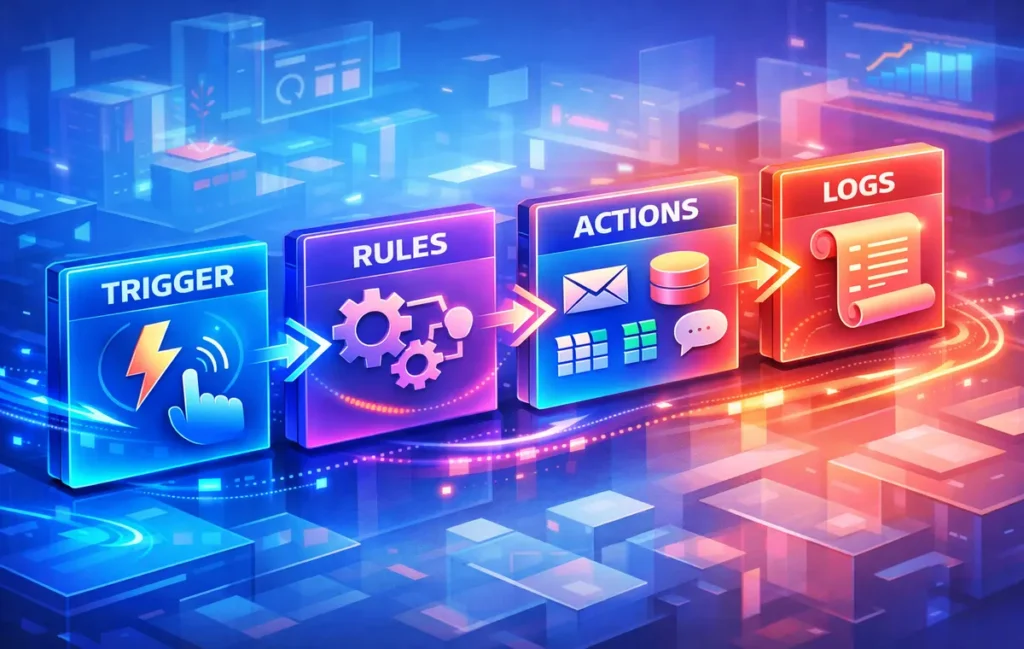
A modern workflow typically includes:
-
A trigger (something changes: a form is submitted, an invoice is paid, a lead is scored, a file arrives).
-
A router (rules decide what path the workflow takes).
-
Actions (create/update records, send messages, enrich data, schedule tasks, generate documents, push to dashboards).
-
A checkpoint (human approval, exception handling, QA sampling, or fraud/security validation).
-
Observability (logs, alerts, dashboards, and a clear owner).
When teams say “we automated it,” what they usually mean is: “We removed 80% of the busywork and made the remaining 20% visible.” That’s the win. Not full autonomy—reliable momentum.
If you’re still orienting yourself, a clean on-ramp is Workflow Automation 101: Getting Started with Zapier and IFTTT. And if you’re deciding platforms, you’ll want Zapier vs. Power Automate vs. IFTTT and Zapier Paths vs Make Routers.
💡 Nerd Tip: Automation is a reliability tool first, and a speed tool second.
🧩 Part 2: The Automation Maturity Ladder (So You Don’t Overbuild)
A common mistake is trying to jump from “manual chaos” to “AI agent runs the company.” The best teams climb a ladder:
Level 1 — Trigger automations: “When X happens, do Y.” Great for notifications and simple record creation.
Level 2 — Routed workflows: Add branching logic, filters, and conditions. This is where real teams live.
Level 3 — Systemized handoffs: Automate cross-team transitions (sales → onboarding, support → engineering, marketing → analytics).
Level 4 — Policy + governance: Permissions, audit logs, QA checks, rollback plans, and a single source of truth.
Level 5 — Semi-autonomous execution: AI-assisted drafting, classification, summarization, and “propose → human approve” loops.
Level 6 — Orchestrated automation: Workflows coordinate multiple systems (data pipelines, webhooks, serverless functions).
Notice what’s missing: “Fully autonomous with no oversight.” In real operations, zero oversight usually means silent failures—especially when AI is involved.
If you’re curious about how AI changes this ladder, read AI Agents vs. Traditional Workflows and AI Agent Tools: From Task Bots to Fully Autonomous Workflows.
💡 Nerd Tip: If your workflow touches money, identity, or reputation, design it as “automation + control,” not “automation only.”
🗺️ Part 3: Mapping Workflows Like a Pro (Before You Touch Any Tool)
Automation starts on paper (or a whiteboard), not in Zapier.
A workflow map is not “a list of steps.” It’s a model of:
-
inputs (what starts the workflow)
-
states (what the work looks like at each stage)
-
handoffs (who/what receives it next)
-
decisions (rules that branch paths)
-
exceptions (what goes wrong and how you catch it)
Here’s the mapping method that prevents 80% of bad automation projects:
✅ The “SIPOC + Handoffs” Map (Simple but Powerful)
You define:
-
Suppliers: where inputs come from (forms, CRM, email, Slack, Stripe, Shopify, Drive).
-
Inputs: fields, files, or signals.
-
Process: the stages and decisions.
-
Outputs: what “done” looks like (a created project, a paid invoice, a shipped order, a booked call).
-
Customers: who consumes the output (a teammate, a client, an internal system).
Then you highlight handoffs in a different color. Because handoffs are where time dies.
For example, client onboarding often fails not because the steps are hard, but because the handoff is unclear: when sales marks “Closed Won,” who creates the folder, who sends the welcome email, who schedules kickoff, and where does the intake form go? That’s why a dedicated guide like How to Automate Client Onboarding Without Coding can instantly save hours.
💡 Nerd Tip: If a workflow depends on someone “remembering,” it’s already broken—automation just makes it visible.
🧠 Part 4: The Trigger Engine—Events, Schedules, and Signals
Triggers are the start line. The quality of your triggers determines the reliability of everything downstream.
🔔 The 5 Trigger Types You’ll Actually Use
A modern business stack relies on:
-
Event triggers: new form entry, new deal stage, new payment, new ticket, new row in a sheet.
-
Schedule triggers: daily digest, weekly summary, monthly invoices, SLA checks.
-
State-change triggers: “status changed to Approved,” “tag added,” “file moved to Ready.”
-
Human triggers: a button press, slash command, or “approve” click.
-
Webhook/API triggers: “something happened” with real-time push.
Most teams start with event triggers and schedules, then graduate to webhooks once they care about speed or reliability. If webhooks feel intimidating, Webhook Automation 101 makes them practical.
⚠️ Trigger Hygiene: The Hidden Difference Between “Works” and “Trustworthy”
Reliable automation requires:
-
idempotency (avoid double-executing when the same event fires twice)
-
deduplication (unique IDs, timestamps, and “already processed” flags)
-
validated inputs (required fields, formats, safe defaults)
This matters even more when you automate data entry and syncing—especially in “Sheets-first” operations. If that’s you, you’ll like Tools to Automate Data Entry and Eliminate Spreadsheets and advanced patterns like Automate Google Sheets Reconciliation from Two CRMs.
💡 Nerd Tip: Your trigger should be a fact, not a feeling. “Payment succeeded” beats “invoice sent.”
🧩 Part 5: Branching Logic That Doesn’t Turn Into a Spaghetti Monster
Branching is where workflows become “team-like.” It’s also where they become fragile—unless you design it cleanly.
The goal isn’t “more branches.” The goal is fewer decisions, made earlier, using consistent rules.
🌿 The Three Branching Patterns That Scale
1) Segment routing: route by customer type, plan, region, priority, or lead score.
2) Exception routing: route errors, missing fields, and anomalies to a human or a special queue.
3) Approval routing: route risky actions to “propose → approve → execute.”
Tools implement this differently (Paths, Routers, Conditions). If you want real-world examples, Zapier Paths vs Make Routers is the practical comparison.
🧯 The “Human Review Checkpoint” Pattern (Especially for AI)
In 2026, teams often insert an AI step: classify tickets, draft replies, summarize calls, generate reports. That’s powerful—but it can also be wrong in confident ways.
A safe pattern looks like:
AI proposes → human approves → system executes for anything customer-facing, money-related, or brand-sensitive.
Why? Because AI doesn’t “know”—it predicts. In retrieval-augmented systems (RAG), a common failure is hallucination under weak retrieval: if the retrieved context is incomplete or irrelevant, the model may still produce a fluent answer that sounds correct. That’s not a reason to avoid AI. It’s a reason to design the workflow so AI outputs are treated as drafts with a verification layer.
If you’re exploring AI-driven support, connect this section to Automating Customer Support with AI Helpdesks and How to Automate Customer Support with AI Agents.
💡 Nerd Tip: Don’t ask AI to “be correct.” Ask your workflow to “make wrongness cheap to catch.”
🔗 Part 6: The Integration Layer—Apps, APIs, and the “Single Source of Truth”
Automation breaks when systems disagree. That’s why the highest-leverage decision in workflow automation is choosing your source of truth for each object:
-
Customer record → CRM
-
Billing status → payment processor
-
Project status → project tool
-
Documents → drive system
-
Analytics KPIs → dashboard tool
Once you decide the source of truth, the automation job becomes: sync downstream views without creating conflicting “shadow records.”
For example:
-
If your CRM is the truth, your Sheets should be a view, not an editable master.
-
If your Drive folders are the truth for assets, your task manager should link to them consistently (and auto-create structure).
-
If your support desk is the truth, Slack is a notification layer, not a database.
This matters a lot in contact list syncing and lead operations, so you may want Tools That Automatically Update and Sync Your Contact Lists and Sales Prospecting Automation Tools as companion reads.
💡 Nerd Tip: Automation doesn’t remove complexity—it moves it. Put it somewhere intentional.
🎯 Part 7: High-ROI Workflow Families (What to Automate First)
If you’re deciding where to start, don’t pick by what sounds cool. Pick by volume × pain × risk.
🚀 1) Client Onboarding and Intake
Onboarding has clear triggers (Closed Won), repeatable assets (folders, templates), and measurable outcomes (time-to-kickoff). You can automate:
-
intake forms → CRM → project creation
-
folder creation and permissions
-
welcome email sequences
-
kickoff scheduling and reminders
Deep dive next: How to Automate Client Onboarding Without Coding and How to Build an Automated Appointment Booking System.
💸 2) Invoices, Payments, and Collections
You don’t need “more willpower” to get paid faster. You need a system that sends reminders, tracks statuses, and escalates exceptions.
Pair this section with Automating Invoice Creation and Payment Reminders and advanced intake flows like OCR → Sheets → CRM: The Zero-Touch Invoice Intake Pipeline.
📈 3) Reporting, Dashboards, and KPI Delivery
Teams waste hours assembling reports that should be generated automatically. Strong patterns include:
-
daily/weekly KPI digests
-
anomaly alerts (traffic drop, conversion drop, refund spike)
-
dashboard snapshots sent to Slack/Email
Go deeper with Set Up Automatic Reporting Dashboards.
🧾 4) Document Processing and Internal Ops
If your team touches PDFs, receipts, forms, or contracts, automation becomes a “time creation machine”—but only if you treat it as a pipeline with validation. Companion: Smart Document Processing and Automating Invoice Scanning with AI OCR.
💡 Nerd Tip: Your first automations should remove coordination, not just clicks.
⚡ Ready to Build Smarter Workflows?
If you’re choosing tools this week, start with a practical stack comparison and build one “handoff automation” end-to-end. Then expand. Our best next reads are Zapier vs Make, Build a Simple Workflow with Make.com, and Automation Tools for Social Scheduling.
🧰 Part 8: Choosing the Right Automation Stack (Without Regret)
Most teams don’t fail because they “picked the wrong tool.” They fail because their tool doesn’t match their workflow complexity and governance needs.
🧭 A Practical Decision Framework
Ask four questions:
1) How complex is the routing?
If you need branching, loops, and multi-step transformations, you’ll feel the difference between platforms quickly. That’s where comparisons like Zapier vs Make and Zapier Alternatives for Budget-Friendly Automation become useful.
2) How important is approval and auditability?
If you’re automating finance, HR, or customer comms, you’ll need logs, roles, and controlled execution.
3) How technical is your team?
Some stacks are “builder-friendly,” others assume light engineering. If you have technical comfort, explorations like Serverless Automation can become your unfair advantage.
4) Do you need automation inside Microsoft/Google ecosystems?
Ecosystem alignment can reduce friction dramatically. If you’re heavy in Drive, you’ll love workflows like Automate Your Google Drive Organization and content pipelines like Automate Content Planning with AI Tools.
💡 Nerd Tip: The best stack is the one your team can debug at 9:30 PM when something breaks.
🤖 Part 9: AI in Workflow Automation—Where It Actually Works (And Where It Bites)
AI is not a replacement for workflows. It’s a new type of step inside them.
✅ AI Steps That Work Well
AI is excellent at:
-
summarizing long text (calls, tickets, meeting notes)
-
classifying and tagging (intent, sentiment, topic)
-
drafting responses (with review)
-
extracting structured fields from semi-structured text (with validation)
-
generating variations (subject lines, descriptions, internal docs)
That’s why you’ll see “AI + no-code” guides exploding: Build AI Workflows Without Code: 6 Tools Compared , AI Task Automation Tools for Remote Teams, and AI Automation: How AI Assistants Handle Daily Tasks.
⚠️ Where AI Fails (And How to Design Around It)
AI tends to fail in three ways:
-
Confident wrongness: plausible answers that are incorrect.
-
Context drift: it misinterprets “what this workflow is for” across steps.
-
Overreach: it takes actions it shouldn’t (sending, deleting, updating) without a guardrail.
The design fix is not “use less AI.” It’s “use AI as a propose layer with constraints.” In practice:
-
AI drafts the email, but cannot send without approval.
-
AI tags the ticket, but can’t close it.
-
AI extracts invoice fields, but exceptions go to review.
If you want a real-world playbook approach, connect this to How to Automate Customer Support with AI Agents (Field-Tested).
💡 Nerd Tip: AI is a great intern. Don’t give it the company bank account.
🏭 Part 10: RPA, Browser Automation, and “Last-Mile” Workflows
No-code integrations are amazing until you hit the “legacy wall”: an app has no API, a portal requires clicks, or your team still downloads reports manually.
This is where:
-
browser automation (scripts, extensions, headless workflows)
-
RPA (robotic process automation)
-
desktop automations
…become the bridge.
If you’re doing “copy/paste work” between systems, start with Save Time with Browser Automation. If you need a structured approach, read Best RPA Tools for Beginners and RPA for SMBs: Lightweight Tools.
The trick is to treat RPA like a last-mile adapter, not your core nervous system. It’s fantastic for:
-
pulling reports from portals
-
moving data into systems without API access
-
automating internal “admin chores” on PCs
But it requires more monitoring than clean API-based workflows.
💡 Nerd Tip: If you can replace an RPA step with an API step later, design your workflow so you can swap it without rewriting everything.
📐 Part 11: The “Workflow Blueprint” You Can Reuse Across Departments
Let’s build a reusable blueprint. Whether you’re automating onboarding, invoices, content operations, or reporting, the structure is similar.
🧱 The Standard Blueprint (Narrative Version)
Start with a trigger you trust. Normalize inputs so your workflow doesn’t break when someone types “US” vs “USA.” Route based on a small set of decisions: priority, segment, risk. Create or update the system of record. Then fan out into notifications, tasks, folders, and dashboards. Finally, install a safety net: error alerts, retry logic, and an exception queue.
This blueprint is why automation becomes scalable. You aren’t building random zaps. You’re building a system.
If your workflow involves content operations, this pairs beautifully with How to Automate Content Planning with AI Tools and newsletter operations like Best Free Tools to Automate Email Newsletters.
💡 Nerd Tip: A workflow without an exception path is a workflow that will eventually embarrass you.
🎨 Format Variation Layer: The “Automation Readiness” Checklist
Use this checklist before automating any workflow. It’s short on purpose—and it prevents expensive mistakes.
-
The workflow repeats at least weekly, or costs real money when delayed.
-
Inputs can be standardized (required fields, templates, naming conventions).
-
There is a clear “done” state (a created record, a scheduled call, a paid invoice).
-
Exceptions are definable (missing info, failed payments, high-risk customers).
-
A human owner exists (someone is responsible for monitoring and improving it).
-
The workflow doesn’t rely on hidden context locked inside one person’s brain.
If you realize your workflow fails this checklist, don’t force it. Fix the process first—then automate.
Pair this thinking with Automation Mistakes to Avoid for the common traps.
🔍 Part 12: Measuring ROI Without Lying to Yourself
Automation ROI isn’t just “hours saved.” Teams often overestimate hours saved and underestimate risk.
A trustworthy ROI model includes:
-
time saved (hours/week)
-
error reduction (fewer wrong invoices, missed follow-ups, duplicate records)
-
cycle time improvement (time-to-kickoff, time-to-resolution, time-to-report)
-
opportunity gain (faster sales response, more consistent publishing, better follow-through)
A clean approach is to track:
-
baseline time per workflow
-
volume per week
-
exception rate (how often humans intervene)
-
failure rate (how often something breaks)
Then your ROI becomes honest: “This automation removed 70% of work while keeping a 30% review path.” That’s a win your team will trust.
If you’re building reporting systems, connect this to Automatic Reporting Dashboards. If you’re automating marketing funnels, see Automate Your Marketing Funnel.
💡 Nerd Tip: A workflow that saves 2 hours but causes 2 silent mistakes is not a win.
🛡️ Part 13: Governance, Security, and the “Who Owns This Automation?” Question
As soon as your workflows touch customer data, payments, or internal access, governance stops being optional.
Strong automation governance includes:
-
named ownership (a person or role, not “the team”)
-
access boundaries (least privilege; don’t give every automation admin rights)
-
auditability (logs, timestamps, “who changed what”)
-
change control (test before pushing to production)
-
secret management (API keys stored safely, rotated)
-
data minimization (don’t copy sensitive data into places it doesn’t belong)
If you’re automating contact list syncing, outreach, or support, governance becomes even more important. Consider pairing this with Automating LinkedIn Outreach Without Spam and Automating Sales Outreach with AI Tools because outreach workflows are where reputational risk spikes.
💡 Nerd Tip: The fastest way to lose trust is to automate something that sends the wrong message to the wrong person.
🧪 Part 14: Testing, Monitoring, and “Fail Loud” Design
Teams often treat automation as “set and forget.” That’s how automations quietly rot.
A better model is “set, observe, improve.”
✅ Testing Like You Mean It
Test with:
-
happy path (everything works)
-
missing field (incomplete input)
-
duplicate trigger (same event twice)
-
external failure (app downtime)
-
permission failure (token expired)
-
edge case (weird formatting, unusual currency, non-Latin characters)
If you’re in software or QA-heavy environments, workflow thinking overlaps with automation testing, so Best Automation Testing Tools for CI/CD can actually inspire better operational testing too.
🚨 Monitoring That Keeps You Sane
At minimum:
-
error alerts to a shared channel
-
daily digest of automation outcomes (processed, failed, retried)
-
a single “exceptions” queue
And for anything that touches money: alerts must be fast and unavoidable.
💡 Nerd Tip: Design your workflow to fail loudly, not silently.
🧱 Part 15: Real-World Mini Case Studies (How Teams Actually Win)
🧩 Case Study A: Marketing Reporting Without Spreadsheet Panic
A growth team sets a weekly KPI workflow: ad spend + conversions + CAC + pipeline value → dashboard update → Slack digest. The “human value” wasn’t the dashboard. It was removing the weekly scramble and reducing the politics around numbers. This ties directly into Real-Time KPI Dashboards and integration patterns like Marketing API Integrators.
🧾 Case Study B: Invoice Intake With Exceptions, Not Chaos
A services business automates invoice intake: OCR extracts fields → validation rules check totals → exceptions go to review → approved invoices go to accounting + payment reminders. The win wasn’t “AI did everything.” The win was: humans only touched exceptions. Pair with Invoice Scanning with AI OCR and Payment Reminders.
🧠 Case Study C: Support Triage With AI That Doesn’t Overreach
A support team uses AI to tag sentiment and intent, then routes tickets by urgency and topic. AI never closes tickets. It only proposes. Humans keep control, and the system speeds up the first response dramatically. Companion reads: AI Helpdesks and Auto-Tag Support Tickets by Sentiment.
💡 Nerd Tip: The best automation case studies aren’t flashy—they’re calm.
📬 Want More Automation Playbooks Like This?
Join our free newsletter and get weekly insights on automation tools, no-code workflows, and AI systems that actually hold up in real teams. No fluff—just field-tested patterns you can apply in under an hour.
🔐 100% privacy. No noise. Just value-packed workflow insights from NerdChips.
🧭 Part 16: A 14-Day Implementation Plan (From Zero to “We Trust This”)
If you want momentum without chaos, use this two-week plan.
Days 1–2: Choose one workflow.
Pick a workflow with clear volume and pain. Client onboarding, invoice reminders, reporting, contact syncing, or support triage are strong starters. If you need ideas, browse 5 Surprising Things You Can Automate and Real-Life Automation Wins.
Days 3–4: Map it and standardize inputs.
Define required fields, naming conventions, and “done” state. Fix the workflow before you automate.
Days 5–7: Build the first version with logging.
Implement trigger → actions → notifications. Add an exception path. Add alerts.
Days 8–10: Add routing and approvals.
Introduce branching and “human review” checkpoints if needed—especially for external messaging.
Days 11–12: Measure baseline and outcomes.
Track processed volume, exception rate, and failure rate.
Days 13–14: Document ownership and scale carefully.
Assign an owner. Write a short “what this does” note. Then clone the blueprint to your next workflow.
💡 Nerd Tip: Don’t scale a workflow until you’ve watched it run for a week without surprises.
🎨 Mini Comparison Table (When to Use What)
| Approach | Best For | Watch Outs | Go Deeper |
|---|---|---|---|
| No-code triggers + actions | Fast wins, team ops, marketing ops | Sprawl if you skip governance | Workflow Automation 101 |
| Routed workflows (paths/routers) | Real business logic, approvals | Complexity grows fast | Paths vs Routers |
| Webhooks + APIs | Speed, reliability, scale | Requires discipline and testing | Webhook Automation 101 |
| AI inside workflows | Drafting, tagging, extraction | Hallucinations without guardrails | AI Agents vs Workflows |
| RPA / Browser automation | Legacy systems, portals, “no API” work | Breaks with UI changes | Browser Automation |
🧠 Nerd Verdict: The Real Secret to Scaling Workflows
The secret isn’t picking the fanciest tool or chasing “AI agents.” The secret is building workflows your team can trust. Trust comes from clarity: clear triggers, explicit routing, visible exceptions, and ownership. When your team stops asking “what happens next,” automation becomes a quiet force multiplier—and scaling stops feeling like stress.
If you want the best “next steps” after this pillar, follow the breadcrumb trail into Best Automation Platforms for Small Businesses, then sharpen your strategy with Automation Mistakes to Avoid, and finally level up execution using Build a Simple Automation Workflow with Make.com.
❓ FAQ: Nerds Ask, We Answer
💬 Would You Bite?
If you could automate one handoff in your business this week—the moment where work always slows down—what would it be?
And would you rather remove the follow-ups, or remove the data entry first? 👇
Crafted by NerdChips for creators and teams who want their best ideas to travel the world.